Setting Up a Manually Triggered Screening Workflow
You can configure Amplify Screen to allow recruiters to manually enroll a candidate into a screening directly from the ATS. When a recruiter adds a candidate to a screen through Amplify Assistant or the Candidate List, the candidate is entered into an automation that sends them a screening invitation.
This setup requires two things: configuring the Submission Status in Screening Agent Settings, and creating a supporting submission-based automation that sends the screening invitation when a submission is created with that status.
All screenings require an associated job record so that the relevant screening questions can be asked. If you want to screen candidates without a specific job, consider creating an evergreen job record with general screening questions that apply across all roles.
Step 1: Configure Screening Agent Settings
-
Go to Menu > Admin > Amplify Admin > Screening Agent Settings.
-
In the Submission Status field, enter the submission status that should trigger a screening enrollment.
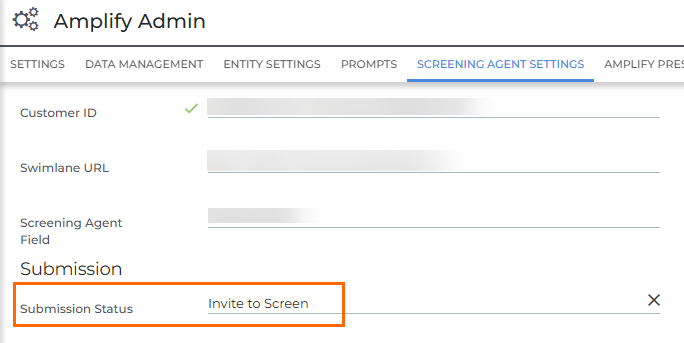
You can use an existing status or create a new one for this purpose. To add a new status, go to Menu > Admin > System Settings and update the jobResponseStatusList value list.
This status pre-populates the Job Submission workflow when a recruiter manually adds a candidate to a screen.
Step 2: Create a Supporting Automation
If you don’t already have a submission-based ‘Invite to Screen’ automation, set one up using the BH Screening Agent – Invite to Screen blueprint, and make sure the enrollment list criteria includes the submission status you configured in Step 1.
For a full walkthrough on creating the automation from scratch, see Adding the Screener Engagement to an Automation.
Consider maintaining separate screening automations for manually triggered and web applicant screenings. Candidates added manually, such as those matched from the ATS, haven't yet expressed interest in a role, so the invitation messaging may need to be more engaging to encourage them to proceed.
How It Works for Recruiters
Once configured, recruiters can manually add a candidate to a screen in two ways:
-
Via Amplify Assistant: Select Add Candidate to Screen from the Amplify Assistant. This opens the Job Submission workflow, pre-populated with the submission status configured in Screening Agent Settings.
-
Via the candidate list: Select one or more candidates using the checkboxes, click the Selected button, then choose Add Screening Agent. This also opens the Job Submission workflow with the required submission status pre-populated.
In both cases, when the submission is saved, the candidate meets the automation enrolment criteria and receives their screening invitation.