| Edition: Enterprise | Audience: All Users |
Master Metrics
Master Metrics are generally managed by the Bullhorn Analytics Support team. The Master Metrics tab is hidden by default and is only accessible to users with the LOGIN_TO_APPROVE_METRICS permission in the Bullhorn admin console. Contact Bullhorn Analytics Support if you think you require access.
Master Metrics allow you to designate which specific metric is the "Source of Truth" for your business. All recruitment companies have key performance indicators that are consistent regardless of industry or sector. As you develop with Bullhorn Analytics, it is likely you will have multiple metrics pulling from the same data (e.g., Live Jobs or Total Placements).
By identifying your Master Metrics, you ensure that new functionality can be rolled out to your account seamlessly without requiring manual amendments after deployment. Furthermore, these designations allow Bullhorn Analytics Support to understand your system logic without needing to engage with you directly or investigate your system from scratch.
Managing Master Metrics requires Metrics Admin permission which is only available to Enterprise Edition users. This is set in Users Admin by your Bullhorn Analytics administrator. For detailed instructions, see Setting App and Admin Permissions.
Setting Master Metrics
- Go to Menu > Admin > Metrics
- Select the Master Metrics subtab.
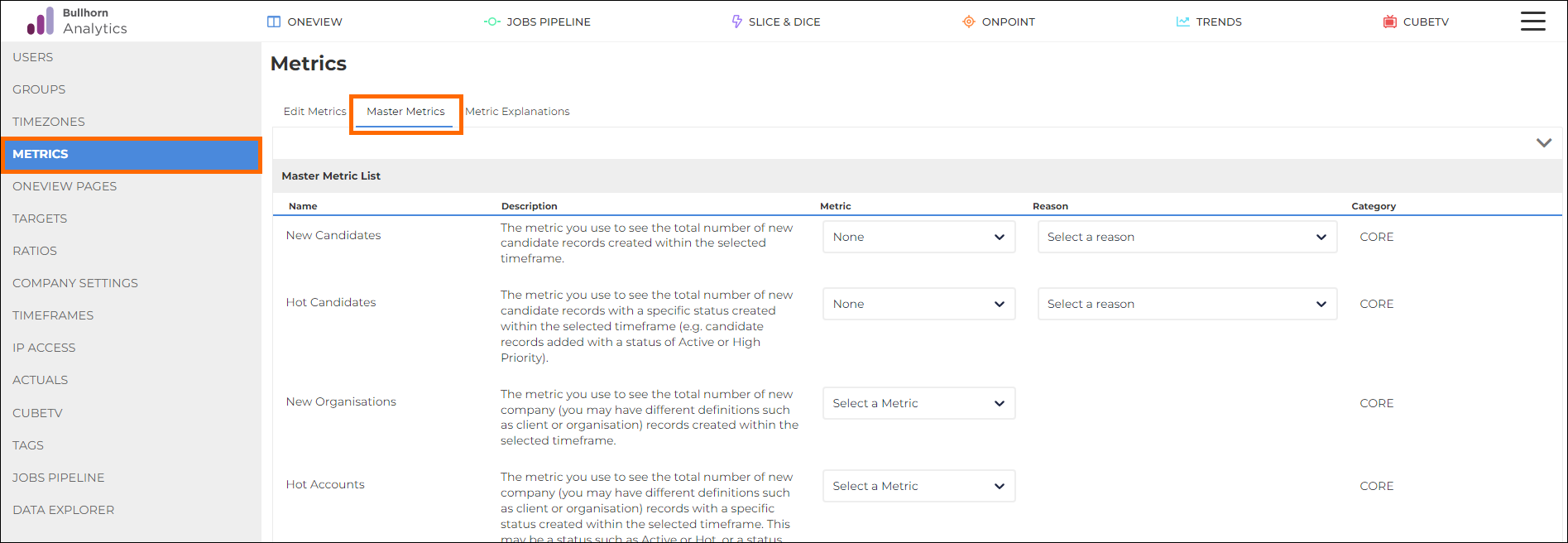
- Use the Wizard: If you have not set these before a Wizard will guide you through the process. (Click the X in the top right to switch to the list view if preferred).
-
Handle Missing Metrics: If you do not have a metric relevant to a Master Metric category, set it to None and select a reason from the dropdown:
- We don’t track this and don’t want to
- We don’t track this but would like to
- It’s complicated (it depends on team/situation/etc)
- The metric I use isn’t in the list
- I need help - please contact me
Note: Changes auto-save as you progress, allowing you to complete the setup over multiple sessions.
Updating Master Metrics
Once set, you can update Master Metrics at any point. While updating them does not affect existing saved reports, it will update any of your default Actionable Insights that reference that metric. For example: If you update the "Total Calls" Master Metric, the "New Contacts With No Call" insight will automatically update to use your new "Total Calls" logic.