| Edition: Growth, Corporate, Enterprise | Audience: Metrics Admin |
Metric Ordering
By customizing your display sequence, you can align your reporting views with your company’s specific workflow, ensuring that your most critical KPIs are always front and center. This article explains how Metrics Admin users can change the display order of Priority Metrics and Slice and Dice Metrics within the platform.
Reordering metrics allows you to control:
-
The sequence of Priority Metric Dials on the OneView page.
-
The order of metrics in Slice & Dice reports.
-
Note: Slice & Dice reports are only available to Analytics Enterprise Edition users.
-
-
Managing Metric Ordering requires Metrics Admin permission. This is set in Users Admin by your Bullhorn Analytics administrator. For detailed instructions, see Setting App and Admin Permissions.
-
Metrics Admin permission is available only for users of Growth, Corporate, and Enterprise editions of Bullhorn Analytics. It is not included in the Starter edition. To verify your edition, please contact your Bullhorn Account Manager.
Common Reasons for Reordering Metrics
You may want to reorder metrics to:
-
Make your most important Key Performance Indicators (for example, Placements) the first one users see in OneView.
-
Arrange metrics to match your company’s standard workflow (for example, Submissions > Interviews > Placements).
-
Move newly added custom metrics into a logical position.
-
Organize metrics in a specific order for Slice & Dice reports.
How to Reorder Priority Metrics and Slice & Dice Metrics
Follow these steps to set a company-wide display order for your metrics. This ensures all users see metrics in a consistent, logical sequence.
The order you set here is a global setting that applies to your entire company. If you need a different order for specific users or departments, contact Bullhorn Support to discuss options.
-
Go to Admin > Metrics from the Bullhorn Analytics menu.
- Click the Metric Ordering tab.
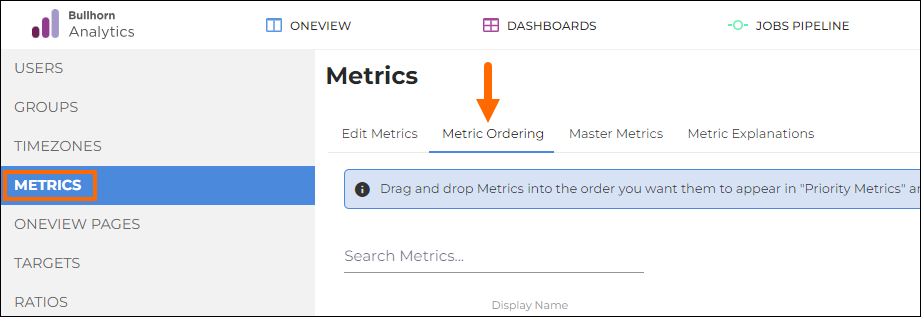
- The metrics on this tab appear in the standard recruitment workflow order. Any new metrics added during setup appear at the top of the list.
-
Locate the metric you want to move.
- Click and hold the drag icon
 to move the metric up or down the list and release once in place.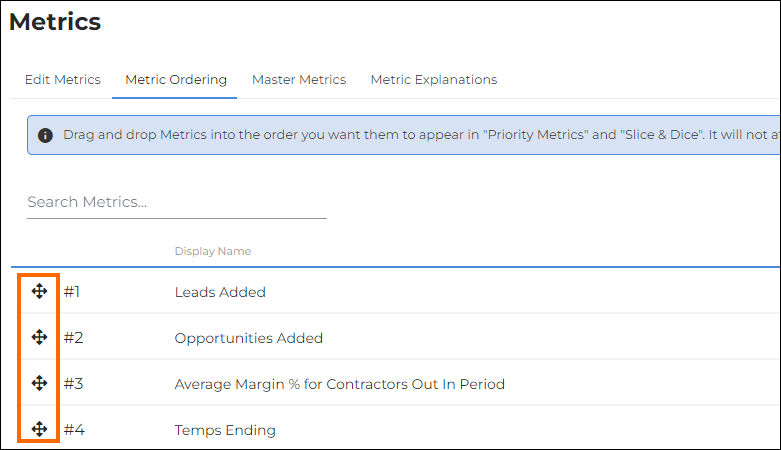
- Metrics higher in the list appear further left in OneView. The further down on the list, the further right it will appear.
- Click Save to confirm the new order.
- To discard your changes and revert to the previous order, click Cancel.
-
Perform a hard refresh in your browser to apply changes in OneView and Slice & Dice.
-
Windows: Ctrl + F5
-
Mac: Cmd + Shift + R
-
FAQ
Does reordering metrics here change the order for all users?
Yes. The order you set on the Metric Ordering page applies globally to every user in your company.
Where do new metrics appear in the list?
New metrics are added to the top of the ordering list by default. You can then drag them to your desired position.
Why are my metric ordering changes not showing?
Metric ordering changes only affect Priority Metrics in OneView and Slice & Dice reports. If changes don’t appear, your browser may be caching old data. Perform a hard refresh to load the new order.
Why can't I see the Metric Ordering tab?
Access to this tab is controlled by user permission. Please ask your administrator for Metrics Admin access if required.