Promote Forms Between Environments in Talent Platform
Customer Administrators can promote onboarding forms directly from one environment to another, and across customers within your organization, without manually recreating them. The Promote Form Any document that needs to be completed and signed by a Candidate feature in Form Manager The tool for building digital Forms replaces the existing version of the form in the destination environment and updates all associated packages, locations, and open signature requests automatically.
Before you can use this feature, a one-time configuration must be completed on your account. If you do not see any customers available after selecting an environment, contact Bullhorn Support to request enablement.
Common Reasons You Might Promote a Form
-
You built and tested a form in your Staging environment and are ready to move it to Production.
-
Your organization has multiple customer accounts and you need to deploy a consistent form across all of them.
-
A form was updated in one environment and those changes need to be applied in another to prevent configuration drift.
-
You want to avoid the time and risk of manually recreating a form in a second environment.
-
A form in Production is out of sync with the version that was finalized in Staging.
Before You Begin
The Promote Form feature requires a one-time account configuration before it is available to Customer Administrators. This configuration controls which destination environments and customers appear in your promotion dialog. Contact Bullhorn Support if this feature has not been set up for your account.
The form you want to promote must have a Validated status before it can be promoted. Forms that are not validated cannot be promoted.
The form names must match exactly in both environments or it will create a duplicate.
If you are updating the 2026 Emergency Contact Form to 2027 Emergency Contact Form transfer the form with the old name and update the name in destination environment after the transfer.
Promote a Form
The Promote Form button appears on the form detail screen inside Form Manager. Follow these steps each time you want to promote a form.
Step 1: Open the Form in Form Manager
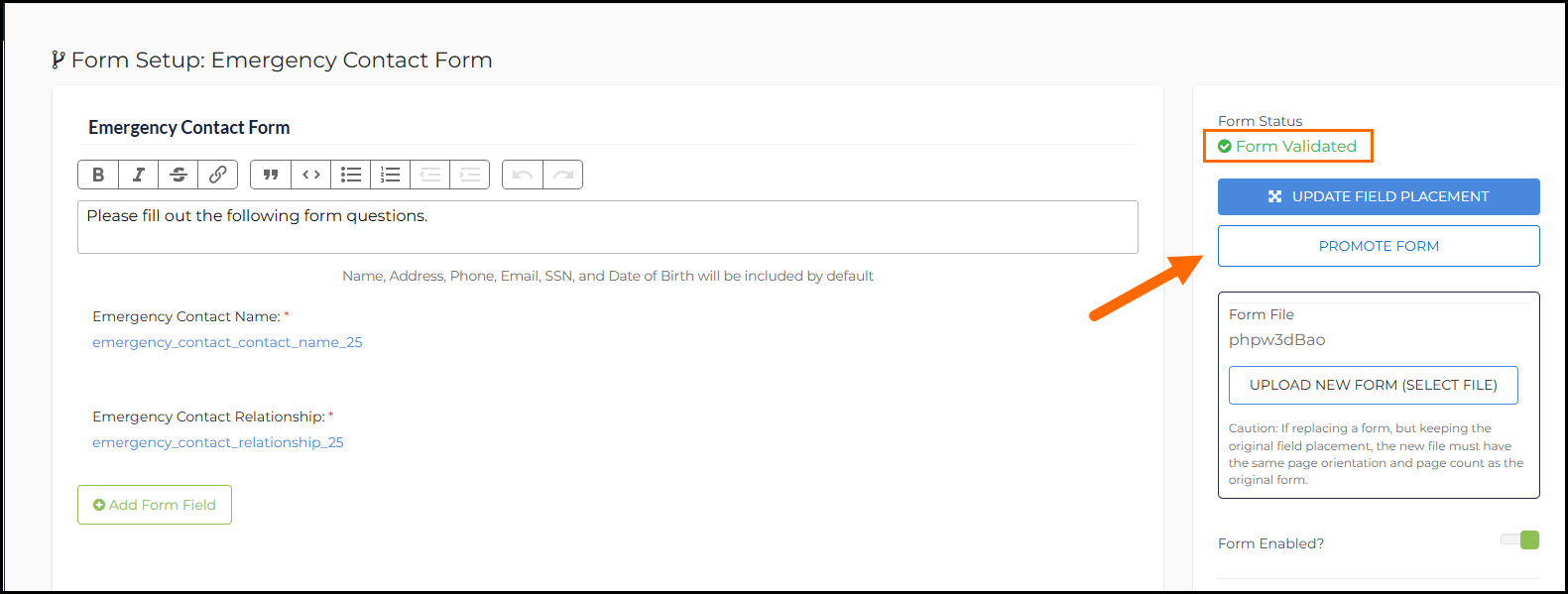
The Promote Form button is available on any validated Custom form in Talent Platform's Form Manager. It is not available for Federal, State, and Blueprint A set of global document maintained by Bullhorn that client’s can enable as needed. This would include I9, Federal W-4 and State Withholding forms. forms. Access the form detail screen to find it.
-
In Talent Platform, navigate to Configuration > Forms.
-
Locate the form you want to promote and open it.
-
Confirm the Form Status shows Form Validated before continuing. The Promote Form button appears on the right side of the form detail screen, below the Update Field Placement
The relationship between a hiring organization, Job opportunity, and a Candidate; describes an employee’s potential or current job within an organization button. -
Select Promote Form to open the promotion dialog.
Step 2: Select the Target Environment
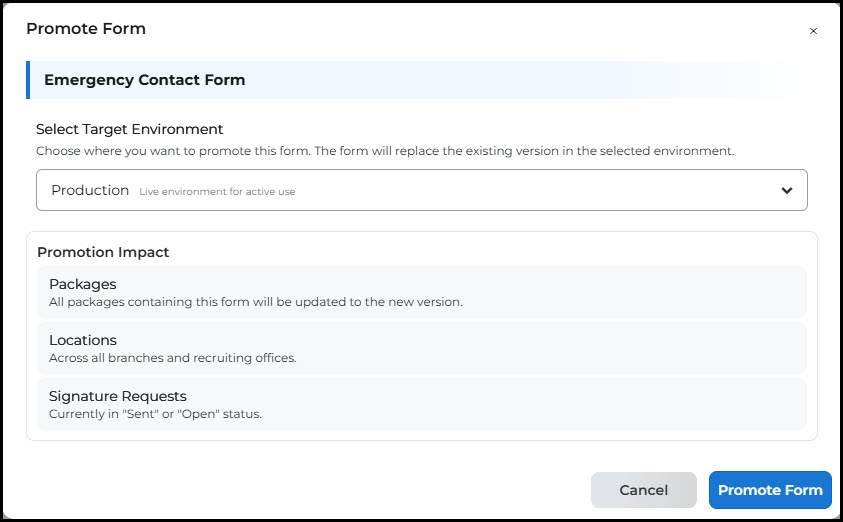
The Select Target Environment drop-down in the Promote Form dialog controls which environment receives the form. The form will replace the existing version in the environment you choose.
-
In the Promote Form dialog, use the Select Target Environment drop-down to choose the environment where you want to send the form.
-
The form will replace the existing version of that form in the environment you select.
If you do not see any environments available, additional configuration is required. Contact Bullhorn Support for assistance.
Step 3: Select the Target Customer
The Select Target Customer dropdown in the Promote Form dialog shows only the customer accounts pre-approved for your account in the selected environment. The dropdown becomes active after an environment is chosen in Step 2.
-
After you select an environment, the Select Target Customer drop-down becomes active.
-
Select the customer account that should receive the form. The drop-down shows only the customers that were pre-approved for your account and the environment you selected.
-
Use the Customer ID displayed next to each name to confirm you are selecting the correct destination, for example: Example Name (Customer ID: 123).
The account you are logged in with will not show on this list.
Step 4: Review Promotion Impact
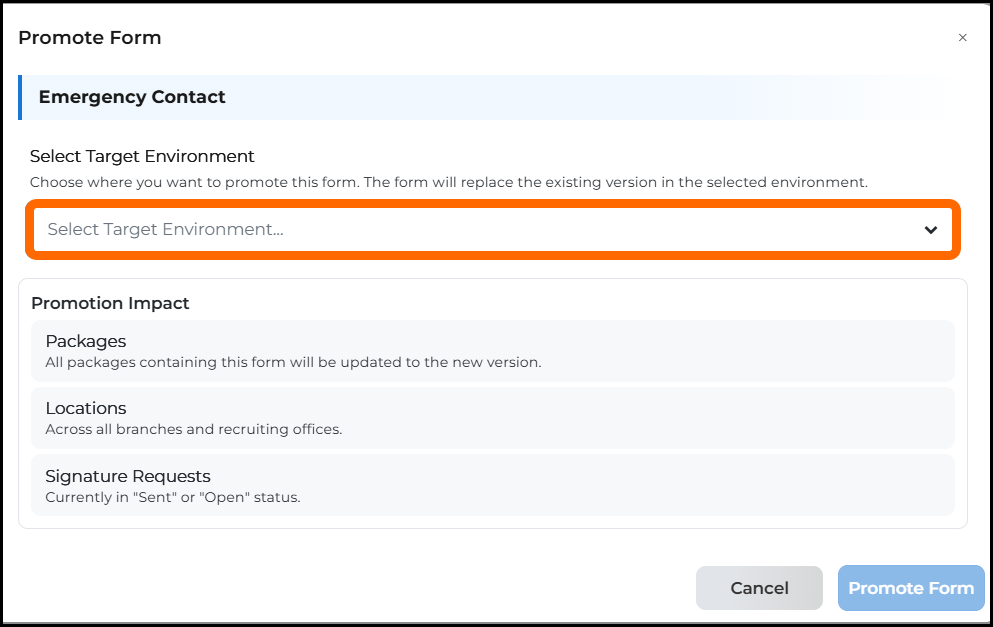
The Promote Form dialog displays a Promotion Impact section that summarizes what will change in the destination environment when the promotion completes. Review this section carefully before confirming, especially when promoting to a Production environment.
-
Before confirming, review the Promotion Impact section in the dialog. This section describes what will change in the destination environment when the promotion completes.
-
Confirm you understand the impact to each of the following areas in the destination environment:
-
Packages: All packages that contain this form will be updated to the new version.
-
Locations: The promoted form applies across all branches and recruiting offices.
-
Signature Requests: Any signature requests currently in Sent or Open status will be updated.
-
-
Review these impacts carefully before proceeding, especially if the destination environment is Production.
Step 5: Confirm the Promotion
The final step in the Promote Form flow is confirming the promotion. Talent Platform validates the configuration on both the source and destination sides before completing the transfer.
-
Select Promote Form to complete the transfer.
-
Talent Platform validates the configuration on both sides before finishing.
-
If the promotion succeeds, the form is now live in the destination environment.
Troubleshooting
The Customer Drop-down is Grayed Out
The Customer drop-down is disabled until an environment is selected. Select an environment first, and the Customer drop-down will become active.
The Customer Drop-down is Empty
Your account has not been configured to promote forms to any customers in that environment. Contact Bullhorn Support and provide the source customer, destination environment, and destination customer you need access to.
A Specific Customer is Missing from the List
That destination has not been added to your account's configuration. Contact Bullhorn Support and provide the Customer ID of the destination customer you need.
My Own Customer Does Not Appear in the List
This is expected behavior. Talent Platform does not allow you to promote a form to the customer you are currently logged in as.
The Promotion Failed at Confirmation
A failed promotion typically means the account configuration has not been completed on both the source and destination sides. Contact Bullhorn Support and provide the source customer name and ID, destination customer name and ID, and the environment you were using.
FAQs
What happens to the existing version of the form in the destination environment?
The promoted form replaces the existing version. Any packages in the destination environment that contained the previous version will be updated to the new version automatically.
Can I promote a form if it is not validated?
No. The form must have a Validated status before you can promote it. Validate the form in Form Manager, then return to the promotion flow.
Can I promote to multiple customers at the same time?
No. Each promotion targets one environment and one customer. To promote to multiple customers, repeat the promotion flow for each destination.
Why do I only see certain customers in the drop-down?
The Customer drop-down shows only the destinations that have been approved for your account. If a customer you need is missing, contact Bullhorn Support to request that it be added.
Does promoting a form affect candidates who already completed it?
Promoting a form updates the form version in the destination environment and affects open signature requests. Completed and signed forms are not affected. If you have questions about a specific form's impact, contact Bullhorn Support before promoting.
Can I undo a form promotion?
Form promotion is not reversible from the Customer Administrator view. If you promoted a form in error, contact Bullhorn Support.
What does Customer ID mean in the Customer dropdown?
Customer ID is the unique identifier for each customer account in Talent Platform. It appears next to the customer name in the dropdown to help you confirm you are selecting the correct destination, especially when multiple accounts have similar names.