Saving Amplify Chat Prompts
If you've had a useful conversation with Amplify Chat, you can save it as a prompt and reuse it whenever you need to replicate the same outcome. Saved prompts are ideal for research or analysis tasks you perform on a recurring basis, such as generating a weekly activity report, and can be shared with colleagues or specific departments in your organization.
This article covers prompts saved by individual users in Amplify Chat. For admin-configured prompts, see Amplify Prompt Studio.
Save a Prompt
After a conversation with Amplify Chat, follow these steps to save it as a prompt:
-
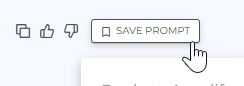
Click Save Prompt.
-
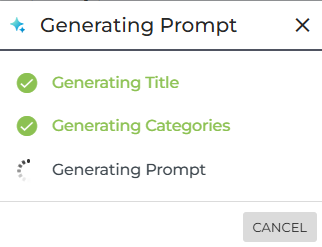
A Generating Prompt message will appear.
-
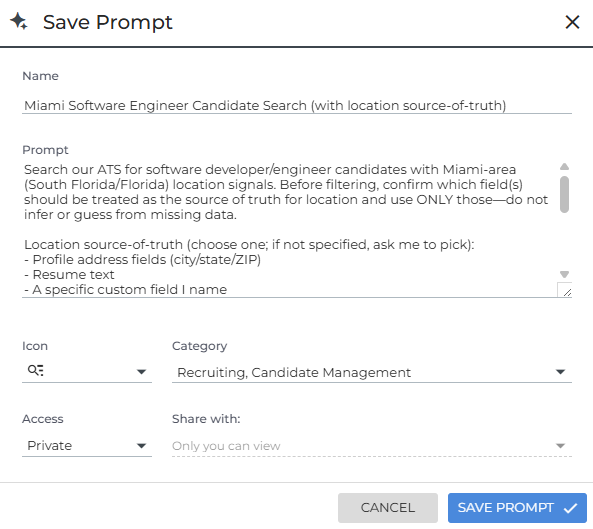
When the prompt is ready, the Save Prompt window will open. The Name, Prompt, Icon, and Category fields are auto-filled, but you can edit these if required.
-
Set your preferred Access level. Select Public to share the prompt, or Private to keep it for your own use.
-
If sharing, select the specific users or departments to share it with.
-
-
Click Save Prompt.
The prompt will be saved to the Prompt Library.
View Saved Prompts
You'll find your saved prompts in the Prompt Library. To access them:
-
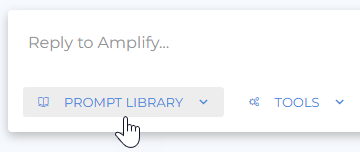
Open Amplify Chat and click Prompt Library.
-
Select the My Prompts tab.
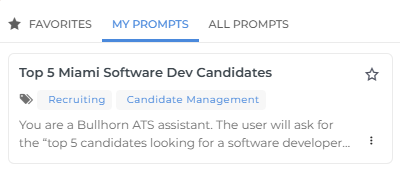
Here you’ll see all the prompts you’ve saved, as well as any prompts other users have shared with you. Prompts you shared with other users are visible in their My Prompts tab as well.
Manage Saved Prompts
You can edit, duplicate, delete, or favorite any prompt in the My Prompts tab of the Prompt Library.
To manage a prompt, click the menu icon in the bottom-right corner of the prompt tile.
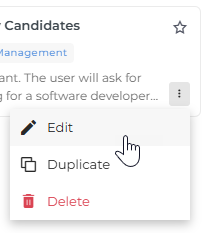
You can select from the following options:
-
Edit: Update the prompt text, name, category, or sharing settings.
Editing a shared prompt updates it for all users it's shared with. If others are actively using the prompt, consider duplicating it and editing the copy instead.
-
Duplicate: Create a copy of the prompt. Use this option to build a new version of a prompt without modifying the original.
To add a prompt to your favorites, click the star icon ( ) on the prompt tile. Favorite prompts are accessible from the Favorites tab in the Prompt Library for quick access.