| Edition: All Editions | Audience: Group Admin |
Adding Groups
This article explains how to add a new group or sub-group. Each group and sub-group has its own profile where group-level permissions can be set.
Add a New Group
-
Go to Admin > Groups.
- Click the Group Management tab.
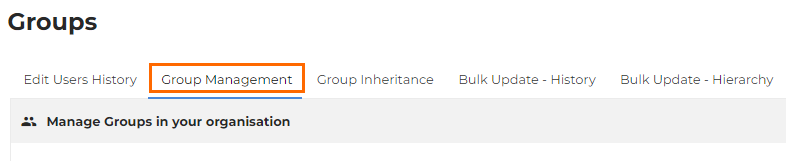
- Select the group you wish to add a sub-group for and click on it.
- At the bottom of the Edit page select Add Sub-group. This adds a new sub-group under the main group.
- Rename the group and configure the profile as detailed below.
All changes will automatically save.
Group Configuration
- Currency: Each group can have its own currency which users in that group will see on all financial metrics.
- Week Starts On: This enables the working week to start on a different day of the week, meaning all weekly targets will start from the day specified.
- Date Format: Choose the UK or US Date Format for the group all users in the group will inherit this format unless specified differently at the user level.
- Deal Music: Deal Music can be set at a group level rather than an individual level.
- OneView Page: Use this option to set the default OneView page for all users in the selected group.
- Add A Sub-Group: Adding a sub-group adds another level to the selected group. There is no limit to the number of sub-groups that can be added. Each of these additional groups can have its own set of permissions or simply inherit them from its parent. Please ensure that you enter a name for the new group.
Was this helpful?