| Edition:Growth, Corporate, Enterprise | Audience: Group Admin |
Set a OneView Page for a Group
OneView pages control what appears under the priority metrics and can be set for both individual users and groups. This article walks you through the steps to set a OneView page for a group.
Setting a OneView page at the group level will automatically apply to all users in that group who don’t have a manually set OneView page.
For help setting a OneView page at the user level, see Set a OneView Page for a User
Steps
- Go to Admin > Groups > Group Management.
- Click the group you want to set a OneView page for.
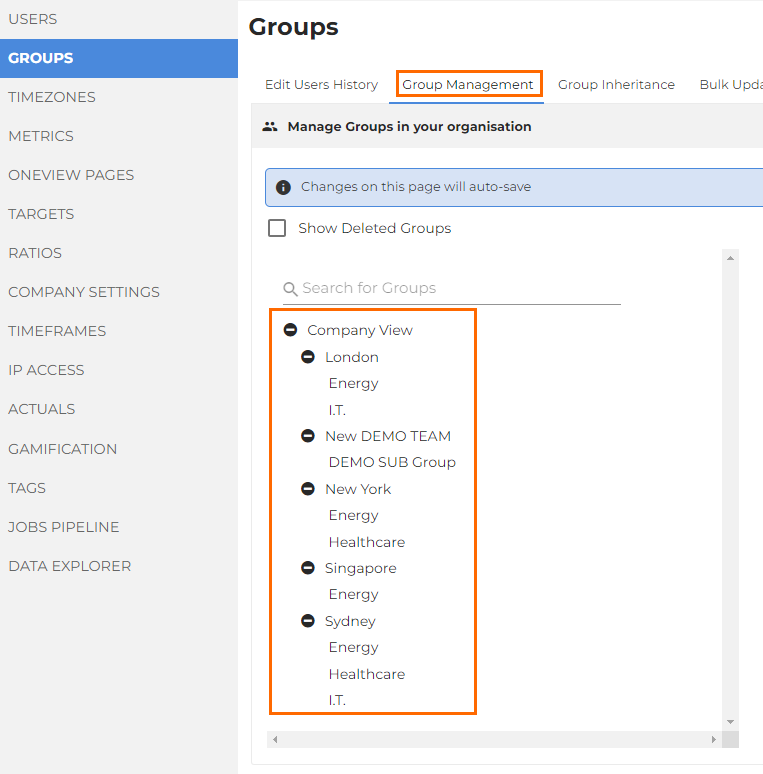
- Set the page in the OneView Page dropdown on the right side of the screen.
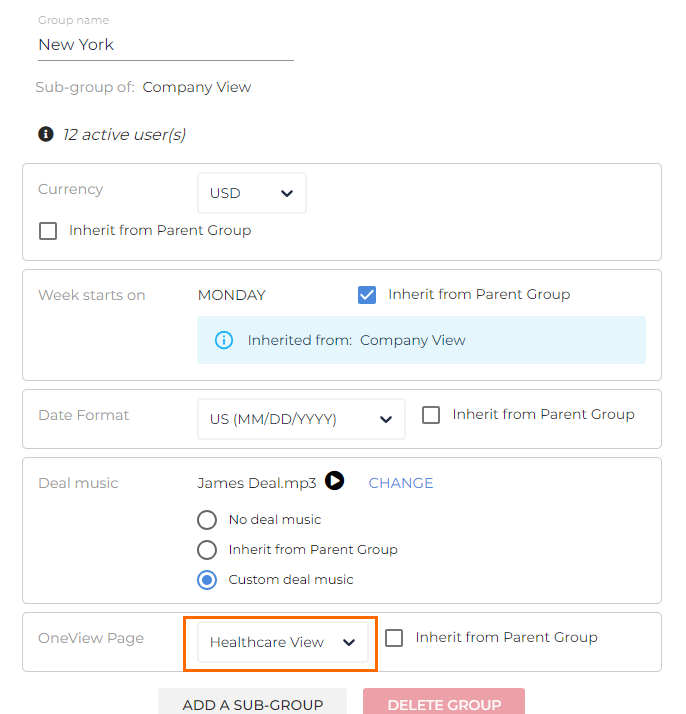
- If Inherit from Parent Group is selected, you will need to deselect the checkbox for the dropdown to appear.
All changes will automatically save.
You can check for individuals who have custom OneView pages through the Group Inheritance tab.
Was this helpful?