| Edition: All Editions | Audience: Group Admin |
Adding Users to Groups
This article explains how to add users to groups and update group membership in Bullhorn Analytics. Groups are used to separate users into their respective departments, teams, geographical regions or anything that you want to group your users by.
For new users, the group assignment will default to the root parent group, and the Start Date will show as the date they were activated as a Full User or Observer. For help on activating users, see Activating Users
Assign a User to a Group
Follow these steps to assign a user to a group.
You can add multiple assignments to track the user’s movements throughout the organisation. When a user moves to a new group, all historic activity will be retained in the group that the user was in at the time, ensuring that historical data remains accurate regardless of the user’s current group membership.
- Go to Admin > Groups.
- Select a user from the drop-down menu.
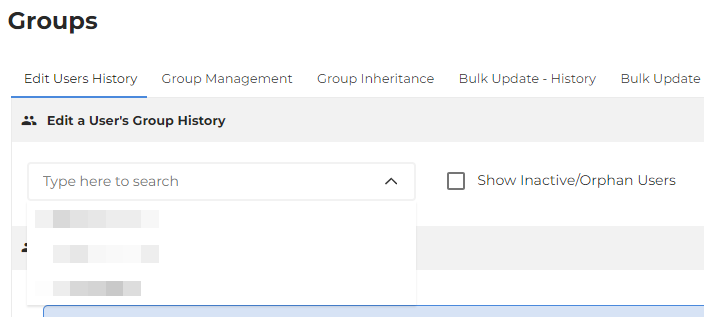
- Tick Show Inactive/Orphan Users to include these in the results.
- Click +ADD on the latest Group History.

- On the new line, use the Group dropdown to select the group the user should be added to.
- Use the Start Date and End Date selectors to indicate when users' activity within the groups begins and ends.
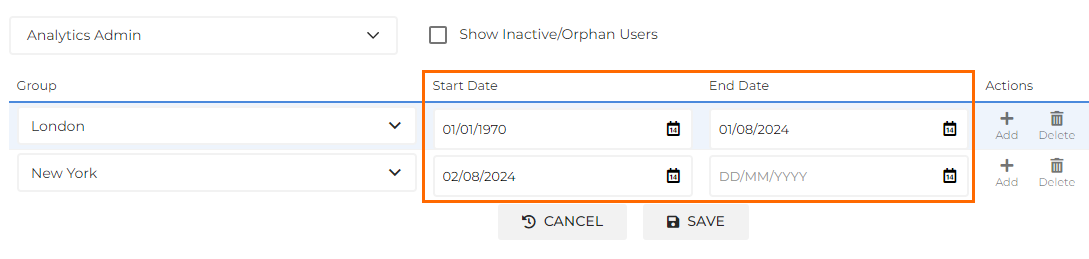
- The Start Date controls which time period that user’s data will begin being recorded for that group. For example, if a user moves to a new group, their activity in the old group will end on the End Date set, and their new group will record all activity from the Start Date of the new assignment.
- Click Save.
Users can only be in one group at a time and there can be no gaps in time and no overlaps in dates when saving. The start date of the new assignment must be the day after the end date of the previous assignment. If there are issues, an error message will appear indicating what the problem is.
Deleting a User's Group History
User history can be deleted, but all users must have at least one line of history in order for Bullhorn Analytics to store their data. To delete a group assignment, click the Delete icon.