| Edition: All Editions | Audience: Group Admin |
Bulk Update Group History
This article explains how to use the use the Bulk Update - History tab in Groups Admin. Bulk Update is used to make multiple changes to a user’s group history or move multiple users to different teams by uploading a CSV formatted spreadsheet file with all the user’s group history changes.
How to Bulk Update Group History
-
Go to Admin > Groups.
- Click the Bulk Update - History tab.
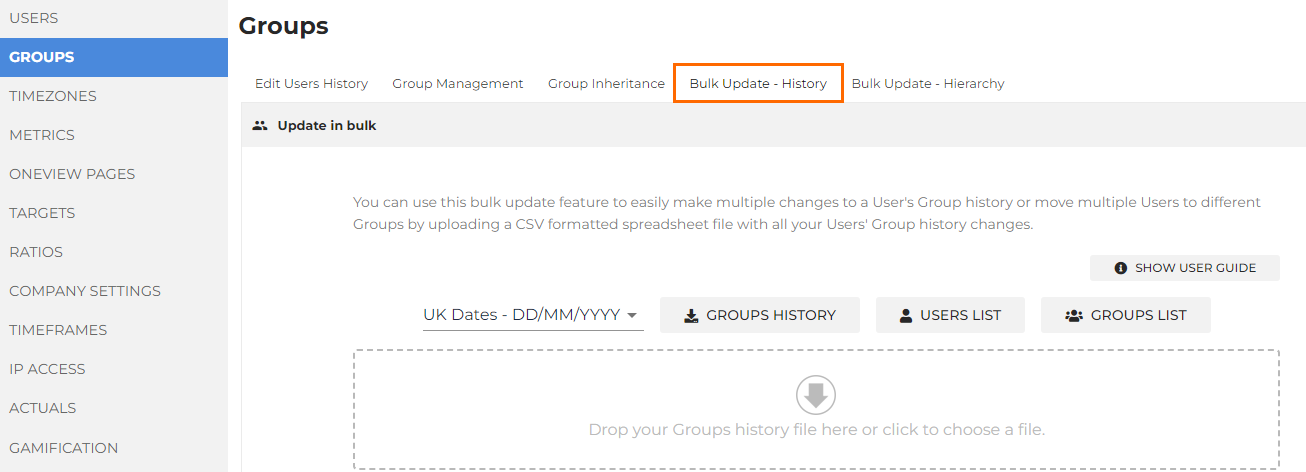
- Click the GROUPS HISTORY button to download a CSV file containing your company's group history.
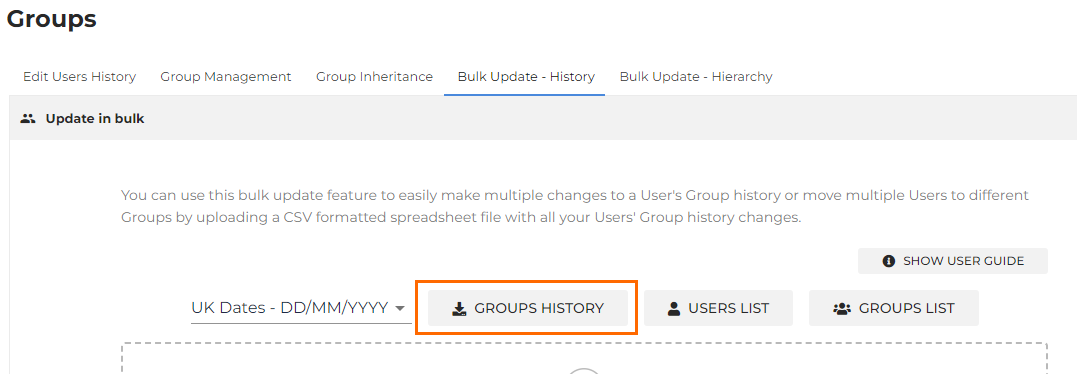
- Open the CSV file.
- Find a user that needs to change teams and add a new row underneath, entering their User ID and name in the format required (see Accepted Data Format).
- Set the dates that they were in that team, so the data stays and does not move with them.
- Ensure there are no gaps or overlapping dates in the user's start/end dates between groups.
- Repeat the process for every user who needs to be moved to a different group, starting a new row underneath that user's existing Group history.
- Do not delete any rows from the spreadsheet, as users that don't have a group history will be assigned to the very top level group.
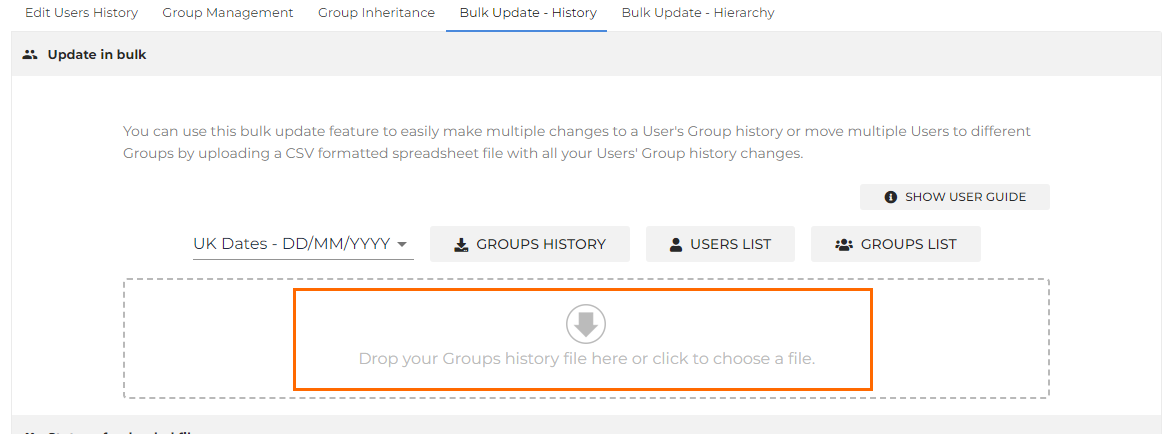
- Once you've finished modifying the CSV file, drag the file onto the indicated area, or click to browse and select the file.
- Click Upload.
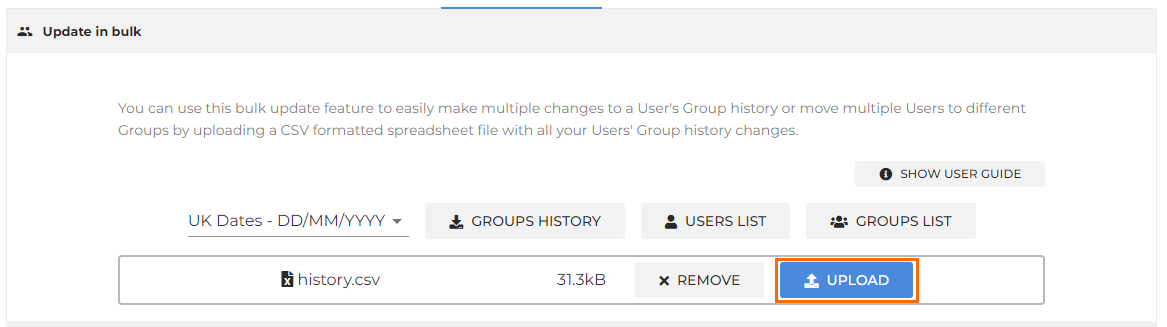
If no errors are found, your company's User Groups History will be updated accordingly.
If a given User/Group ID does not match the proceeding Username/Group Hierarchy Trail, this will be reported as an error. Once uploaded, any errors found by the system will be listed in a report with the line numbers of each error found in the file, so you can correct them and reattempt the upload.
It will take a little while for the system to run through and update all the data in line with your new group structure. This is because the system has to go line by line across the database to update this. The time it takes will depend upon how much data is in your system to update. You can see the progress in the Status of Updates to Group History section at the bottom of the tab.
Accepted Data Format
The accepted data format for each column is in the table below.
Reference files are available if you are unsure of the correct User and Group IDs to use in the CSV file. To download the reference files, click the USERS LIST or GROUPS LIST buttons on the Bulk Update Group History tab.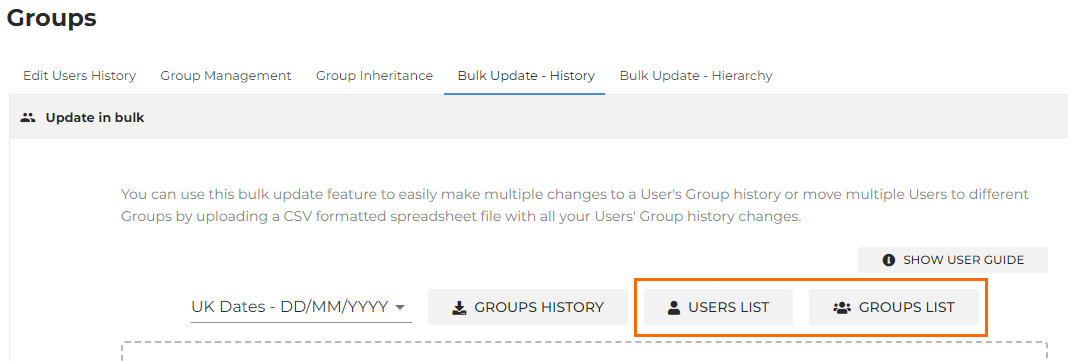
| Column | User | Group | Start Date | End Date (optional) |
|---|---|---|---|---|
| Accepted Format | [User ID].[User Fullname] | [Group ID].[Group Hierarchy Trail] | DD/MM/YYYY | DD/MM/YYYY |
| Example |
123.Jane Doe Reference file: Users List |
9.Analytics-London-Client Services Reference file: Groups List |
25/05/2024 | 25/05/2024 |