| Edition: Enterprise | Audience: Metrics Admin |
Edit Metrics: Config Tab
This article explains how to use the Config tab on the Edit slideout when creating or editing metrics. The Config tab allows you to review and define the following parameters for a metric:
- Setup: Core Metric logic
- Aggregation: How data is counted
- Filter: Which data is included
Only Bullhorn Analytics Enterprise Edition users with Metrics Admin permission can create or edit metrics directly. Starter, Growth, and Corporate users cannot create or edit metrics and should contact Bullhorn Analytics Support with any Metric filter queries.
Accessing the Config Tab
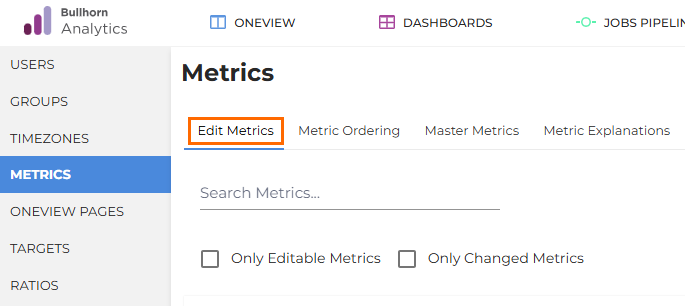
- Go to Admin > Metrics and select Edit Metrics.
- Click on the metric you want to edit, then select the Config tab from the Edit slideout.
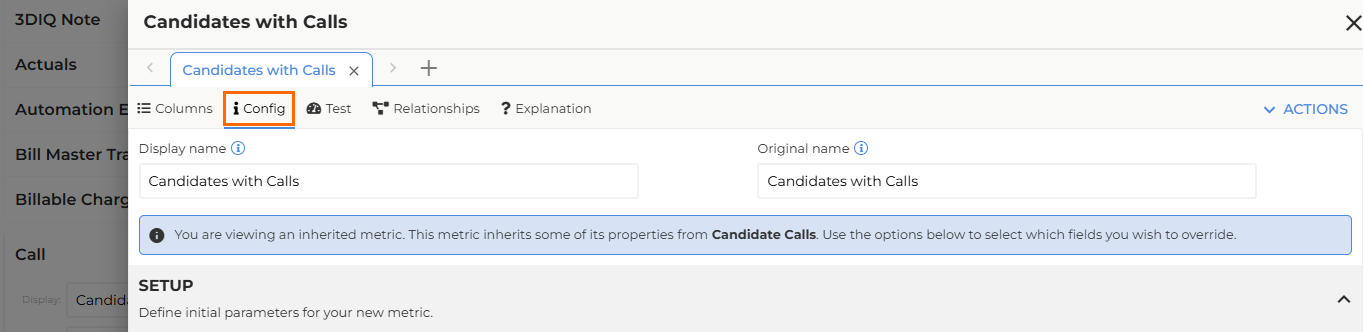
To save changes to your metrics, click SAVE ALL METRICS at the bottom of the slideout, or the SAVE button at the top of the Edit Metrics tab. Click DISCARD CHANGES or CANCEL to reset unsaved changes.
Before saving a new or edited metric, use the Test tab to confirm the results are correct. See Creating and Editing Metrics (Enterprise Metrics Admin).
Setup
In the Setup section you can define the initial parameters for a metric, such as the date and ownership fields used.
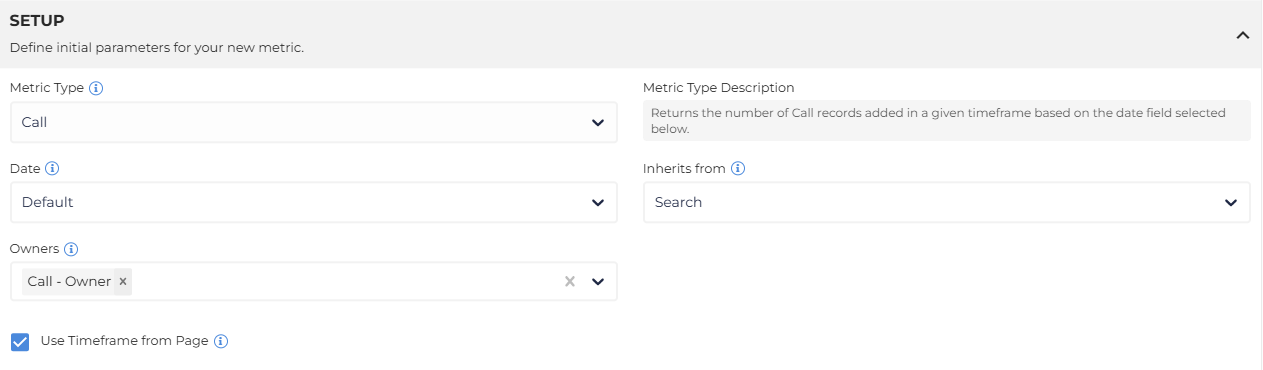
- Metric Type: When editing the metric type, you only have options for the entity you've selected. For example, on a Job metric you can switch between the Job and Job - Live metric types, but you can't select a Candidate metric type.
- Date: Choose which date field your metric should use to determine whether data should be included in your selected timeframe.
- Inherits from: Select an existing metric for your metric to inherit settings from. The child metric will inherit the settings and filters from the parent metric.
Any changes made to linked fields on the parent metric will impact the child metric.
- Owners: Choose which ownership fields your metric should use to determine who is credited with the activity.
- Use Timeframe from Page: If this option is checked, the metric will reflect data from the selected timeframe on the page where it is viewed. By unchecking this option, you can set an override, which means this metric will always run over the same timeframe, regardless of where it is viewed.
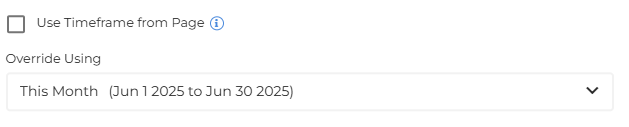
You may set an override timeframe for a metric that is used to track sales during an incentive period.
Aggregation
In the Aggregation section you can choose how records are combined together to calculate your metric result.

Type
You can select from the following Aggregation Types:
- Count: Displays the count of records returned.
- Count Unique: Displays the count of records returned based on a selected unique field.
Viewing a Jobs metric by unique Client ID returns the number of distinct Clients you have jobs with.
- Sum: Adds the values selected in the Value field together for returned records.
- Sum (With Doubled Splits Sales): This type will only be available if you have selected a Placement Metric Type and have another metric that currently uses this option.
- If this option is not available and you need to explore its use case, please reach out to Bullhorn Support.
- Sum (With Doubled Splits Placements): This type will only be available if you have selected a Placement Metric Type and have another metric that currently uses this option.
- If this option is not available and you need to explore its use case, please reach out to Bullhorn Support.
- Sum Per Unique ID: Adds the values selected in the Value field together for returned records, taking into account a selected Unique field.
- Min: Returns the minimum value on a selected Value field for returned records.
- Max: Returns the maximum value on a selected Value field for returned records.
- Average: Returns the average based on a selected Value field and the count of records.
- Average Single Value Per Unique ID: Returns the average based on a selected Value field using only one value per ID based on the selected Unique field.
- Average Values By Unique ID Count: Returns the average based on a selected value field using the count of IDs based on the selected Unique field as the denominator instead of the count of records.
- Average By Summed Column: Returns the average based on a selected value field using the Divide by Sum of column as the denominator instead of the count of records.
Summing the Job Value for a Jobs metric by unique Client ID returns the total Job Value of jobs for those distinct Clients.
Value, Divide by Sum Of, and Unique
The Value, Divide by Sum Of, and Unique fields will display dynamically based on the Type selection.

- Value: Choose the column representing the numerical value of a single record. For example, Job Openings for a Job metric.
- Divide By Sum Of: Choose the column you want to use instead of the count of records to produce an average.
- Unique: Choose the column representing a unique value to be used when aggregating.
Metrics being combined in a Simple Sum metric must share the same data type: currency, decimal, or integer. Check the Type field here for each metric before combining.
Trend
This is a read-only field that controls the aggregation of the selected metric for trend lines. This can only be changed by Bullhorn Support.
Filter
Some metrics are system-locked as indicated by an lock icon ( ) and cannot have their filters edited here. If you need to adjust the logic for a locked metric, please contact Bullhorn Support.
In the Filter section you can create a set of filters to narrow down the results of this metric.

Conditions can be combined with "AND" or "OR" statements and may include up to three nested groups.
- When adding conditions, all filters will share the same selection of AND/OR.
- Adding groups allows you to create a sub-group that can be combined by a different AND/OR selection than the other filters.
If expected fields from the ATS are not available in the fields for filters, they may need to be mapped from the ATS to Analytics. Reach out to Bullhorn Support to request this new mapping.
Using Inherited Metric Settings
Inherited metrics have inherited fields locked by default. You can override these by clicking on the Using inherited metric settings button.
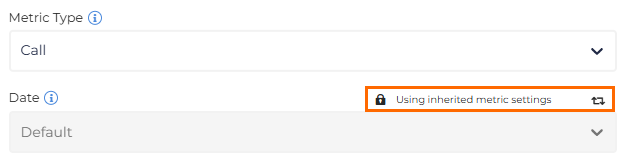
Inherited metrics will always inherit any filters that exist on the parent metric. These will display as read-only in the Filters section. Any additional filters added in the Metric Specific Filters section will be applied to the child metric with an “AND” statement.