Enabling LinkedIn Apply Connect: Customer Steps
This article covers the customer-side steps to enable LinkedIn Apply Connect in Bullhorn ATS. For troubleshooting help during enablement, see LinkedIn Integration Troubleshooting.
Prerequisites
You need the following to move forward with enablement:
-
A LinkedIn Agency Account with available job slots
-
Minimally one active LinkedIn company site (e.g.: Bullhorn's LinkedIn Home Page)
A LinkedIn configured job wrapping rule is no longer required. However, if you would like more details on it, navigate to Job Wrapping through LinkedIn Recruiter.
Enabling LinkedIn Apply Connect
If you are also enabling LinkedIn Recruiter System Connect (RSC), the two enablements can proceed at the same time. You do not need to complete RSC enablement before starting LinkedIn Apply Connect.
If your organization currently uses an XML-based job feed that scrapes jobs from your career portal to LinkedIn, switching to Apply Connect may cause duplicate job listings on LinkedIn. LinkedIn already has your jobs from the XML feed, and Apply Connect will attempt to post them again. Contact LinkedIn Support before switching from an XML feed to Apply Connect.
-
At the top left of your screen, select Menu > Admin > BH Connect.
-
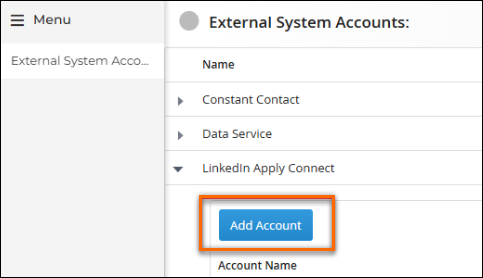
Expand the LinkedIn ApplyConnect section and select Add Account.
-
Under Edit LinkedIn ApplyConnect, update the following fields:
-
Default Company Page URL: The primary LinkedIn company page where jobs are posted (e.g., https://www.linkedin.com/company/bullhorn/).
-
Company Page URL override field mapping (i.e. customText4): This field should exist on the Job entity. If it's on the Company record, then you would enter it as ClientCorporation.customText4.
-
Default Employment Type: Set this field to the primary employment type of your jobs that will sync with LinkedIn. LinkedIn’s employment type is mapped to Bullhorn’s job employment type which may not be a 1:1. By default, the system will soft map Bullhorn’s values to LinkedIn’s mapping.
-
Method to sync Bullhorn jobs to LinkedIn: Set this field to Automatic Sync if you would like eligible jobs to automatically sync to LinkedIn. Set this field to Manual Publish if you would like to publish (sync) jobs individually to LinkedIn.
-
Enable LinkedIn integration for public jobs: Enables Bullhorn jobs to sync to LinkedIn.
-
Enable Apply Connect (applicant submission from LinkedIn): Enables jobs that are sent to LinkedIn to include Easy Apply.
-
- Select Submit.
LinkedIn Apply Connect is now enabled. If you want to enable Applicant Insights, follow the next section of steps.
Enabling Applicant Insights
Follow the steps below to enable Applicant Insights.
Before you start, confirm you have LinkedIn Recruiter Admin permissions.
-
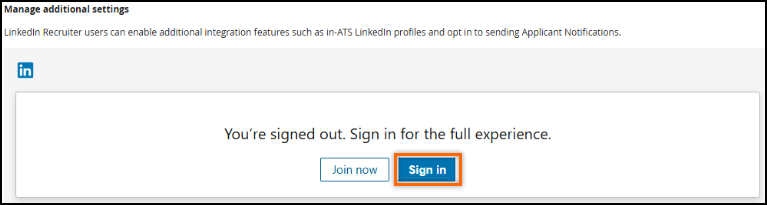
Under Manage Additional Settings, log into your LinkedIn Recruiter account.
-
Under Select a Contract, select Continue next to the contract with which you want to proceed.
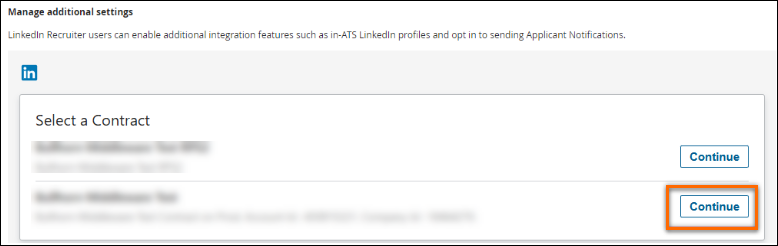 After you select a contract, a Choose integration button appears.
 -
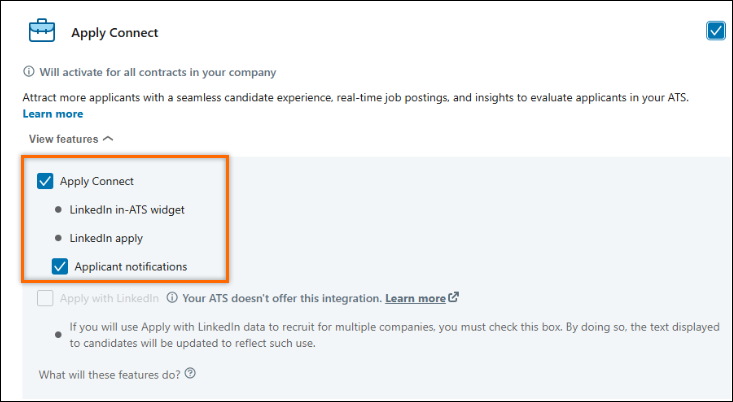
Scroll to the Apply Connect section and select the features that apply:
- Apply Connect: Allows users with LinkedIn Recruiter licenses to see additional insight associated with the applicant’s submission.
-
Application notifications: Allows applicants to receive status updates based on activities within Bullhorn. See the LinkedIn Status Descriptions section below for more details.
-
Select Save changes.
LinkedIn Status Descriptions
When LinkedIn Apply Connect is enabled, candidates automatically receive status updates within LinkedIn as their application moves through your Bullhorn workflow.
| LinkedIn Status | Triggering Activity |
|---|---|
| Application Viewed |
The applicant’s submission status changes from a Web Response to another status. For more information, see Application Viewed. |
| Resume Downloaded |
A recruiter downloads and views the applicant’s resume from their submission. For more information, see Resume Downloaded. |
| Application Rejected |
The applicant’s submission status changes to a rejected status. Rejected statuses are managed under the system setting rejectedJobResponseStatus. For more information, see Application Rejected. |