| Edition: Enterprise & Corporate | Audience: Gamification Admin |
Adding a Gamification Channel
This article explains how to add a new Gamification channel in Bullhorn Analytics.
How to Add a Gamification Channel
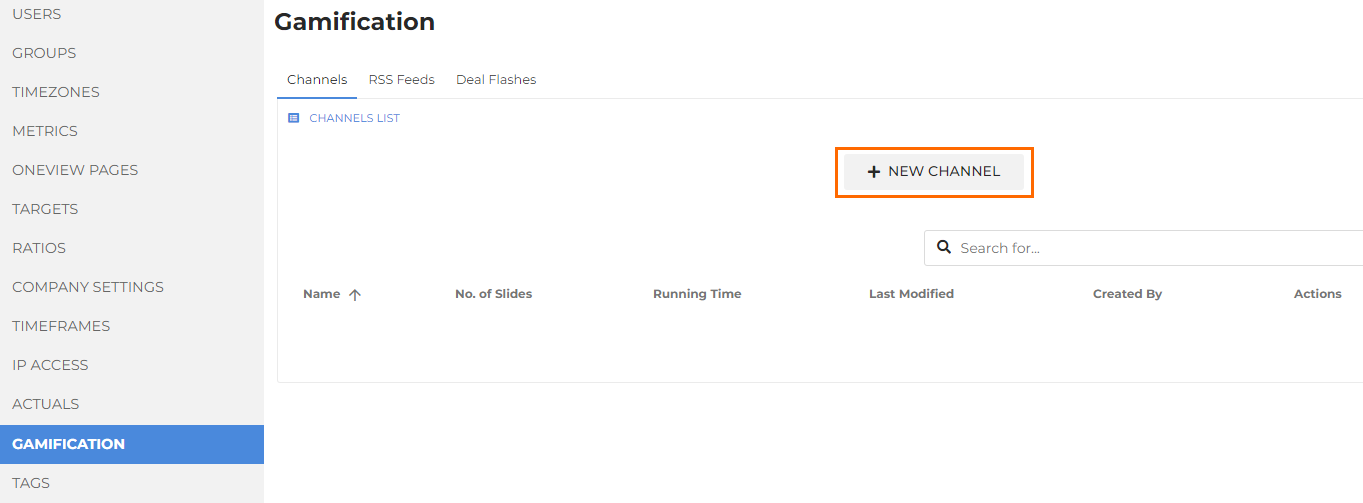
- Go to Admin > Gamification.
- Click New Channel.
- Name the channel and give it a description (if required) so it can be easily selected from the channel array.

- Configure the News Ticker, Deal Flash, and Slides sections as detailed in the sections below.
News Ticker

The news ticker is the area where you can add RSS feeds for the channel. There is no limit to the number of RSS feeds that can appear on the news ticker in the selected channel. BBC News, BBC Sports and Financial Times will appear as defaults.
See Custom RSS Feeds for more information.
Deal Flash
The Deal Flash feature causes placements to trigger a countdown and display details of the deal, with accompanying deal music (if set). Deal Flashes for a channel will show up for all users by default, but you can use the dropdown menu to restrict their appearance to particular groups. There is no limit to the number of groups that can be selected.
See Deal Flash Management for more information.
Slides

In this area you can create, edit, and re-order slides for the channel. Clicking on an existing slide will open the config and allow for editing.
To create a new slide, click Add Slide and then select a Slide Type from the dropdown.
Click the links below for a guide to creating each type of slide:
- Creating a Leaderboard Slide
- Creating a Gamification Trend Slide
- Creating a Text Slide
- Creating Video and Web Page Slides
Clone Slides
Each slide can be cloned to increase the efficiency of the channel-building process. Cloning allows you to retain configuration such as slide length, group selection and display options before making changes to the new slide.
To clone a slide, click the Clone icon in the top right corner.

Reorder Slides
You can amend the order in which slides are shown during the carousel. To re-order slides, click on the Re-Order icon in the top right corner and drag the slides to the desired position in the channel.

Use a Text Slide to show an incentive, then follow it with a Leaderboard slide relating to that incentive.
Saving and Organising Channels
Once you've added the slides, you can save and display the channel. If you forget to save a channel configuration before navigating away, your changes will be retrievable when you return and you will have the option of discarding or retrieving your previous changes.
In the main channel array (showing all of your active channels), you can clone entire channels by using the Clone button under Actions. This can be useful if channels are needed for multiple locations.