| Edition: Enterprise & Corporate | Audience: Gamification Admin |
Creating Video and Web Page Slides
This article explains how to create a Video or a Web Page slide in a Gamification channel.
How to Create a Video Slide
Video slides allow you to upload YouTube video content for use on any channel.
- In Admin > Gamification, select or add a channel to add the Trend slide to.
- Click the +ADD SLIDE button at the bottom of the page.
- Select Video Slide from the Slide Type dropdown.
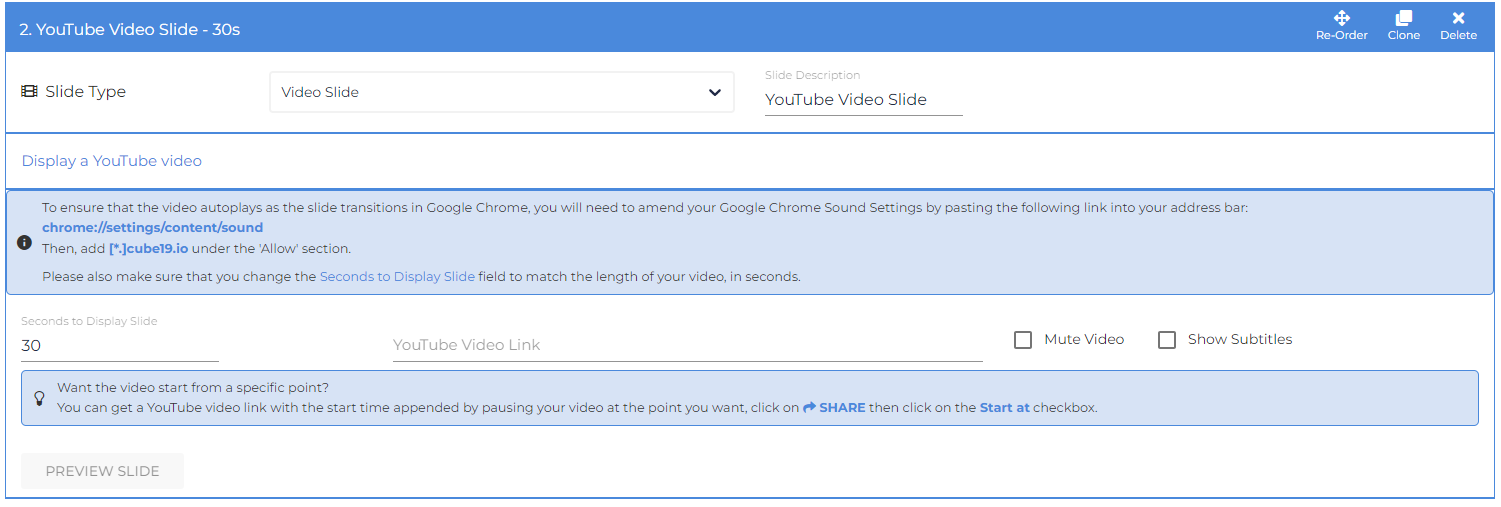
- To ensure that the video autoplays in Google Chrome as the slide transitions, you will need to amend your Google Chrome Sound Settings. To do this:
- Paste the following link into your address bar: chrome://settings/content/sound
- Add [*.]cube19.io under the 'Allow' section.
- Paste the link from YouTube into the YouTube Video Link field.
- Check Mute Video to play the video without sound.
- Check Show Subtitles to display subtitles for the video, if available.
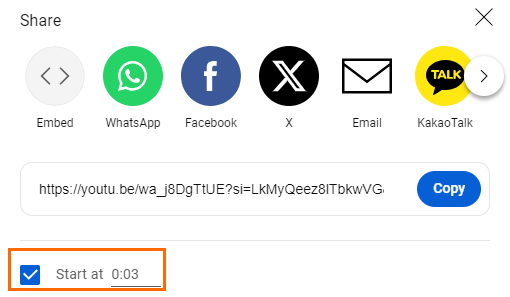
- If you want the video to start at a certain point, use the Start At option after clicking Share in Youtube, which will customise your link.
How to Create a Web Page Slide
Web Page slides allow you to display web pages in your channels. Web pages that support iframing can be displayed, including Google Sheets, Docs, and other video streaming sites.
- In Admin > Gamification, select or add a channel to add the Trend slide to.
- Click the +ADD SLIDE button at the bottom of the page.
- Select Web Page Slide from the Slide Type dropdown.
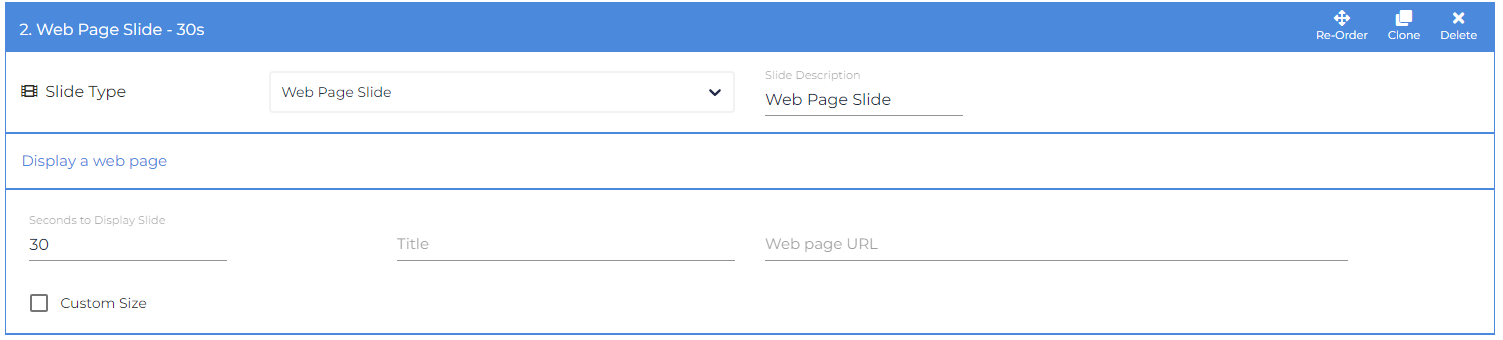
- Enter a title in the Title field.
- Enter the URL in the Web page URL field. The URL must be a secure site (HTTPS), or the page will not display.
You can choose how many seconds to display the slide for, and define the iframe size by clicking on Custom Size.
Was this helpful?