| Edition: Enterprise & Corporate | Audience: Gamification Admin |
Creating a Text Slide
This article explains how to create a Text Slide in a Gamification channel.
Text slides can be used to add custom text or images to the channel, helping to personalise the Gamification experience and align it with your company branding and culture.
How to Create a Text Slide
- In Admin > Gamification, select or add a channel to add the Trend slide to.
- Click the +ADD SLIDE button at the bottom of the page.
- Select Text Slide from the Slide Type dropdown.
- In the Slide Description field, enter a description of the slide e.g. "This quarter's incentive", "This week's birthdays", etc.
- Configure the rest of the slide as detailed below.
Display a Formatted Text Message
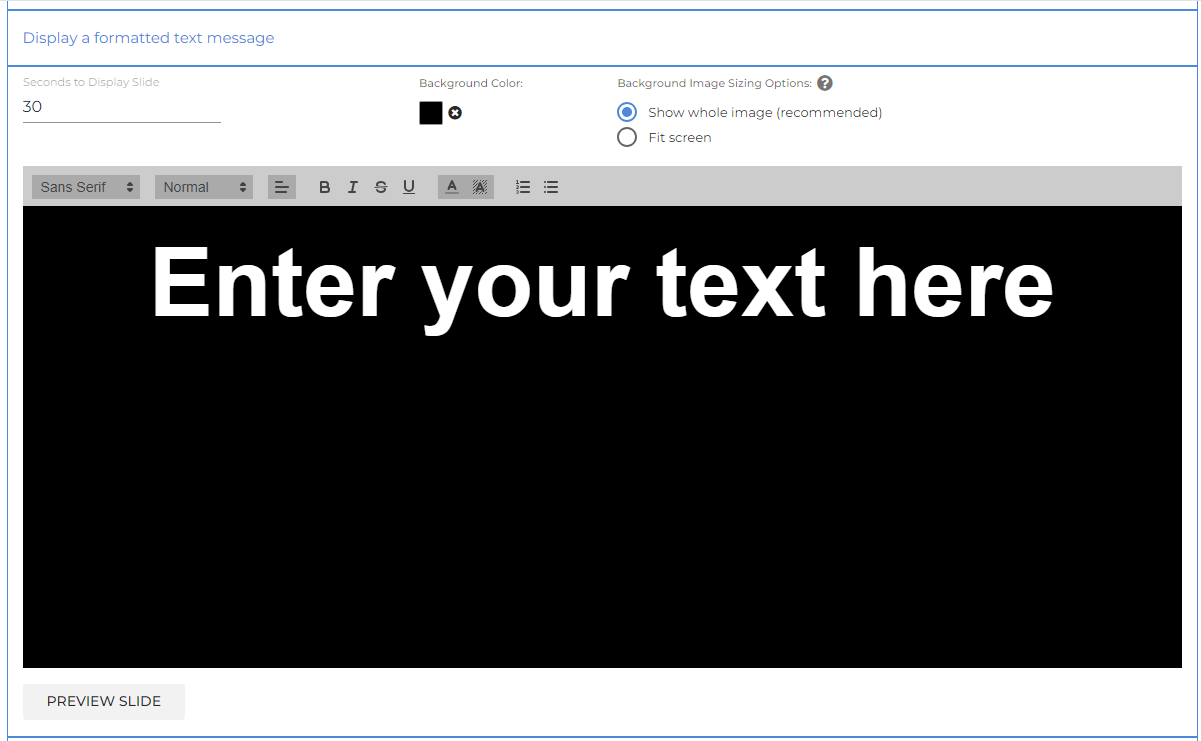
- Seconds to Display Slide: Choose how long the slide should display for.
- Background Color: Choose a background colour for the slide. If you are adding an image, this will be the border colour.
- Background Image Sizing Options: The two options apply to any custom images that have been uploaded. Click the ? icon to see an example of how each option will display.
- Enter your text here: Enter the text to display on the slide. Use HTML editor to change the text size, colour, font and alignment. Alternatively, you can delete the text and upload an image in its place. You can also overlay text onto an uploaded image.
Uploading and Managing Text Slide Images
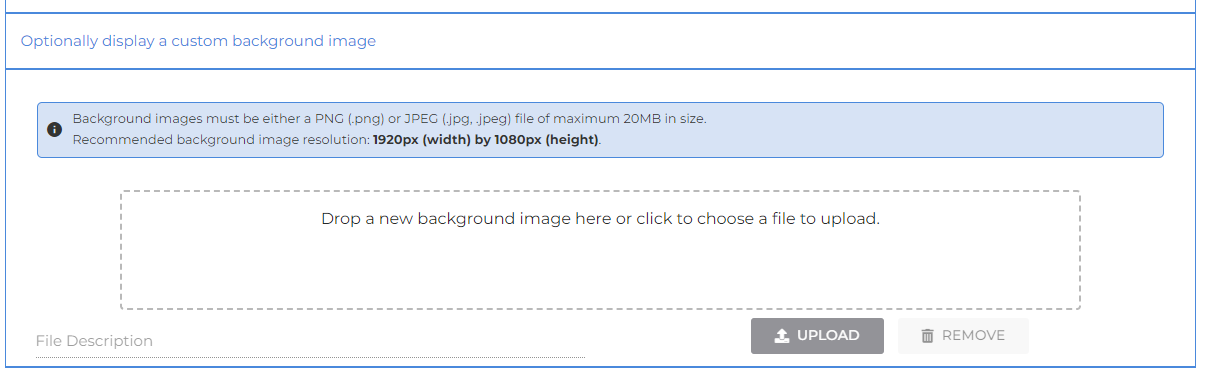
In the Optionally display a custom background image section, you can upload custom images into an image library for use in any Gamification channel.
Upload an Image
- Drag and drop the chosen image file into the upload field, or click to select the file to upload.
- Background images must be either a PNG (.png) or JPEG (.jpg, .jpeg) file of maximum 20 MB in size. We recommend using a resolution of 1920px (width) by 1080px (height) for background images.
- Click Upload.
An uploaded image will be automatically added to the image library, which is a vault of all uploaded images.
Add an Image to a Text Slide
To associate an image to a text slide, simply check the checkbox alongside the image in the library.

Delete an Image
You can delete images from the library, but only if the image has been removed from all channels. To delete an image from the library, click DELETE under the Actions column.

If an image is in use by a channel, it will display "Usages" in place of the "Delete" option. Click Usages, and a pop-up box will appear showing the channels and slides the image is being used in. After removing the image from all slides listed, you'll be able to delete the image from the image library.
