| Edition: All Editions | Audience: User Admin |
Activating Users
This article provides instructions on how users are activated in . All users are automatically added to Bullhorn Analytics once they are marked as Active in the . A user then needs to be assigned as one of the following types:
- Full User: A user who adds data within the CRM and has their own profile page visible in the active user’s list in OneView.
- Observer: A user who can review the data but doesn't add data to CRM and has no visible profile
- Inactive User: A user who doesn't need any access to Bullhorn Analytics
Steps to Activate a User
- Go to Admin > Users.
- All new users from your CRM will appear in the section Activate New Users.
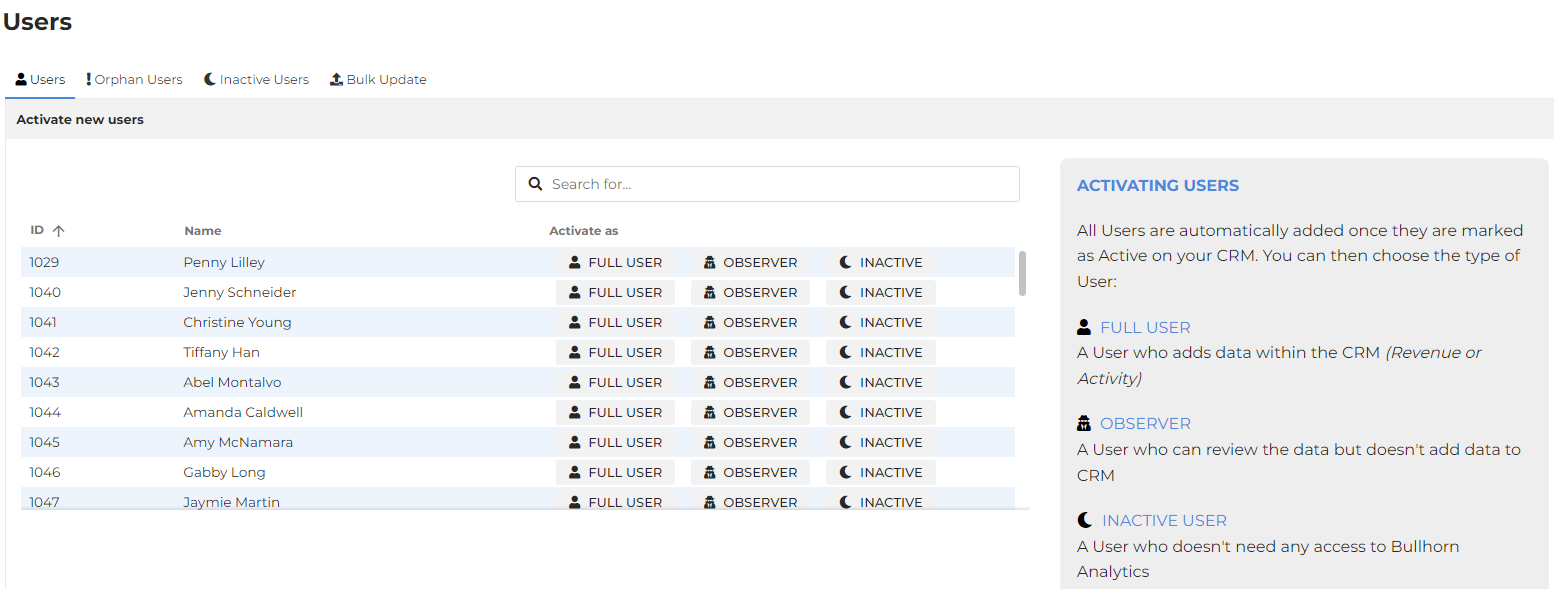
- To activate the user select either FULL USER or OBSERVER.
- Go to Manage Activated Users and click on their name to access their user profile.
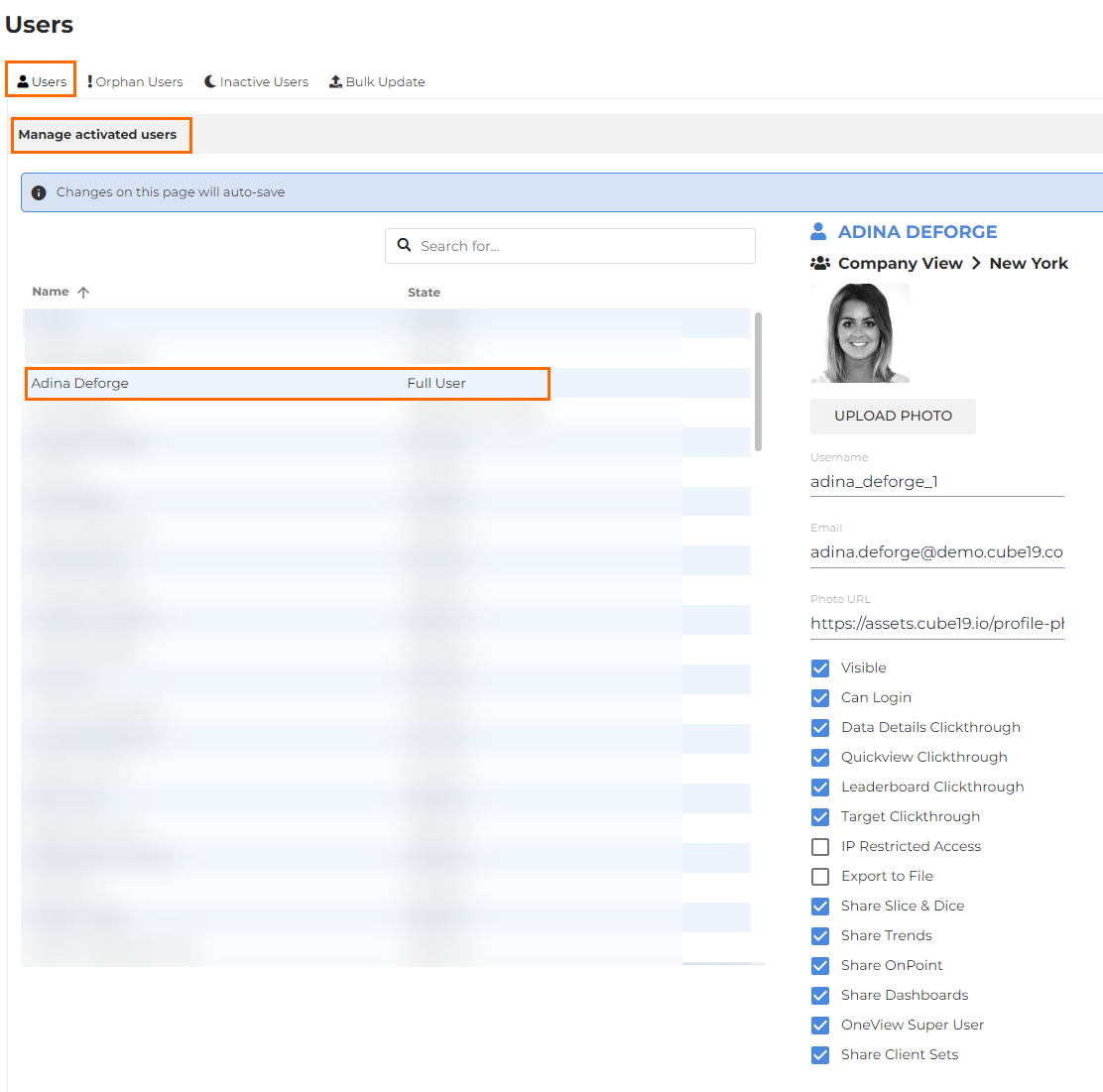
- Note: Work email address is stored so that password reset emails can be sent directly to the user
- You can add a user photo to appear on their OneView page and Gamification, if applicable. To upload a profile picture, click UPLOAD PHOTO, and drop in a PNG or JPG file up to 1MB in size. Alternatively enter the photo URL in the Photo URL field.
Check the Visible box under core permissions to make an Observer a Full User.
For help with adding users to Groups, see Adding Users to Groups
All settings will automatically save.
Was this helpful?