| Edition:Growth, Corporate, Enterprise | Audience: User Admin |
Set a OneView Page for a User
OneView pages control what appears under the priority metrics and can be set for both individual users and groups. This article walks you through the steps to set a OneView page for an individual user who needs a different page than the rest of their group.
For help setting a OneView page at the group level, see Set a OneView Page for a Group.
Steps
- Go to Admin > Users and scroll down to Manage Activated Users.
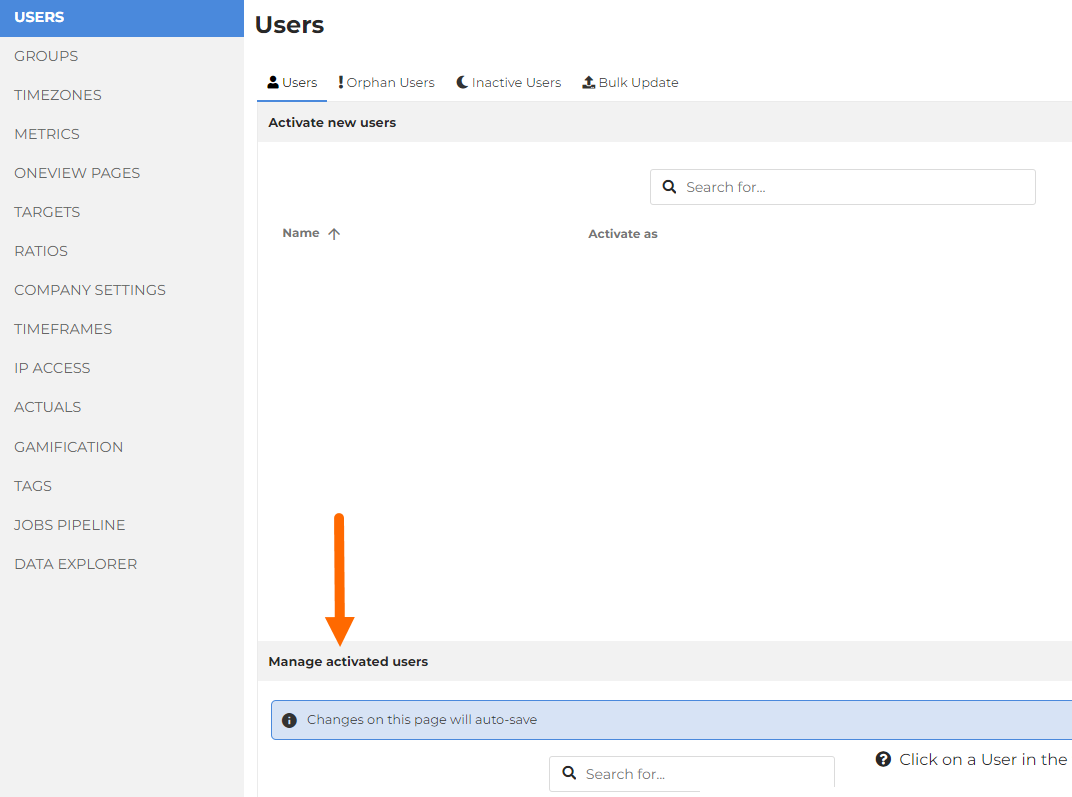
- Click the user you want to set a OneView page for.
- Update the OneView Page dropdown on the right side of the page.
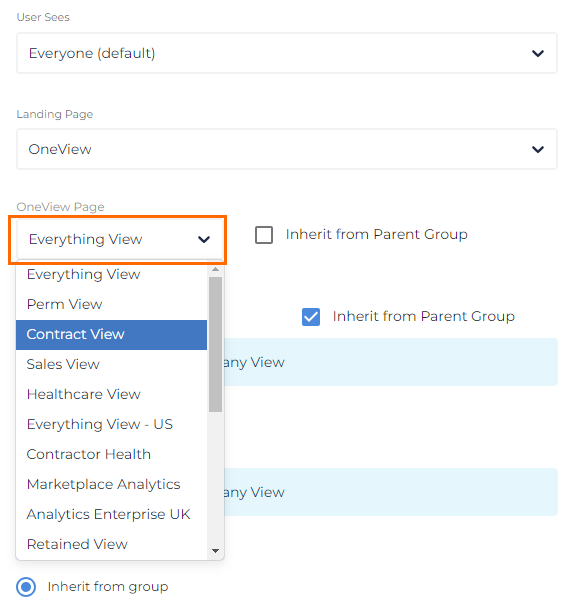
- If Inherit from Parent Group is selected, you will need to deselect the checkbox for the dropdown to appear.
All changes will automatically save.
Was this helpful?