| Edition: All Editions | Audience: Target Admin |
Set Targets in Targets Admin
This article explains how to set targets for users in Targets Admin.
Steps
- Go to Admin > Targets > Add New Target.
- In the Metric section, select the metric to set a target against from the dropdown menu.
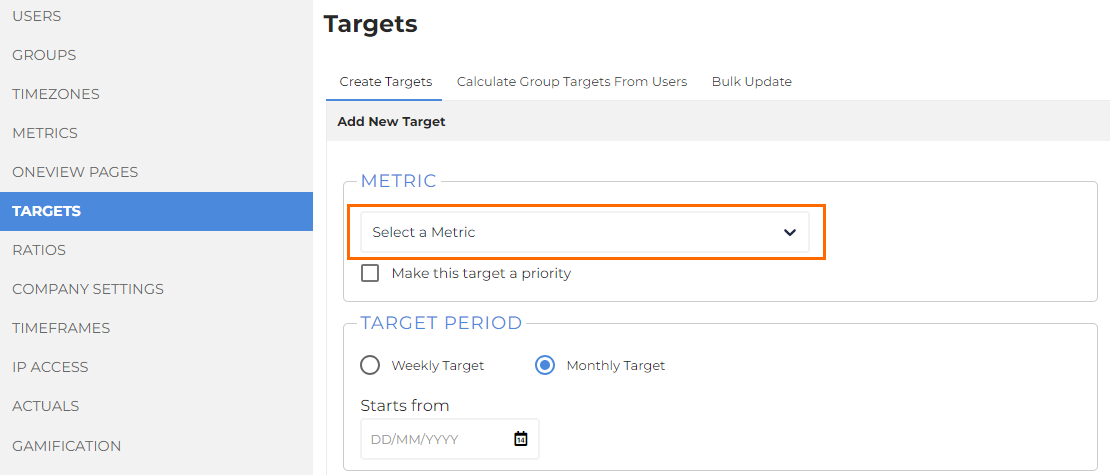
- Note that certain metrics (e.g. Live Jobs) are not targetable and will not appear in this dropdown.
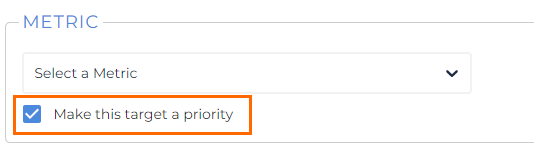
- Check the Make this target a priority checkbox if you want to set this as a Priority Target. For more information, see Set a Priority Target.
- In the Target Period section, choose whether to set the target to weekly or monthly, and choose the date for the target to start from.
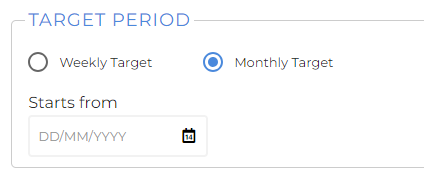
- You may want to backdate targets or set targets to start at a future date.
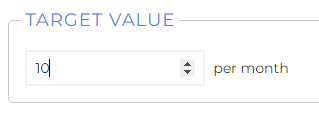
- In the Target Value section, set a target value. If you are setting a financial target, choose the currency for the target value.
- In the Users/Groups section, select either User to set the target at a user level, or Group to set the target at a group level.
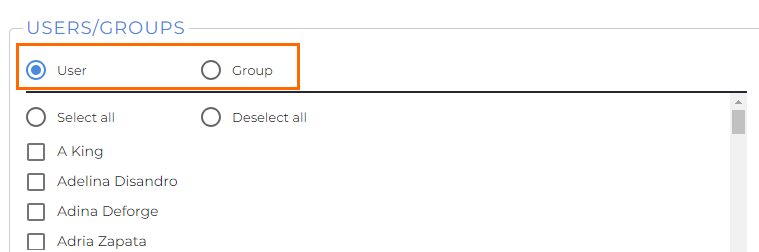
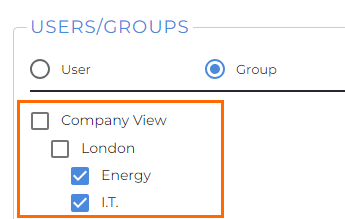
- Choosing the group level will only set a target at that specific level and will not filter down to the users in that group.
- Use the checkboxes to select the users or groups the target should be set for. You can select multiple users or groups.
- Click Set Target to add the target to the selected users / groups.
- Clicking Cancel will reset all the options you have selected, allowing you to start over.
Once you've set a target, you can view it in the View and Edit Current Targets section in Targets Admin. Select a metric from the dropdown to view all targets that have been set against that metric.
Was this helpful?