| Edition: All Editions | Audience: Target Admin |
View and Edit Targets in Targets Admin
This article explains how to view and edit targets in Targets Admin. You should use Targets Admin when you want to update all the targets for the same metric.
View Targets in Targets Admin
- Go to Admin > Targets > View And Edit Current Targets.
- Select the metric you want to view targets for.
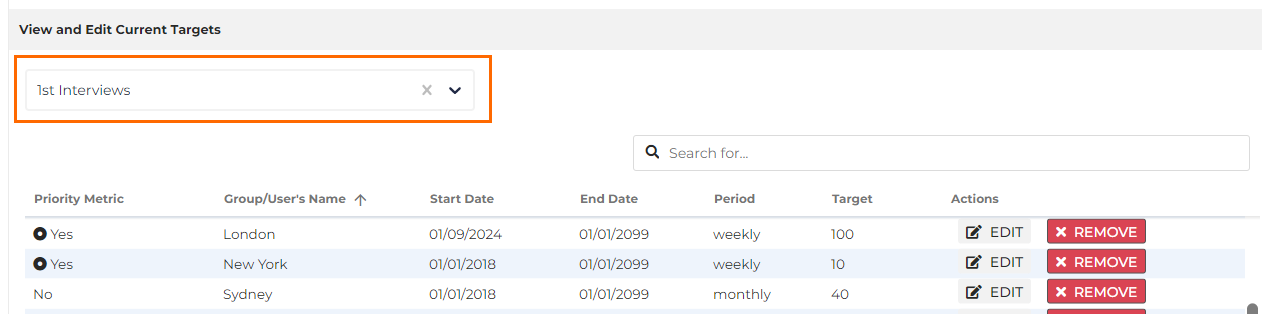
The selected metric will display a list of all groups/users with a target against that metric. Each of these will show whether or not the target is set as a priority, whom the target belongs to, the start and end dates, the period and the target value.
If no end date is added to a target, an end date of 01/01/2099 will be automatically applied.
Edit Targets in Targets Admin
- Go to Admin > Targets > View And Edit Current Targets.
- Select the metric you want to update targets for.
- Find the user / group you want to update a target for and click on Edit on the relevant row.
- If you want to delete a target, click Remove. This will completely remove all history of that target and cannot be reverted.

- Make the changes you would like to make for this target. You can remove or add a priority, amend the end date, and change the target period and value.
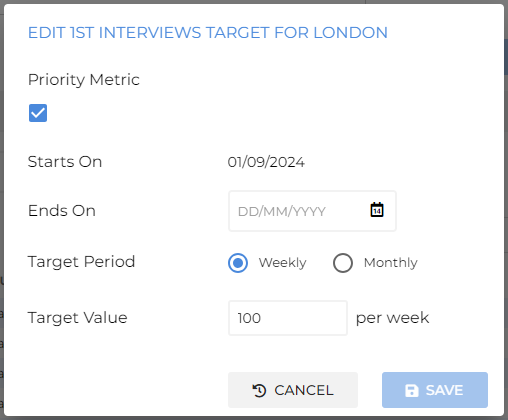
Changing the value of a target will change the target from its original start date. If you are trying to increase or decrease a target, you should create a new target.
The newly created target will automatically put an end date on the existing target of one day before the new target starts.
- Click Save to save your changes to the target.