New Users List
The new Users List gives Admin users a faster, cleaner way to find and manage Bullhorn ATS users. Use it to filter and sort your user list, update email addresses and passwords, enable or disable accounts, and lock or unlock accounts.
You must be an Admin user to access the Users List.
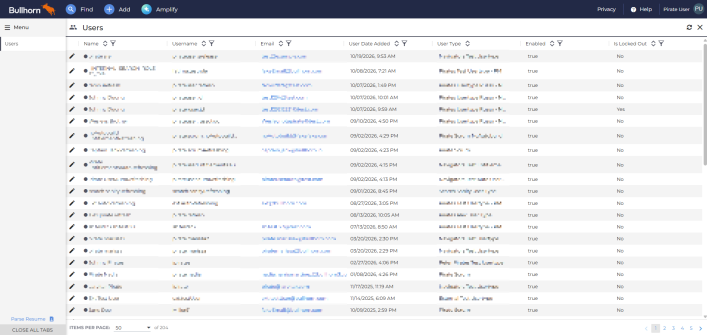
What you can do in the new Users List
You can edit the following user details:
-
Email address
-
Password
-
Enabled or disabled status
-
Locked or unlocked status
Additional settings including private label, department, user type, and login restrictions will be added in a future update.
Find a user
-
Go to Menu > Admin> Users
-
Click the filter icon (
 ) at the top of a column to narrow the list to a specific user or group of users.
 -
Click the up or down arrows (
 ) at the top of a column to sort it in ascending or descending order.
Edit a user
-
In the Users List, click the pencil icon to the left of the user. The user’s Edit page opens.
-
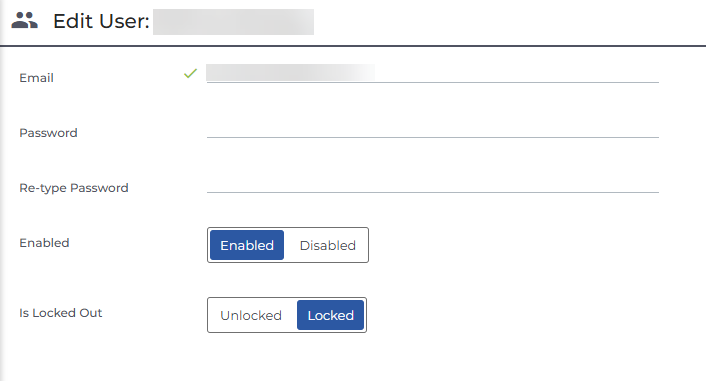
Update any of the following fields:
-
Email: The user’s email address.
-
Password: The user’s login password. Re-enter it in Re-type password to confirm.
-
Enabled: See below for details.
-
Is Locked Out: See below for details.
-
-
Click Save.
Disable or re-enable a user
When an employee leaves or an account was created in error, disabling prevents the person from logging in to Bullhorn (including Bullhorn for Mobile) while keeping your data secure and freeing up their license.
-
Click the pencil icon next to the user.
-
Toggle Enabled off to disable the account, or on to re-enable it.
-
Click Save.
To find disabled users, filter the Enabled column for false.
Lock or unlock a user
Locking an account temporarily prevents login while keeping the account active, which is useful when you need to pause access without disabling the account entirely. When an account is locked, any active sessions are immediately logged out and the user can’t log in again until the account is unlocked.
-
Click the pencil icon next to the user.
-
Toggle Is Locked Out on or off.
-
Click Save.