My Studios: ACA Participation
The ACA (Affordable Care Act) Participation Widget allows you to view employees and their relationship with the ACA by using various filters and search criteria. By default, it presents candidates that have a current status of Eligible and an ACA Classification of Variable with an ACA Hire/Rehire date within the current year for the selected Corporation. You can then select filtering criteria that allows you to individualize the widget to your needs.
It is important to create activities on a yearly basis. For example, if you create an offer activity for an employee in 2015 and then offer insurance to the same employee the following year, you should enter another Offer activity with a 2016 date. The same holds true whenever the employee Accepts or Declines coverage. If they accept coverage each year, then there should be a Healthcare Accept activity created each year.
To access the widget:
- From the Main Navigation Bar, select adapt.studio.
- From the adapt.studio menu, select My Studios.
- Select the ACA Participation widget to display. Due to the wealth of filtering criteria and data displayed, Bullhorn recommends using the single widget layout when displaying the ACA Participation widget.
The ACA Participation widget has filtering options across the top, search results in the middle and detailed record previews at the bottom.
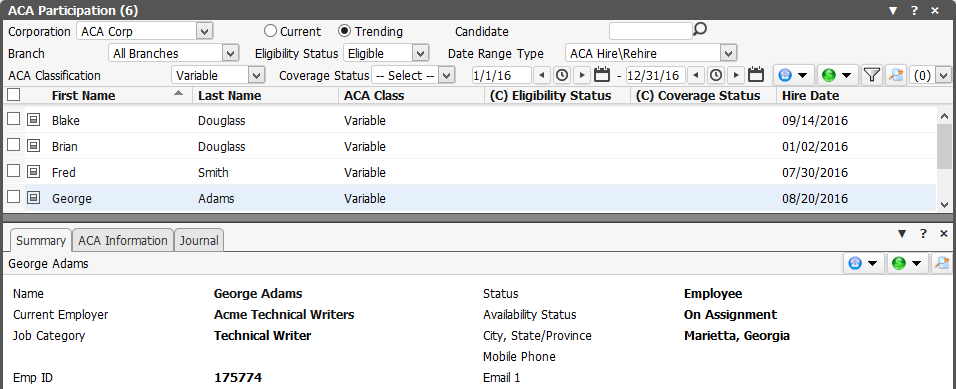
You can filter on the following (unless otherwise noted, all filtering options use AND logic). Results adjust automatically once a filtering option is changed:
-
Corporation: This defaults to the user's default corporation, but can be changed. The droplist displays all active corporations. if you want to search on all corporations, click on -- Select --in the droplist.
If you do use the-- Select --options and the employee is associated with multiple corporations, then the employee will be listed multiple times (once for each corporation).
- Current/Trending: Indicates whether you want to filter on current or trending information. For example, if you select Eligibility Status as Eligible and the Current radio button, then the system searches for Candidates with a current Eligibility Status of Eligible. This is Required and only 1 of the options can be selected.
- Candidate: If you want to filter by candidate name, type all or a portion of the first or last name and click
 . If you do not want to search for specific candidates, leave this field blank.
 - Branch: The droplist contains all active branches to which the user has access. You may also choose All Branchesfrom the list.
- Eligibility Status: Use the droplist to select whether you want to see only employees who are Eligible or those that are Not Eligible. If you do not want to filter by Eligibility Status, click -- Select -- in the droplist.
- ACA Classification: Allows you to filter by the employee's current ACA Classification (Variable, Non-Variable, Part Time or Seasonal). If you do not want to filter by Classification, click -- Select -- in the droplist.
- Coverage Status: Allows you to filter by the current coverage status of the employee (based on the most recent activity date). You can select from None, Offered, Accepted, Declined and Cancelled. If you do not want to filter on Coverage Status, click -- Select -- in the droplist.
- Date Range Type: The drop list allows you to indicate the type of date on which you want to search. Options are ACA Hire/Rehire, Admin Period Begin, Admin Period End, Measurement Period Begin, Measurement Period End, Stability Period Begin, Stability Period End, Offer Date, Coverage Begin Date and Coverage End Date. Once you have selected a type, the date fields below allow you to select a date range for searching. For example, if you select ACA Hire/Rehire Date as the type and 1/1/16 thru 12/31/16 as the dates, the system will search for all candidates (based on the other criteria) that have an ACA Hire/Rehire Date between January 1, 2016 and December 31, 2016.
The grid itself has the following columns:
- Full Name
- First Name: You can click this field to jump to the employee record.
- Last Name: You can click this field to jump to the employee record.
- Home: Home Phone
- Mobile: Mobile Phone
- Branch: Staffing branch associated with the employee.
- Corporation Name: Corporation associated with the employee's ACA record.
- Combined: Indicates whether Combined Corporations were used to calculate Employee eligibility.
- ACA Class: ACA Classification (Variable, Non-Variable, Part Time, Seasonal)
- (C) Eligibility Status: Current Eligibility Status (Eligible or Not Eligible)
- (C) Coverage Status: Current Coverage Status (None <blank>, Offered, Accepted, Declined, Cancelled)
- (T) Eligibility Status: Trending Eligibility Status (Eligible or Not Eligible)
- (T) Coverage Status: Trending Coverage Status (None <blank>, Offered, Accepted, Declined, Cancelled)
- Hire Date
- (C) Admin Begin: Current Administration Period Begin date.
- (C) Admin End: Current Administration Period End date.
- (T) Admin Begin: Trending Administration Period Begin date.
- (T) Admin End: Trending Administration Period End date.
- (C) Measure Begin: Current Measurement Period Begin date.
- (C) Measure End: Current Measurement Period End date.
- (T) Measure Begin: Trending Measurement Period Begin date.
- (T) Measure End: Trending Measurement Period End date.
- (C) Stability Begin: Current Stability Period Begin date.
- (C) Stability End: Current Stability Period End date.
- (T) Stability Begin: Trending Stability Period Begin date.
- (T) Stability End: Trending Stability Period End date.
- (C) Coverage Begin: Current Coverage Begin date.
- (C) Coverage End: Current Coverage End date.
- (T) Coverage Begin: Trending Coverage Begin date.
- (T) Coverage End: Trending Coverage End date.
- Offer Date: Offer Date from the most recent Healthcare Offer activity.
- Recent ACA Activity: Name of the most recent ACA Activity for the employee.
- Recent ACA Activity Dt: Date of the most recent ACA Activity for the employee.
- Updated Dt: Date the employee ACA information was last updated.
You can add and remove columns from the widget by clicking  . This displays the following window:
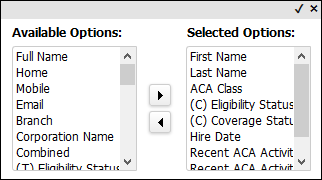
You can display all columns by moving all column options to the Selected Options area. If only some columns are in the Selected Options area, those are the only options that will display in the widget. Columns display in the order in which they are listed in the Selected Options area. When the columns are in the places you want, click the small checkmark in the upper right corner (clicking the “x” closes the window without saving your column selections.
You can view a preview of the listed records on the widget by clicking  in the left column of the row of the record you want to preview. This causes an area at the bottom of the widget to pop up with three tabs:
- Summary: Displays information from the Employee record (e.g. Name, Current Employer, Branch, Employee Type, Availability Status, etc.). Clicking on the Name takes you to the employee’s record. Clicking on the Current Employer takes you to the client record. Clicking on Email 1 creates an email with the employee’s address in the To: field. Clicking on the Social Networking takes you to the employee’s social networking page or opens the Update Social Networks window so you can add an address for the various social networks.
- ACA Information: Displays ACA information (e.g. Classification, Status, etc.) for each Corporation that their is ACA information concerning the employee.
- Journal: Displays information from the employee's journal.
Workflows and Activities
You can use the General Activities option from either the list of employees or the preview area to:
- Add a Note: Allows you to create a note that will be posted to the Journal of the selected employee(s).
- Log a Call: Allows you to log a call associated with the selected employee(s).
- Schedule a Task: Allows you to create a task that will be posted to the selected employee(s).
- Send Text Message: Allows you to create a text message that will be broadcast to the mobile phones of the selected employee(s).
- Send an Email: Allows you create an email that will be sent to the selected employee(s).
You can use the Healthcare Activities option from either the list of employees or the preview area to create the following activities for the selected employee(s):
- Healthcare Exchange Notification
- Healthcare Offer
- Healthcare No Offer
- Healthcare Accept
- Healthcare Decline
- Healthcare Cancel
You can also use the Healthcare Activities option to Change the ACA Classification of the selected employee(s). This allows you to easily change classifications en masse.
You can use the Search option from the list of employees to further narrow down the list. In order to use this option, you must have a Corporation and a date range for the ACA Hire/Rehire selected. Using this option you can return Candidates who have worked fewer or greater than a specified number of hours for the number of weeks* since their ACA Hire/Rehire Date. This is especially useful with the ACA Classification change option as it allows you to find employees who may currently be classified as Non-Variable and change them to Variable. It can also be useful in cases where you may be using a waiting period rather than a look back period to determine eligibility.
To do this, perform the ACA Hire Search using the Search icon to get a list of employees matching the criteria, select the employees and then use the Healthcare Activities option to update the classification of all the employees in one click.
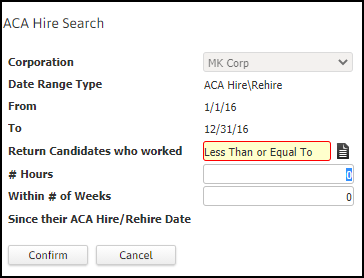
*Note: "Within # of Weeks" uses the BEGINNING of the Work Week Ending Date in which the ACA Hire/Rehire Date is included and calculates the time through to the END of the Work Week Ending Date for the number specified in the workflow.
Saving search results
To save your search results, select the records you want to save and then click on the Create Search Results button. This creates a search result for the records you selected. You can go directly to the new search results by clicking Yes on the small message that displays.