My Studios Dashboard
Use the My Studios Dashboard to quickly view and access records from each of the major entities within Adapt. Selected dashboard categories offer simple workflows that can be run directly from the My Studios segment.
- Mouse over Adapt.Studio™ on the main navigation bar and select the My Studios link.
-
After selecting My Studios, the screen will display the My Studio Dashboards the user has created.
- If a user studio has not been created, the new studio default is a blank 4 square view.
Navigating the My Studio Dashboards
-
The title bar across the top of the My Studios segment displays the name of the dashboard; in this example the dashboard is New Studio.
-
Each data category is displayed in the widget.
- The category name is displayed at the top with the number of records in that category in parenthesis.
- If the data category name starts with “My”, then the current user is the Account Manager or Recruiter for the records displayed.
-
The
 icon toggles the filter fields between hide/view modes. Hiding the fields give you more space to view the results in the grid. The down arrow
  right of the dashboard title opens a menu of standard options that allow:
 - Refresh the content of the dashboard.
 - Reset defaults on the columns displayed.
 - Print the records displayed in the dashboard.
 - Exports the content of the widget into an Excel file; only the record and the data displayed.
If the widget is filtered then only the filtered content will be exported.
 - Change the color of the dashboard border and text.
 - Each widget has a help tip about the information displayed; click the help icon to view the help tip.
-
Options for additional filters, workflows and reports, specific to the data category displayed in the widget, are located directly beneath the dashboard title.
- To utilize the workflows, a record from the widget is selected and then the icon of the workflow is chosen.
- If more than 25 records are displayed the widget will automatically paginate.
- The records listed for the category can be accessed directly from the dashboard by clicking on the links.
-
The My Studios control panel is located on the right side of the segment.
- Click the
 icon to hide the control panel or display as necessary.
- Click the
-
The control panel has three tabs to utilize when creating your studio dashboards.
-
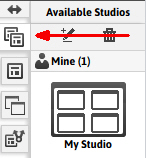
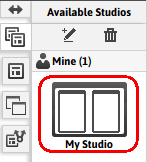
Available Studios – this tab displays all of your studios, the system studios and any shared studios. The studios categories are separated with your studios always listed first. Shared studios are other user’s studios that they have made visible to you.
-
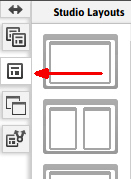
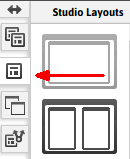
Studio Layouts – this tab is used to customize the arrangement of widgets in your studios.
-
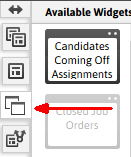
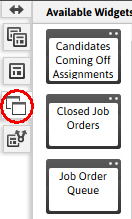
Available Widgets – this tab displays the data category widgets available for your studios.
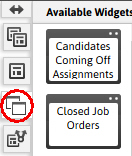
If the widget name is grayed out, as in this example, this widget is already in use in one of your studios.
-
Create My Studio Dashboard
The My Studio Dashboards are custom dashboards that can be configured to meet your needs.
A user can have up to 16 custom studios.
-
From the Available Studios tab on the My Studios control panel click the create icon.
- The segment will refresh to display a blank studio with a four widget layout; click the Studio Layouts tab to change the widget layout if necessary.
-
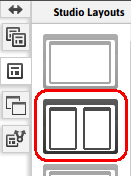
The current widget layout will be highlighted; in this example a two vertical layout is active.
Clicking a new layout will automatically change the layout of the active studio; you can use this feature anytime you want to change the layout of an existing studio. If you are changing the layout of an existing studio to a layout with less widgets, the assigned widgets of the current layout will not be visible. If you decide to change the layout back to the original selection those previously assigned widgets will re-appear.
-
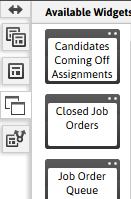
Next click the Available Widgets tab to select which data categories to display in your new studio.
-
Click and drag the widget to use into the main segment body and drop on the pod where you want to view that data category.
If you want to change the order of the displayed widgets click, drag, and drop the widgets to the preferred location. If you want to see more than the displayed widgets on this studio, click the Studio Layouts tab to display more or less widgets.
-
-
Finally, rename the new studio by clicking in the segment title bar and replace the current title with your custom title.
The newly created studio will display in the Available Studios tab immediately; the new title will display when the segment refreshes. Refresh the segment by clicking the My Studios link on the main navigation tab bar.
Change Layout of My Studio Dashboards
-
To change the layout of the currently active studio, click the Studio Layouts tab on the My Studios control panel.
-
Select the desired widget layout; the segment will immediately refresh to display the new pod structure.
- If this studio had the new layout previously, any widgets from that previous occurrence will be re-displayed.
- If the new layout has less widgets visible than the previous layout, the new layout will be populated with widgets from the top left of the previous layout.
-
Add or Change the widgets as needed through the Available Widgets tab.
Change Available Widgets
-
To change the visible widgets, or data categories, in the currently active studio, click the Available Widgets tab on the My Studios control panel.
-
Click on the widget to display, then drag and drop that widget on top of the pod where you want the data displayed.
- If the pod has an existing widget already displayed, the new widget will replace the existing; the existing widget will then be active on the Available Widgets tab.
- If you want to change the order of the displayed widgets, click, drag, and drop the widgets to the preferred location.
- If you want to see more than the displayed widgets on this studio, click the Studio Layouts tab to display more or less widgets
Delete My Studios Dashboard
-
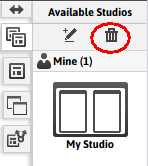
From the Available Studios tab on the My Studios control panel click the delete icon; this will delete the currently active studio.
-
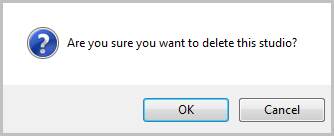
The confirmation message will open in a new window; if you are sure you want to delete this studio click Ok.
-
The segment will refresh and display the next studio in the list. The deleted studio will no longer be in the options list.
If no other My Studio is available, the segment will display the first system studio.
Shared Studios
-
From the Available Studios tab, scroll down and click on one of the studios listed under Shared.
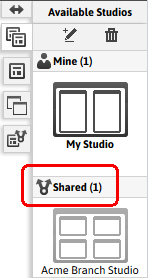
- The segment will refresh to display the user’s studio you selected. You can view the records and run workflows against them but you are not able to change the layouts or widgets displayed.
Sharing Out Your Studios
-
From the Available Studios tab, select your studio to share, then click on the Sharing tab.
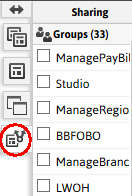
- Scroll down in the Sharing tab and select the Group or individual User with which to share your studio.
- Once the selections are made the user / groups can refresh their adapt.studio and view the studio under their Shared studios.