My Studios: Workers Comp Claims Studio
The Workers Comp Claim Studio Widget allows you to view WC comp claim details of your employees by using various filters and search criteria. In addition, you can take various actions such as adding new claim, updating existing claim, adding claim activity and sending email.
You need to have 'Manage Claims' permission set as 'Active' in order to be able to use the WC Studio. If you do not have Manage Claim permission, the Workers Comp Claim widget will be hidden and a message will be displayed.
To access the widget:
- From the Main Navigation Bar, select adapt.studio.
- From the adapt.studio menu, select My Studios.
- Select the Workers Comp Claim widget to display. Due to the wealth of filtering criteria and data displayed, Bullhorn recommends using the single widget layout when displaying the Workers Comp Claim widget.
The Workers Comp Claim widget has filtering options across the top, search results in the middle and detailed record previews at the bottom.
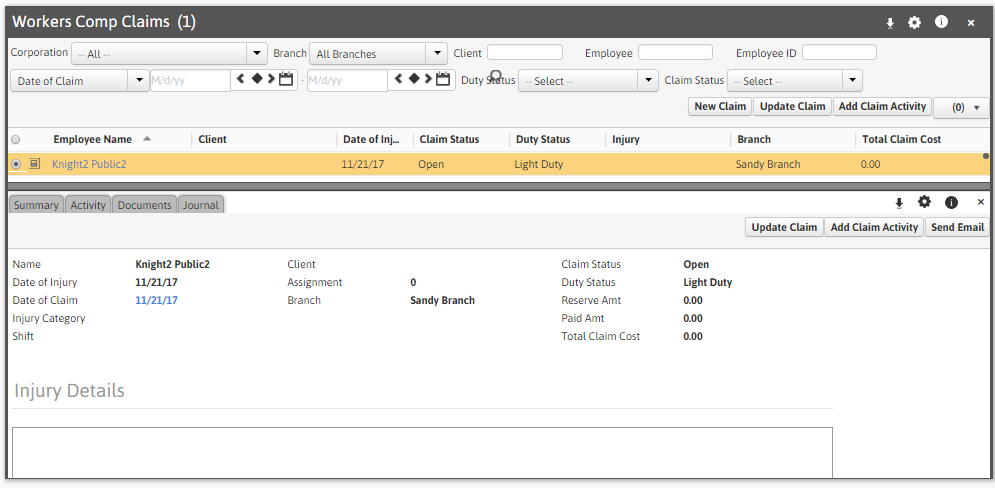
You can filter on the following (unless otherwise noted, all filtering options use AND logic):
- Corporation: The droplist displays all active corporations. You can either select a specific corporation to view records associated with it or select All to show all the records associated with any corporation.
- Branch: The droplist contains all active branches to which the user has access. You can also select All to display all branches to which your user has access.
- Client: If you want to filter by client name, type all or a portion of the name and click
 .
. - Employee: If you want to filter by employee name, type all or a portion of the first or last name and click .
- Employee ID: If you want to filter by employee ID, type all or a portion of the ID and click .
- Date Range Type: This field determines what the next two date fields are searching for. Options are Date of Claim and Date of Injury. Once you have selected a Date Range Type, you can enter dates in next two fields to search records for the specified date range.
- Duty Status: If you want to filter by a specific duty status, select the same in the droplist.
- Claim Status: If you want to filter by a specific claim status, select the same in the droplist.
The search results are displayed in the middle section of the widget and the grid has the following Default columns:
- Employee Name
- Client
- Date of Injury
- Claim Status
- Duty Status
- Injury
- Branch
- Total Claim Cost
You can add and remove columns from the widget by clicking  . This displays the following window:
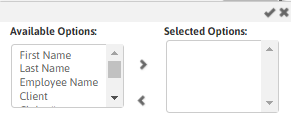
If the Selected Options area is empty, then the Default columns (see above) display. If only some columns are in the Selected Options area, those are the only options that will display in the widget. If you want to display all columns, move all Available Options to the Selected Options area. Columns display in the order in which they are listed in the Selected Options area. When the columns are in the places you want, click the small checkmark in the upper right corner (clicking the “x” closes the window without saving your column selections).
You can view a preview of the listed records on the widget by clicking  in the left column of the row of the record you want to preview. This causes an area at the bottom of the widget to pop up with four tabs:
- Summary: Displays information from the WC Claim record (e.g. Name, Date of Injury, Date of Claim, etc.). Clicking on the Date of Claim takes you to the claim entity.
- Activity: Displays any activity details associated with the claim record selected.
- Documents: Displays any documents uploaded that is associated with the claim. Clicking on the 'click to view' link displays the document.
- Journal: Displays information from the claim's journal.
Actions
You can perform the following actions from above the grid and/or the preview section:
New Claim
Click the New Claim button (from above the grid) to add a new workflow reporting an injury to a Candidate. For more details, see Add WC Claim.
Update Claim
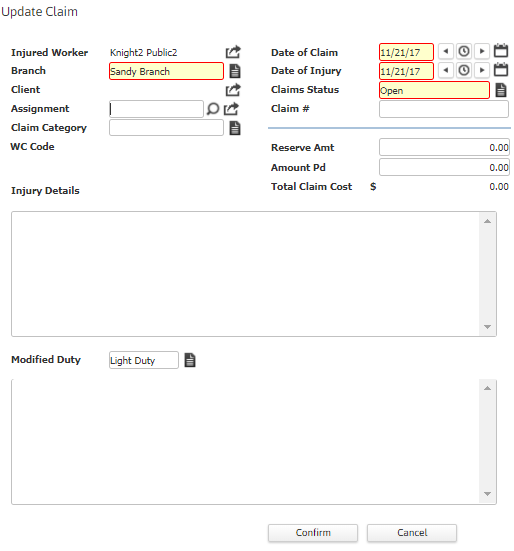
The Update Claimworkflow allows user to update the status of a claim as events develop throughout the lifecycle of the injury report.
-
Select a record from the list and click Update Claim (from above the grid or from the preview section) to update the record. The Update Claim workflow will open in a new window.
-
Update the required fields and click Confirm. An entry is created in the Claim's journal indicating the date when the claim was updated and the From and To information of the updates made.
An internal notification (called 'WC Claim Status or Modified Duty Updated') is triggered if the Claim Status or the Modified Duty Indicator is updated.
Add Claim Activity
The Add ClaimActivityworkflow allows user to add/update claim activities that are related to the injury report such as Doctor's visit or Appointment along with notes and details regarding the nature of candidate's modified duty.
-
Select a record from the list and click Add Claim Activity (from above the grid or from the preview section) to add/update claim activities. The WC Claim Activity workflow will open in a new window.
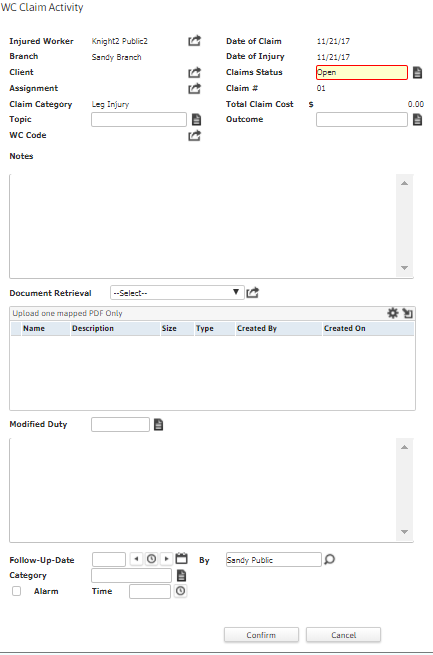
- Enter/update the required activity details and click Confirm. An entry is created in the Claim's journal indicating the date when the claim activity was added/updated and the From and To information of the activities updated.
Send Email
The Send Email workflow sends an email to the selected Candidate.
From the preview section of the selected Candidate WC Claims record, click the Send Email button. The standard Send an Email window displays. Click here for more information on using the Send an Email window.
Print and/or Export to MS Excel
You can choose to Print and/or Export the workers comp claims records displayed in the widget by clicking on the  icon and selecting the required action.