My Studios: My Projects
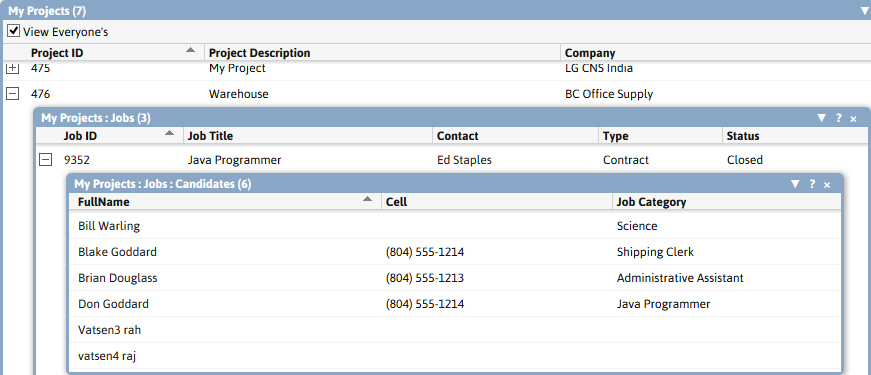
The my projects widget displays the current user’s projects and the opportunities, jobs and candidates associated with the project.
This widget is best viewed in a singular tile layout.
-
Filters and workflows available in the widget:
- Select the View Everyone’s option to view all active projects for all users.
- Click on the plus or minus signs to expand and collapse the Projects. Expanding the projects will allow you to view the Opportunities and Job Orders and Candidates submitted to the Jobs listed under the projects.
-
The information displayed for the widget:
- Project Description – the name given at the time the Project was created.
-
Company – the Client who requested the project.
-
Under first Expansion
- Job Type – either Direct or Contract Job Order or Opportunity
- Job Title – the Job Category or Description.
- Contact – the point of contact at the Client for this Job Order/Opportunity.
- Status/Stage – the status of the Job Order or Stage of the Opportunity.
-
Under second Expansion
- Candidate – the Candidate submitted to the Job Order.
- Telephone – the Candidate’s home phone number.
- Job Category – the Candidate’s first listed job category
-
-
Click on the question mark to view the Help Tip specific to the widget.
Data Conditions
Data Displayed
-
Projects
- The current user is the account manager for the project
- The project status is Active
- The entity role is Project
-
Jobs
- The job/opportunity is linked to the selected project
- The entity role is Contract Job, Direct Job, Contract Job Opportunity or Direct Job Opportunity
-
Candidates
- The candidate has been submitted to the selected job
- The entity role is Contract Candidate or Supplier Candidate