My Studios: Clear Check
The Clear Check Widget allows to reconcile pay items (regular check, manual check, manual distribution, void check, direct deposit) to your bank statement.
To access the widget:
- From the Main Navigation Bar, select adapt.studio.
- From the adapt.studio menu, select My Studios.
- Select the Clear Check widget to display. Due to the wealth of filtering criteria and data displayed, Bullhorn recommends using the single widget layout when displaying the Clear Check widget.
The Clear Check widget has filtering options across the top, search results in the middle and reconciliation totals at the bottom.
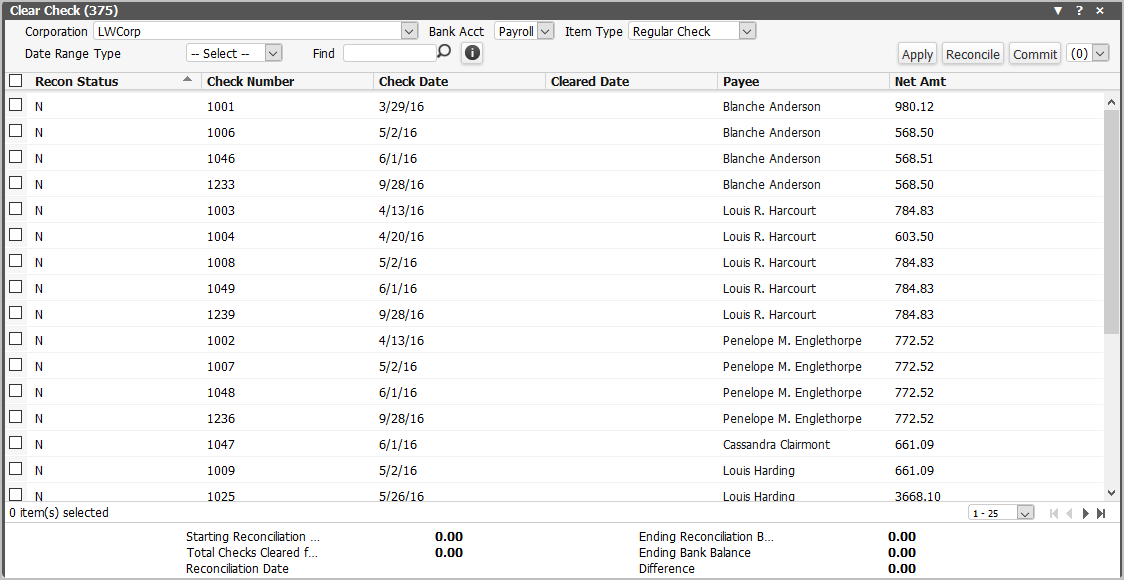
The grid itself is automatically filtered to initially only display items that have not been reconciled. You can further filter on the following (unless otherwise noted, all filtering options use AND logic):
- Corporation: This defaults to the user's default corporation, but can be changed. The droplist displays all active corporations. This filter is required.
- Bank Acct: This droplist dynamically adjusts based on the Corporation selected. It displays all bank accounts associated with the selected Corporation. This filter is required.
- Item Type: The droplist contains all types of items that can be reconciled (regular check, manual check, manual distribution, void check, direct deposit). This filter is optional.
- Date Range Type: Indicates the type of date range on which you want to filter. This filter is optional. Once you select an option (Check Date or Cleared Date), two date fields display allowing you to enter a "From" and "To" date.
- Find: The Find search box finds unreconciled items by check number, payee or check amount.
The grid itself has the following columns:
- Check Number
- Check Date
- Cleared Date
- Recon Status (C=Cleared, N=Not Reconciled)
- Payee
- Corp
- Bank Account
- Item Type (regular check, manual check, manual distribution, void check, direct deposit)
- Net Amt
- Branch
You can add and remove columns from the widget by clicking  . This displays the following window:
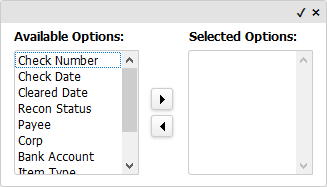
You can display default columns by leaving the Selected Options area empty or display all columns by moving all column options to the Selected Options area. If only some columns are in the Selected Options area, those are the only options that will display in the widget. Columns display in the order in which they are listed in the Selected Options area. When the columns are in the places you want, click the small checkmark in the upper right corner (clicking the “x” closes the window without saving your column selections.
Starting the reconciliation process
- Click on the Reconcile button.
-
The Reconcile Document window displays. If you have a reconciliation file (.csv format) from your bank, you can upload it from this screen.
 the .csv file format.
The .csv document should include the following columns:
1. Account Number (not used)
2. Cleared Date (MM/DD/YYYY)
3. BAI Code (not used)
4. Description (not used)
5. Amount Debit
6. Amount Credit
7. Check Number
8. Trans Description (not used)
All columns must exist, even if no data exists.
- Click
 and then select the document by using the Browse button on the Upload Documents window. Once you have the document selected, click the Upload Documents button. The document appears on the Reconcile Document window. Click Confirm. If you do not have a reconciliation file from your bank, click the Skip button.
 -
The Reconcile window displays. If you have a reconciliation file from the bank, most of the fields on this window will already be filled out. The fields on the window are:
- Corporation: Read only and defaults from the Corporation selected on the Clear Check widget filter.
- Bank Account: Read only and defaults from the Bank Acct selected on the Clear Check widget filter.
- Reconciliation Date: Must be a unique date for the Corporation/Bank Account combination. This is required.
- Beginning Balance: This defaults from the most recent ending balance of the most recent reconciliation (based on Reconciliation Date)
- Deposits & Other Credits: Optional.
- Fees & Other Charges: Optional.
- Starting Reconciliation Balance: Read only. This field is calculated by taking the Beginning Balance + Deposits & Other Credits - Fees & Other Charges.
- Total Checks Cleared: Read only. Total amount of checks marked "Cleared" in the application for the current process.
- Ending Reconciliation Balance: Read only. This is calculated by subtracting the Total Checks Cleared from the Starting Reconciliation Balance.
- Ending Bank Balance: This is required and is used to determine whether the pay items reconciled balances with the bank statement.
- Difference: Read only. This is calculated by subtracting the Ending Bank Balance from the Ending Reconciled Balance.
-
When the information is correct on the Reconcile window, click Confirm.
Upon confirming, information in each row is matched against the bank statement to ensure that the check number and the amount are an exact match in both records. For each match, the item is marked as cleared with the cleared date indicated in the file. For ACH, it is attempted to match the lump sum credit and cleared date against the direct deposit transmission amount and check date.
When validating whether the amount matches, the sign is reversed.
Example: Check 101 for $150.00 would be matched in the file as Check 101 -150.00.
If a match cannot be determined, the item is not marked as cleared. Cleared Date is populated based on the Cleared Date provided in the file, if not indicated, the Reconciliation Date is used as the Cleared Date.
In case of any mismatch between the pay items and the bank statement items, an exception report is created listing the items that did not reconcile and is presented in the Reconcile Exception Report window. The report is also available in the Document Library of the Bank account. If the uploaded file contains duplicate rows and one matches, the remaining duplicates will not appear in the exception report. If no match is found for any of the duplicates, then all will be included in the exception report.
Reconciling checks
- The bottom area of the widget displays the information you entered in the Reconcile window.
- Place a check in the checkbox (left-most column) of the row of the check(s) you wish to reconcile.
- Click Apply. The Apply button toggles the Reconciliation Status between Cleared (C) and Not Cleared (N). Thus, if you place a checkmark in the checkbox for a check that has a Recon Status of "C", clicking Apply changes the Recon Status to "N".
- The information at the bottom of the widget updates to reflect the checks selected. It also display any difference between the Ending Reconciliation Balance and the Ending Bank Balance.
-
If the Difference does not equal zero (0.00), you can reselect the checks you want to clear by placing a check in the checkbox for the checks you want to adjust. Once you have selected the checks, click Apply. Remember, the Apply button toggles the Recon Status...so check previously cleared will have their status changed to Not Cleared (N) and check not previously cleared will have their status changed to Cleared (C).
Another option is to click the Reconcile button and adjust the Ending Bank Balance (in case the amount that was originally entered was incorrect. In this case, click Skip at the initial file upload window and then edit the Ending Bank Balance field on the Reconcile window.
A final option is to go ahead and Commit the checks you have selected and then make a manual adjustment before completing the Commit process.
Committing checks
The Commit process finalizes the reconciliation.
- Once you are satisfied with the checks selected, click Commit.
- The Commit Reconciliation window displays. It is similar to the Reconcile window, but has one additional field: Reconciliation Adjustment.
- If the Difference field displays zero (0.00), you can optionally add notes and then click Confirm.
-
If the Difference field does not display zero, you must make adjustments to bring it to 0.00. The Commit process can not be completed unless the Difference is zero. To adjust the Difference to equal zero, you have three options:
- You can enter a Reconciliation Adjustment on the Commit Reconciliation window. This adjusts the Ending Reconciliation Balance.
- You can edit the Ending Bank Balance (in case a mistake was made originally entering the amount).
- You can click Cancel and return to the Clear Check widget and select different checks to clear.
- Once the Difference is zero and you are satisfied with the check selected, click Confirm. The checks you have cleared are removed from the Clear Check widget and are given a status of "Cleared".
You must commit the current reconciliation process before starting a new reconciliation process for the Corporation/Bank Account combination. However, you may start a new reconciliation process on a different Corporation/Bank Account combination.