| Edition: Enterprise | Audience: All Users |
Build Analytics Dashboards with Amplify
This feature is available to users with Bullhorn Amplify and Analytics Enterprise Edition. To enable it, contact Bullhorn Support.
Amplify in Bullhorn Analytics leverages Bullhorn's large language model (LLM) to help you quickly build custom dashboard panels using simple, conversational requests. It is designed to make creating dashboards more accessible, particularly for users who are less familiar with dashboard configuration.
When to use Amplify
Amplify is useful when you want to:
-
Build your first dashboard as a new Analytics user
-
Quickly visualize your team's placement or sales data
-
Create a specific chart without manual panel configuration
-
Explore different data views to find the most useful layout
How Amplify in Dashboards Works
Amplify uses Bullhorn's LLM to generate dashboard panels from your existing metrics, including any custom metrics. It interprets your natural-language requests and provides a panel preview before it is added to your dashboard.
Make sure your Metrics Explanations are accurate. Amplify relies on them to understand your data and provide meaningful panel recommendations.
For more details on Dashboards, see Analytics Dashboards Navigation and Dashboard Panel Options.
Steps to Create Dashboard Panels with Amplify
You will need the Dashboards APP permission with full editing access. See Enabling Dashboards.
You can access Amplify from a new or existing dashboard:
-
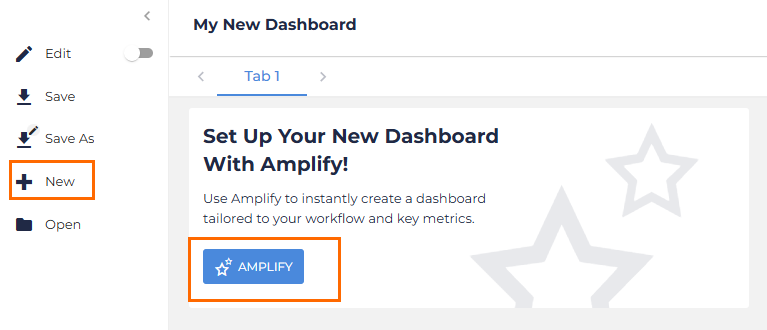
New dashboard: Select + New from the sidebar menu, then click the Amplify button.
-
Existing dashboard: Open the dashboard in edit mode and click the Amplify button at the top of the screen.
This opens a slide-out panel on the right side of your screen.
-
In the chat window, type a request for the panel you want to create. Use plain, natural language, for example:
-
"Show me a list of all jobs opened last month."
-
"What were our total placements for the last quarter?"
-
"Show a pie chart of our top clients by revenue."
-
-
Amplify will generate a panel preview based on your request. Click Expand Preview for more detail if needed.
-
If the result does not match what you need, refine your request by continuing the conversation. For example: "Can you change that to a bar chart?" or "Can you filter that data for my team only?"
-
Once you are satisfied with the generated panel, click Add to Dashboard.
-
To start a new panel request, click Start Over. This resets the conversation and helps prevent errors from earlier requests.
-
Repeat steps 1–5 to add further panels, then click Save or Save Aswhen you are finished.
-
After a panel is added to a Dashboard, you cannot use Amplify to edit it. Use the dashboard's Edit mode to make changes to existing panels.
-
Amplify temporarily retains the conversation history on the dashboard for reference.
Troubleshooting
If you run into issues while using Amplify, these common solutions can help.
-
The Amplify button is not visible: Ensure you are on Bullhorn Analytics Enterprise Edition with Bullhorn Amplify enabled.
-
Amplify provides an unexpected result: Confirm the metrics already exist (Amplify cannot create new metrics). Ensure your Metrics Explanations are up to date and accurate as Amplify relies on them to understand your data.
-
Amplify does not understand your request: Be more specific. Amplify works best with clear, direct language. For example, instead of "Show me my jobs," try "Show me a list of my open jobs added in the last 30 days."
-
You cannot edit a dashboard panel using Amplify: Amplify creates new panels only. Use the dashboard's Edit mode to modify existing panels.
Frequently Asked Questions (FAQ)
Can Amplify create new metrics?
No. Amplify uses existing metrics, including custom ones you’ve already set up. It cannot create new metrics.
Who can use Amplify in Bullhorn Analytics?
Any user with Bullhorn Amplify and Bullhorn Analytics Enterprise Edition, who has permission to create Dashboards.
Can Amplify edit existing dashboard panels?
No, Amplify is designed to help you build new dashboard panels. Once a panel is added to your dashboard, use Edit mode to make changes.
Can I use Amplify to add a new panel to my existing Dashboard?
Yes. Open the dashboard in Edit mode and click the Amplify button. Once created, click Add to Dashboard and save your changes
Can I ask multiple questions in one conversation with Amplify?
Yes. Amplify supports multi-turn conversations. You can ask follow-up questions, refine suggestions, or explore different options as you go.
When should I use Start Over?
Use Start Over if:
-
Your requests have become too complicated or mixed together
-
Amplify keeps returning results that do not match what you need
-
You want to switch to building a completely different type of panel