| Edition: Enterprise | Audience: All Users |
Gamified Dashboards
Gamified Dashboards and Gamification Channels are currently separate features and cannot be combined. A Gamified Dashboard cannot be added as a slide in a Gamification Channel. See Launching Presentation Mode below to display a dashboard on a screen. For information on Gamification Channels, see Adding a Gamification Channel.
Gamified Dashboards are a presentation-style dashboard type designed to be displayed on a screen. Gamified Dashboards support fullscreen presentation mode, which auto-advances through tabs on a timer and is ideal for showcasing team performance in an office environment without any manual interaction. You can also share a link to a Gamified Dashboard to display it on a TV or another computer.
Enabling Gamified Dashboards
Gamified Dashboards are available for Enterprise edition users only. Access to Gamified Dashboards requires client-level permission enabled by Bullhorn Support. Contact Bullhorn Support to request access for your organization. Once enabled, all users with Full Dashboard Editing Abilities can create and present Gamified Dashboards.
Creating a Gamified Dashboard
- Go to the Dashboards module and select + New from the sidebar. The Select Dashboard Type screen appears.
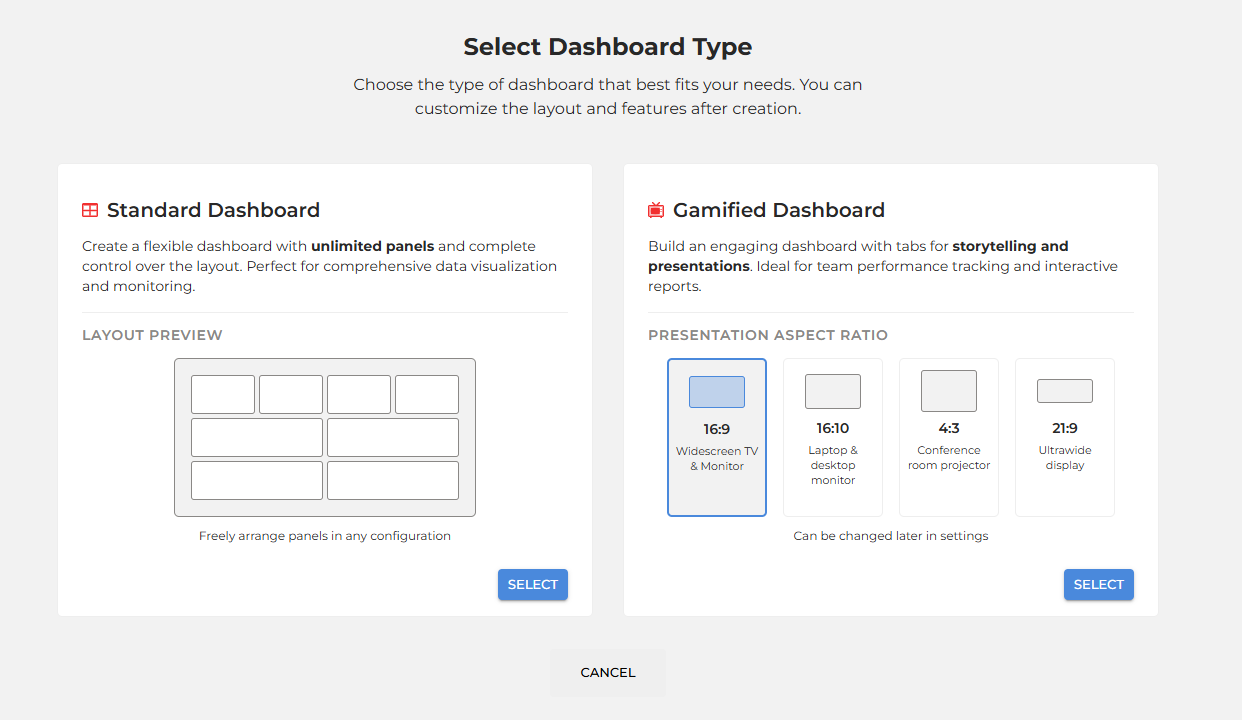
- Select the Gamified Dashboard card.
- Choose an aspect ratio to match your display screen:
- 16:9: Widescreen TV & Monitor (Default)
- 16:10: Laptop & desktop monitor
- 4:3: Conference room projector
- 21:9: Ultrawide display
- Select Select to create the dashboard.
All tabs on the dashboard share the same aspect ratio. The canvas displays a dashed blue border showing the boundary for your chosen ratio, with the ratio label in the top-left corner.
All panels must stay within the dashed blue border. If a panel falls outside the boundary, the border turns red and Save is disabled. Reposition or resize the panel to continue.
For general guidance on adding panels and building dashboards, see Creating Dashboards. To edit your dashboard's appearance, colors, images, and aspect ratios, see Editing Dashboards.
Gamified dashboards default to 175% zoom for better readability at a distance. You can adjust this at any time from the Dashboard Settings cog. See Customize Dashboard Appearance in Editing Dashboards for details. To load a specific zoom level for one session, see Setting the Zoom Level in a Dashboard Link.
Configuring Tab Settings
Before presenting, configure how long each tab displays and whether any tabs should be skipped. You can do this at any time in edit mode.
- Open the Gamified Dashboard and enable edit mode.
- In the tab bar, select the three-dot menu on the tab you want to configure and choose Settings.
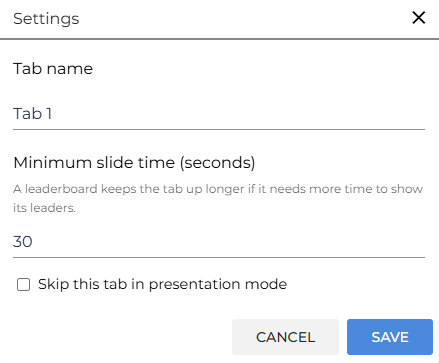
- Set the following options:
- Tab name: Rename the tab if required.
- Minimum slide time (seconds): The least time this tab is shown before auto-advancing in presentation mode. A Leaderboard panel keeps the tab up longer if it needs more time to show its leaders. The minimum is 5 seconds; the default is 30 seconds.
- Skip this tab in presentation mode: Check this box to exclude the tab from the slideshow. The tab remains visible when browsing the dashboard manually.
The Skip this tab in presentation mode setting applies to presentation mode only. Tabs marked to skip are still included in scheduled PDF reports.
- Select Save.
Each tab displays its minimum slide time in brackets in the tab bar (for example, Tab 1 (30s)). A tab with a Leaderboard can stay up longer than the time shown. Tabs set to skip show a skip icon.
If you change tab settings while a presentation is actively running on another screen, the presentation must be manually restarted for the changes to take effect.
Launching Presentation Mode
Gamified Dashboards display a Present button in the top-right corner of the toolbar. It has a main button and a dropdown:
- Present: Clicking this Starts the dashboard presentation from the current selected tab. When you select Present from inside Bullhorn ATS, the dashboard opens in a new browser tab in the standalone Bullhorn Analytics app and starts the presentation automatically.
- View Current Tab: Clicking this previews the current tab in fullscreen so you can check how it looks before presenting. The presentation does not cycle through the other tabs. When you select View current tab from inside Bullhorn ATS, the dashboard opens in a new browser tab in the standalone Bullhorn Analytics app and displays the selected tab.
-
Copy Link: Clicking this copies a link to the dashboard that you can open on another screen or share with other users. See Sharing a Gamified Dashboard Link.
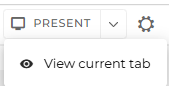
If the dashboard has unsaved changes, Copy link is disabled. Save the dashboard to enable it. When you view the dashboard inside Bullhorn ATS, Present and View current tab are also disabled until you save.
Presentation Mode
When a Gamified Dashboard is in presentation mode:
- The Bullhorn Analytics navigation is hidden. The dashboard fills the screen, with black bars on either side to maintain the chosen aspect ratio.
- A progress bar at the bottom of the screen shows the countdown before the current tab auto-advances.
- Tabs auto-advance after each tab's Minimum slide time (seconds), or later if a Leaderboard panel on the tab needs more time to show its leaders. The next tab pre-loads in the background so transitions are smooth. If a tab takes time to load, the presentation waits until it is ready before advancing.
- Tabs with Skip this tab in presentation mode enabled are bypassed automatically.
- After the last tab, the slideshow loops back to the beginning and continues indefinitely. The session is cached so the presentation can run on a display screen without timing out.
To navigate manually, use the left and right arrow keys to move between tabs at any time. This overrides the auto-advance timer for that transition.
Presenting a Leaderboard in a Gamified Dashboard
A Leaderboard panel on a Gamified Dashboard can highlight each leader in turn when you present. To add a Leaderboard panel and set its ranking options, see Dashboard Panel Options.
Present the Leaderboard Automatically
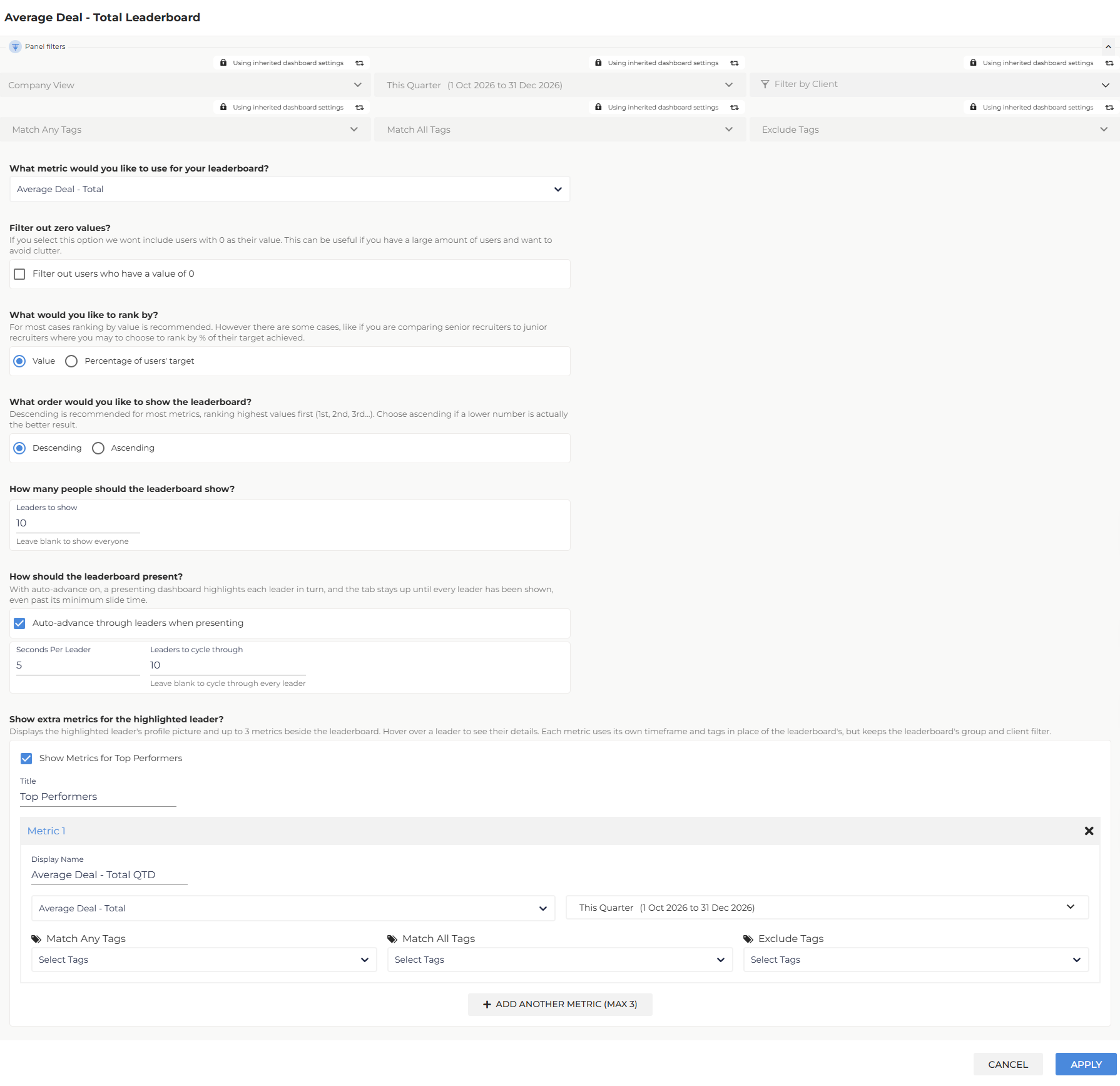
In the Leaderboard panel settings, under How should the leaderboard present?, set these options. They apply only when you present the dashboard:
- Auto-advance through leaders when presenting: Select this to highlight each leader in turn. The list scrolls to keep the highlighted leader in view.
- Seconds Per Leader: Enter how long each leader stays highlighted. New panels start at 5 seconds.
- Leaders to cycle through: Enter how many leaders to highlight. Leave blank to cycle through every leader. New panels start at 10.
When the dashboard is in view or edit mode, the leaderboard doesn't advance on its own. When you present with auto-advance on and Show Metrics for Top Performers selected, the Top Performers panel changes with each highlighted leader.
How Long a Leaderboard Tab Stays on Screen
A tab with an auto-advance Leaderboard stays on screen for the longer of two times: the tab's Minimum slide time (seconds), or Seconds Per Leader x Leaders to cycle through. For example, with 5 seconds per leader and 10 leaders to cycle through, the tab stays up for 50 seconds, even if its minimum slide time is 30 seconds. If the leaderboard finishes before the minimum slide time ends, it starts again from the first leader until the tab advances.
New and Existing Leaderboard Panels
Existing Leaderboard panels keep their current presenting behavior and tab timing until you select Auto-advance through leaders when presenting. Leaderboard panels you add from the panel library have it selected by default.
Sharing a Gamified Dashboard Link
Use a link to display a Gamified Dashboard on a TV or open it in fullscreen on another computer. The link opens the dashboard in the standalone Bullhorn Analytics app:
- Save any changes to the dashboard.
- Select the Present dropdown arrow, then select Copy link.
- Paste the link into a browser on the device that will display the dashboard. The dashboard opens in the standalone Bullhorn Analytics app.
Browsers don't allow a page to enter fullscreen automatically. After the dashboard opens from a link or from Bullhorn ATS, press F11 (Windows) or Cmd+Ctrl+F (Mac) to display it in fullscreen.
If you select Copy link from inside Bullhorn ATS, your browser may block the copy without showing an error.
Anyone who opens the link needs permission to view the dashboard. If they don't have it, they land on the Dashboards module with the message "You don't have permission to view this dashboard. Contact your administrator to request access."
Setting the Zoom Level in a Dashboard Link
Gamified Dashboards are often shown on screens of different sizes that each need a different zoom level. The link you copy ends with a zoom parameter that matches the zoom level saved in Dashboard Settings, for example zoom=100. Change the number in the link to load the dashboard at a different zoom level without changing the dashboard settings. For example, change zoom=100 to zoom=175 to load the dashboard at 175% zoom.
- Valid values are 75 to 300.
- The zoom in the link applies to that session only. It does not change the zoom saved in Dashboard Settings.
- If the value is below 75 or above 300, the dashboard loads at its saved zoom level and no error appears.
Frequently Asked Questions
Can I present a dashboard someone else created?
Yes, as long as it has been shared with you. See Managing Dashboards for details.
What happens if all tabs are set to skip?
If all tabs are set to skip, the presentation mode does not launch.
Can I change tab settings while a presentation is running?
You can update settings in edit mode, but the active presentation must be manually restarted for the changes to take effect.
What is the minimum slide time per tab?
5 seconds.
Why does a tab stay on screen longer than its minimum slide time?
A Leaderboard panel with Auto-advance through leaders when presenting selected keeps the tab up until it has shown every leader it is set to cycle through. The tab stays up for the longer of the minimum slide time or Seconds Per Leader x Leaders to cycle through. For example, a leaderboard set to 5 seconds per leader and 10 leaders needs 50 seconds, so the tab stays up for 50 seconds even if its minimum slide time is 30 seconds. For the settings, see Presenting a Leaderboard in a Gamified Dashboard.
Will the presentation stop if left running overnight?
No. The session is cached and the presentation continues to loop indefinitely without timing out.
Does the skip setting affect my scheduled reports?
No. Tabs marked to skip in presentation mode are still included in all scheduled PDF reports.
Why is Copy link disabled?
The dashboard has unsaved changes. Save the dashboard, then select Copy link again.
Why doesn't the dashboard fill the screen when I open it from a link?
Browsers block automatic fullscreen. Press F11 (Windows) or Cmd+Ctrl+F (Mac) to enter fullscreen.