| Edition: All Editions | Audience: All Users |
Dashboards: Scheduled Reports
Scheduled reports let you automate the delivery of your Analytics Dashboards, sending a PDF snapshot to your chosen recipients on a recurring basis. Use this to keep your team and stakeholders informed without manual exports.
When you create a schedule, the system captures the data from your specified Analytics Dashboard and delivers it as a PDF directly to your recipients.
Edition Limitations: While scheduled reports are available in all editions, users on Starter, Corporate, or Growth plans are limited to scheduling reports for their pre-built dashboards only.
Use Cases
Scheduling reports standardizes data sharing and simplifies communication. Use this feature to manage key communications, such as:
-
Team Performance: Weekly PDF updates for regional managers.
-
Executive Briefings: Monthly snapshots for board meetings.
-
Pipeline Management: Daily candidate status updates for account managers.
-
Stakeholder Sharing: Performance updates for external stakeholders who do not have system access.
-
Compliance and Audits: Timestamped records for audit purposes.
User Permissions
Two distinct permission levels control how you interact with and manage scheduled reports. Both must be enabled within Users Admin, as this feature is not active by default. If you cannot see these options, contact your Bullhorn Analytics administrator to request the appropriate user permission.
| Permission Name | Capability | How To Enable It |
|---|---|---|
|
Schedule Reports |
Create and manage schedules for |
Your Bullhorn Analytics administrator can enable this in Users Admin by checking the Schedule Reports box in your core permissions. See Applying Core Permissions for details. |
|
Global oversight to view and manage all reports across the organization, via the Admin menu. Admin users can edit, clone or delete any scheduled report. |
Your Bullhorn Analytics administrator can enable this in Users Admin by checking the Scheduled Reports Admin box under Admin Permissions. See Setting App and Admin Permissions for details. |
Creating a Scheduled Report
To configure and activate a new scheduled report from the Dashboards tab:
1. Access the Scheduling Interface
Go to the Dashboards module at the top of the Bullhorn Analytics screen.
Click the Open icon
 to view your available dashboards.
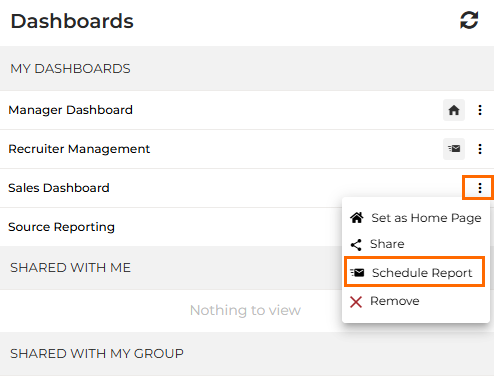
Click the three-dot menu (⋮) alongside the report you want to schedule and select Scheduled Report.
The New Scheduled Report interface will display.
2. Configure Details and Set the Schedule
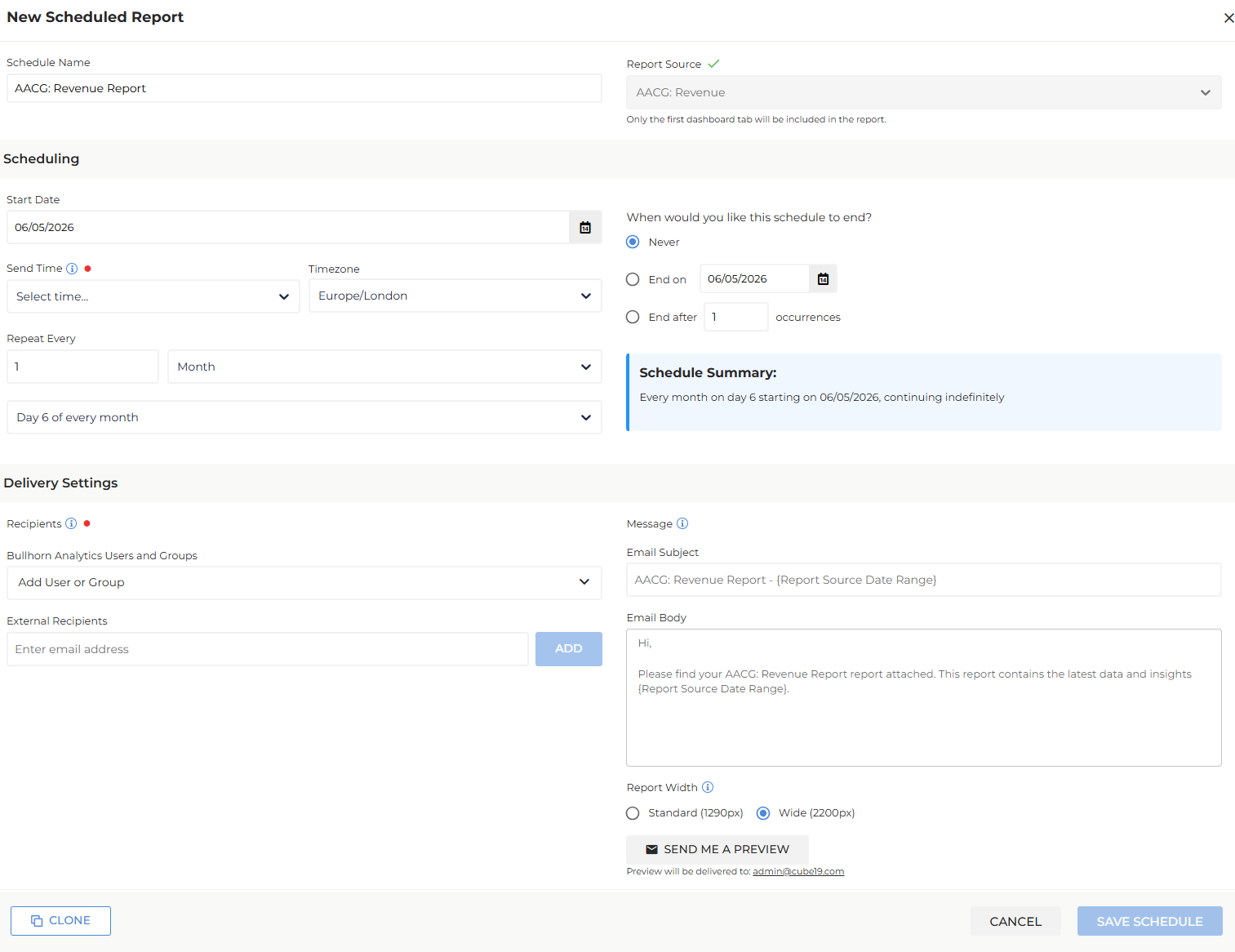
Fill in the required fields to define the report's name and recurrence:
Schedule Name: Enter a unique, descriptive name (e.g., "Weekly Sales Team Placements").
Report Source: This field automatically displays the name of the selected dashboard.
Scheduled reports currently only include Tab 1 of the selected dashboard. Content on other tabs is not included.
Start Date: Select the date for the first report delivery.
Send Time: Enter the time each report will be delivered. Note: This field is required.
Frequency: Select how often the report should send (Day, Week, Month, or Year) and set the repeat frequency.
End Date: Choose to end the schedule Never, on a specific End Date, or after a certain No. of Occurrences.
Report Width: Select the width for the emailed PDF. Choose Standard (1,290 pixels) for printer-friendly output or Wide (2,200 pixels) to more closely match the full width of your in-browser dashboard.
3. Add Email Recipients
You must add at least one email recipient to activate the report. Distribute the report to internal teams or users, or external stakeholders:
Groups/Individual Users: Click Add User or Group to select from your internal directory.
External Recipients: Type the email address directly into the field and press Enter to add it. Email addresses are validated against standard format rules.
A warning icon next to a recipient indicates they do not have dashboard access. They will receive the PDF attachment, but not the live dashboard link. If the dashboard is filtered by Logged in User or Logged in User's Group, only recipients with dashboard access are available to select as recipients.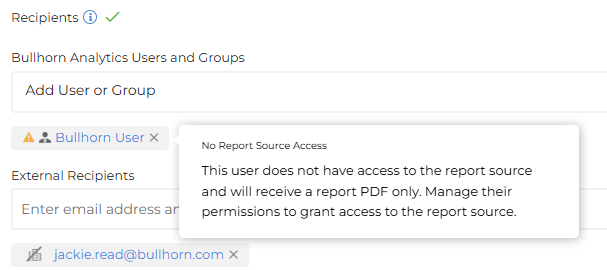
4. Customize and Activate
Before finalizing the report, you can personalize the email message and verify the output:
Email Subject: Edit and customize the default email subject line.
Email Body: Add context, instructions, or action items for recipients. If left blank, the system will use the default message.
Send Me a Preview (optional): Click this to receive a test email and verify the PDF layout before finalizing. The email will be sent to the logged-in user.
Save Schedule: Click this to activate the report and start the automated delivery.
If the email subject and body are not customized, the report will be delivered using the system default messaging.
Managing Existing Scheduled Reports
If you need to update, stop, or resume a recurring report, you can manage its settings from your dashboards list.
You can only view and manage scheduled reports that you own; existing schedules created by other users will not be visible to you unless you have Admin permission.
Go to the Dashboards module at the top of the Bullhorn Analytics screen.
Click the Open icon
to view your available dashboards.Look for the Scheduled Reports icon (
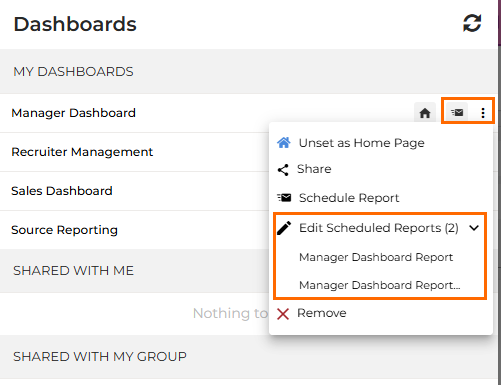
 ) in the dashboard list; this icon only appears when active reports exist for that dashboard.
 Click the three-dot menu (⋮) alongside the report you want to modify and select the specific schedule from the Edit Scheduled Report dropdown menu. The report editing interface will display.
From the editing interface, you can:
Edit: Modify the recipients, frequency or email content.
Pause / Resume: Use the End Date field to temporarily stop (set to a past date) or restart a scheduled report (remove or set to a future date).
Clone: Create a duplicate of an existing report schedule. See Cloning a Report Schedule.
- Delete: Permanently remove the report schedule from the system. See Deleting a Report Schedule.
Click Save Schedule to apply your changes. If you are deleting a report, simply confirm the pop-up prompt to finalize the removal.
Cloning a Report Schedule
This section applies to users with the Schedule Reports permission who are cloning their own report schedules. If you have the Scheduled Reports Admin permission and need to clone a report on behalf of another user or take ownership of reports across the organization, see Scheduled Reports Admin
Use the Clone feature to quickly create multiple versions of a report for different audiences or frequencies without starting from scratch.
Within the report edit interface, click Clone.
A duplicate of the report schedule will open with all details (recipients, frequency, dashboard source) automatically populated. Adjust the name or details as required and click Save Schedule.
By saving the cloned version, you become the owner of the new report.
If the Clone button is disabled, ensure you have saved all pending changes on the current screen first.
Deleting a Report Schedule
Use this feature to permanently remove obsolete or redundant schedules.
Within the report edit interface, click the Delete button at the bottom of the screen.
A confirmation prompt will appear. Click Confirm to permanently remove the report.
Standard users can only delete reports they own. Scheduled Reports Admin users can delete any report directly from the Admin menu.
Delivery Rules
Scheduled reports are only delivered to active Bullhorn Analytics users and clients. Reports will not be sent to inactive users or to clients that have been deleted or expired. You cannot select inactive users as recipients when creating or editing a report.
A report will fail to send if:
The report owner is inactive, regardless of recipient status.
All recipients are inactive, regardless of the owner's status.
Failed deliveries will display as Failed in the Last Sent column of the Scheduled Reports Admin table.
What Recipients Receive
Scheduled reports currently export the first tab of a dashboard only. Panels on additional tabs are not included.
When scheduling a Gamified Dashboard, the PDF maintains the fixed aspect ratio selected and includes only Tab 1. Tabs marked to skip in presentation mode are still included in the PDF export.
If Tab 1 includes a Leaderboard with auto-advance on, the PDF shows the first leader highlighted. When Show Metrics for Top Performers is on, the PDF also includes the Top Performers panel.
The content a recipient receives is determined by their specific access level to the dashboard within Bullhorn Analytics.
Recipients With Dashboard Access
Users who have permission to view the dashboard in Analytics will receive:
Email: The message featuring your personalized subject line and body, or the default messaging if not customized.
PDF Attachment: A point-in-time snapshot of the dashboard data.
Live Dashboard Link: A direct link to the dashboard within Analytics to view the real-time data.
Recipients Without Dashboard Access
External stakeholders or users without access to that specific dashboard will receive:
Email: The message featuring your personalized subject line and body, or the default messaging if not customized.
PDF Attachment: A point-in-time snapshot of the dashboard data.
The PDF includes all visible panels (and chart legends for grid-style charts), applied filters, date range information, exactly as they appeared at the moment the report was generated.
Personalized Reports Based on Recipient
If the scheduled dashboard is filtered by Logged in User or Logged in User's Group, each recipient receives a version of the report scoped to their own data. The PDF displays the relevant user or group, rather than a single static snapshot of the dashboard. Only users with dashboard access can be added as recipients when this filter is active.
How Date Ranges are Handled in Scheduled Reports
Depending on the filter type selected, scheduled reports will either update automatically or remain fixed on specific dates:
Relative Filters (e.g., "Last Week," "This Month") update dynamically with each report generation to reflect the current period.
Custom Date Ranges (e.g., "01/01/2025 to 03/31/2025") remain static unless you manually edit the dashboard filter settings.
Scheduled Reports: Video Tutorial
Watch the tutorial video by Alex Brewer on how to use Scheduled Reports:
Frequently Asked Questions
Can I schedule a report for a dashboard I didn't create?
Yes, provided it has been shared with you with at least "View" permission.
What happens if I change the dashboard after scheduling a report?
All future scheduled reports will reflect the updated version of the dashboard. To preserve a specific version of a report, use "Save As" to create a copy of the dashboard before making any edits.
How many reports can I create for one dashboard?
There is no hard limit. You can create multiple schedules for the same dashboard to accommodate different audiences, time zones, or frequencies.
Why don't some recipients see a live dashboard link?
Only recipients with access to the dashboard in Analytics receive the live link.
Why doesn’t the PDF data match the live dashboard?
The PDF is a "point-in-time" snapshot taken at the moment of generation. For the most current, real-time data, recipients should use the live dashboard link.
How do I know if my report was sent successfully?
The most reliable way to confirm delivery is to include your own email address as a recipient. Delivery tracking functionality will be introduced in a future release.
What happens if I delete the dashboard?
If a dashboard is deleted, all associated scheduled reports will fail. Delete any active schedules before deleting the dashboard to prevent delivery failures.
Why can't I add certain users as recipients?
If the scheduled dashboard is filtered by Logged in User or Logged in User's Group, only users with dashboard access are available as recipients. Users without access to that dashboard cannot be selected.