| Edition: Enterprise | Audience: User Admin |
Enabling Dashboards
Bullhorn Analytics administrators manage Dashboard access and permissions through Users Admin. Use these settings to control Dashboard visibility, editing access, and sharing for individual users.
Only Enterprise Edition users with Full Dashboard Editing Abilities can create or edit custom Dashboards.
Enable Dashboards for a User
Gamified Dashboards requires client-level access enabled by Bullhorn Support. This cannot be configured in Users Admin and is enabled at the account level only. Contact Bullhorn Support to request access for your organization. Once enabled, all users with dashboard creation permissions will have access to the Gamified Dashboard type.
- Go to Menu > Admin > Users.
- Scroll to the Manage activated users section and select the user whose permissions you want to update.
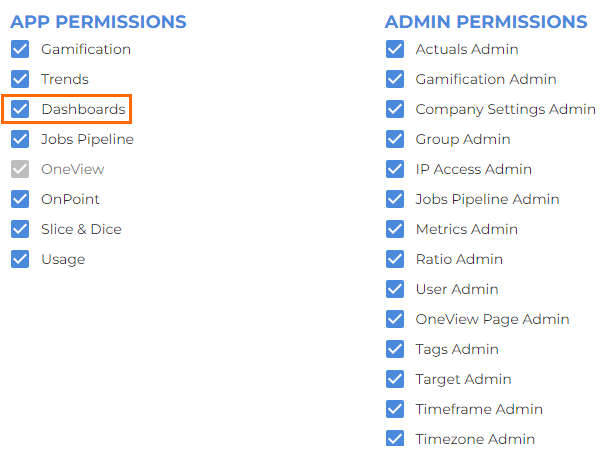
- Scroll down the user record and check the Dashboards App permission to make the Dashboard module visible in their Bullhorn Analytics home menu.
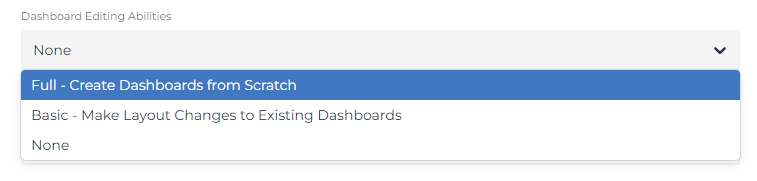
- Select the appropriate level from the Dashboard Editing Abilities dropdown to control what the user can edit. Choose from
- Full - Create Dashboards from Scratch
- Basic - Make Layout Changes to Existing Dashboards
- None
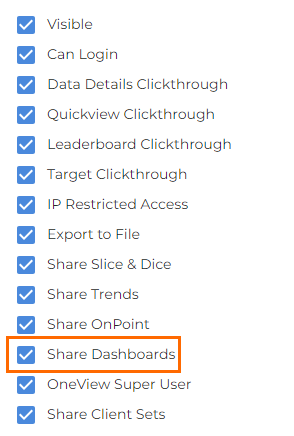
- Check Share Dashboards to allow the user to share dashboards with other users.
To give a user quick access to dashboards, change their landing page to Dashboards. Users will land on the Dashboards tab when they open Bullhorn Analytics.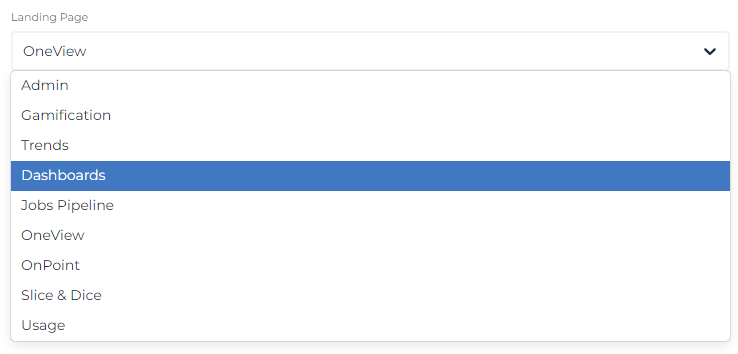
For information on enabling Scheduled Reports permission, see Dashboards: Scheduled Reports User Permissions