| Edition: Enterprise | Audience: All Users |
Using the Dashboard Client Filter and Creating Client Sets
The Client Filter option is a powerful feature that will help you optimise your client relationships and improve the professionalism and overall quality of your interactions with clients by enabling you to view client-specific data on the Dashboards page. The Client Filter empowers you to support your client relationships with instantly accessible and accurate data, and Client Sets help you manage and report over your client portfolios.
Filtering Dashboards by Client
Clicking on the Filter by Client dropdown will present a full list of client records and Client Sets, displayed in alphabetical order (with Client Sets appearing first in the list). You can select multiple clients from the dropdown or type in the names of clients you are looking for to filter the list.
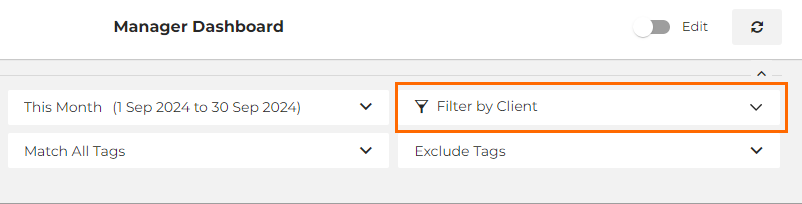
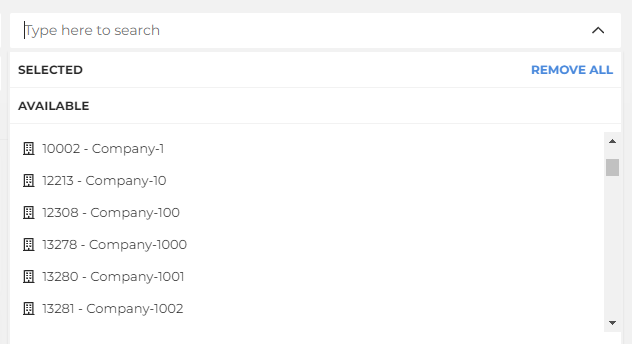
Once selected, click Load Latest Data for the data filter to take effect.
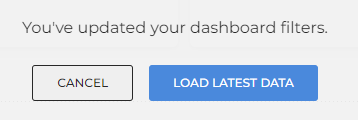
The data displayed on the Dashboard will now be specific to the selected client record(s). Accessing the clickthrough for any metric will show the data details for the client(s) selected, and you can change the timeframe to view data over different periods if required.
Creating Client Sets
In the Client Filter, you can also create Client Sets. These are saved lists of clients which appear at the top of your client list next to a city icon ( ) rather than a skyscraper icon (
 ) which is the standard client icon.
To create a Client Set, you can either select the clients you want from the dropdown and then click Create Client Set, or select this straight away to create a Client Set from scratch.
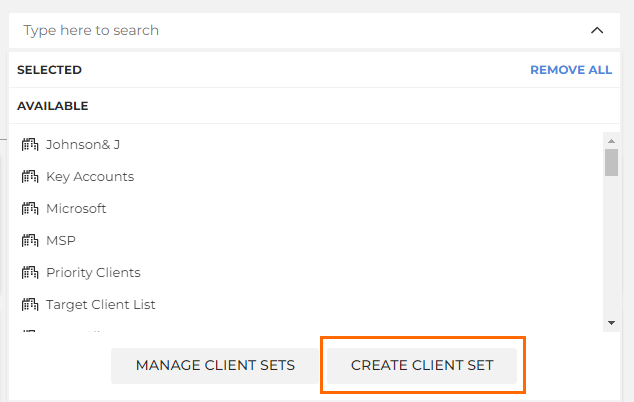
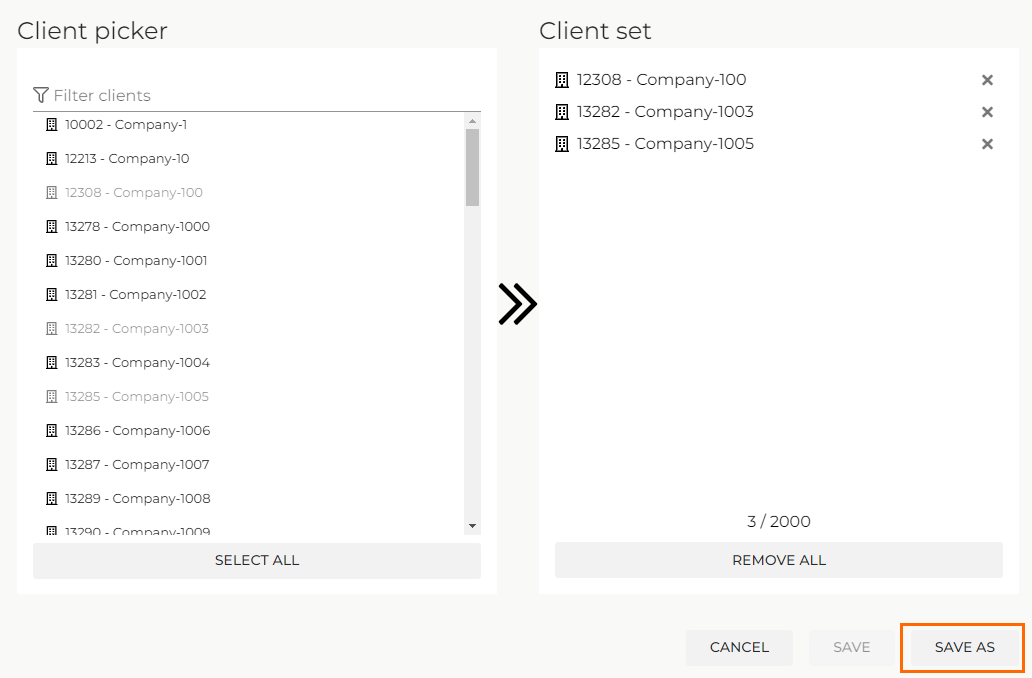
Using the Client Picker, make selections to add to the new group. Once all selections have been added, click Save As and then name the group.
This new group will now appear under Saved Client Sets in the My Client Sets category. There are two additional areas – Shared With Me and Shared With My Group where you can access Client Sets that have been shared with you.
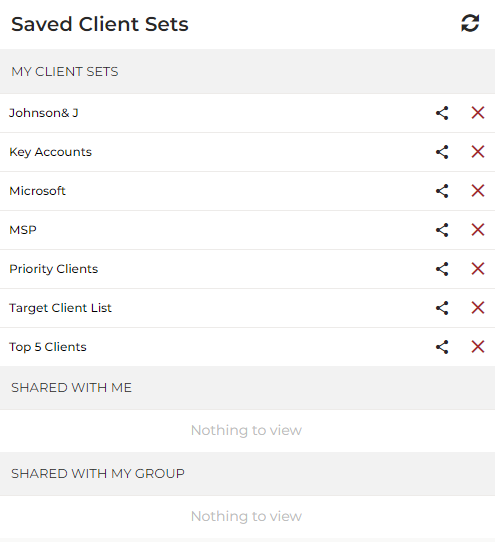
If you have Client Sets sharing permission (set by your User Admin in Applying Core Permissions), you’ll be able to share Client Sets with other users or groups within the business by clicking the share ( ) icon.