Format Step
This step is currently in Early Access.
The Format automation step cleans up common data problems in Bullhorn ATS records, such as names typed in all capitals, extra spaces, broken special characters, phone numbers in mixed formats, and misspelled email domains. Add the step to an automation, choose the fields you want cleaned, and Bullhorn Automation updates those fields in Bullhorn ATS for each record that reaches the step.
Example Use Cases
-
Fix candidate or contact names that were imported in all capitals or all lowercase.
-
Repair garbled characters in text fields, such as café instead of café.
-
Standardize phone numbers that use different formats.
-
Make state fields consistent where they mix abbreviations and full names, such as FL and Florida.
-
Correct misspelled email domains, such as gmial.com.
How the Format Step Works
The Format step changes only the fields you select, and only when it can fix the value with high confidence. Fields that are already clean, or that Bullhorn Automation cannot resolve with confidence, are left unchanged. The step never changes spelling, and it never changes a record's country.
-
Add the Format step to an automation.
-
Choose the field groups and fields you want cleaned.
-
Bullhorn Automation reads the selected fields from Bullhorn ATS, cleans them, and writes all changes back in a single update.
Every cleanup that applies to a field runs on that field. You choose fields, not individual cleanups.
What the Format Step Cleans
The Format step groups fields by the kind of cleanup they need:
| Group | What it does | What it leaves alone |
|---|---|---|
| Names | Fixes capitalization, removes extra spaces, and repairs broken special characters, such as José to José. | Names that already mix upper and lower case, and spelling. |
| Corrects misspellings of major free email providers, such as gmial.com to gmail.com. | Company email domains. | |
| Text Content | Repairs broken special characters, such as café to café, and removes extra spaces. | Capitalization. |
| Phone Numbers | Standardizes US phone numbers to the format you choose, such as 1235557890 to (123) 555-7890. | Numbers that are not clearly US numbers, based on the phone number and the country on the record. |
| State | Changes the state to an abbreviation or a full name, such as FL to Florida, based on the state and the record's country. | The country field, and any state that can't be matched with confidence. |
Using the Format Step
You can use the Format step in automations for the following record types:
CandidatesContactsLeadsJobsCompanies
The step is named for the record type of the automation, such as Format Candidate.
The Format step isn't available for Submission or Placement automations.
Add the Format Step to an Automation
Open the automation you want to change, or create a new automation. Then follow these steps to add the Format step.
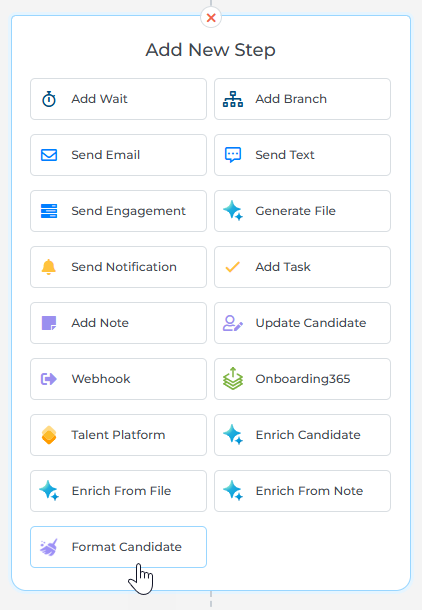
In the automation, click the place where you want the step, and then choose Format (for example, Format Candidate) from the step list.
Records that need no changes leave the automation at the Format step, so they don’t continue to any steps after it. If you need those records to pass through any other steps in the automation, add the Format step at the end, or build a separate automation that only cleans the records you choose.
In the Settings drawer, review the field groups. All fields are selected by default. Clear the check box for any group or field you don't want updated.
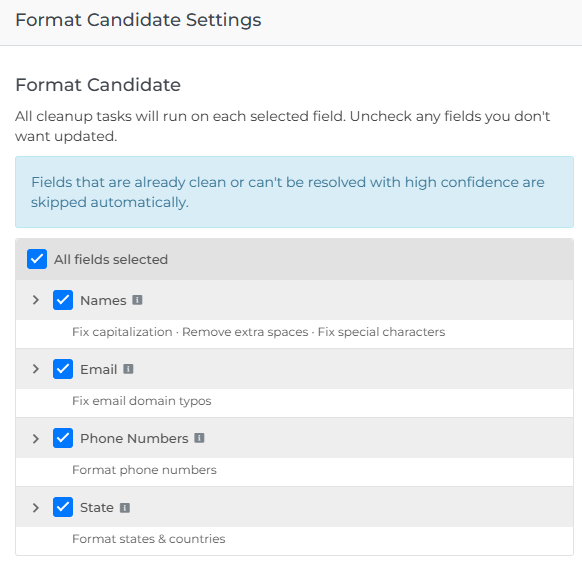
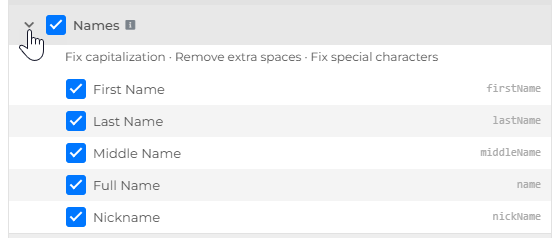
Click the arrow beside a group to see its fields. Click the info
 icon beside a group to see what that cleanup does.
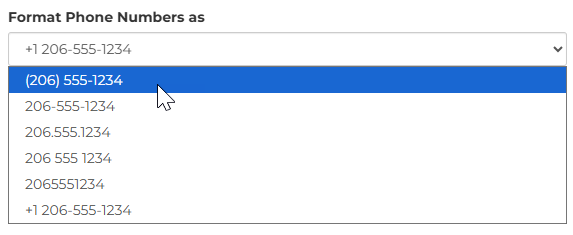
If Phone Numbers is selected, choose a format in the Format Phone Numbers as list.
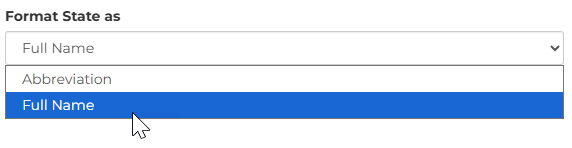
If State is selected, choose Abbreviation or Full Name in the Format State as list.
Click Save.
The step shows how many fields it will clean. To change the step later, click it, or click Options and then Edit. To remove it, click Options and then Delete.
Format Step Options and Cleanup Details
Use this reference for the fields available for each record type, the phone number format options, and the specific rules the Format step follows when it decides what to clean.
Fields Available by Record Type
The fields you see depend on the record type of the automation.
| Group | Candidate | Sales Contact Lead | Job | Company |
|---|---|---|---|---|
| Names |
|
|
|
|
|
| Not available | Not available | |
| Text Content | Not available | Not available |
| Not available |
| Phone Numbers |
|
| Not available |
|
| State |
|
|
|
|
Phone Number Formats
Choose one format for all selected phone fields. The same format applies to every phone field in the step.
| Format | Example |
|---|---|
Parentheses | (206) 555-1234 |
Dashes | 206-555-1234 |
Dots | 206.555.1234 |
Spaces | 206 555 1234 |
Digits only | 2065551234 |
International | +1 206-555-1234 |
Cleanup Rules
Capitalization: Capitalization changes only when every letter in the value is upper case or every letter is lower case. The step keeps initials (J.W.), Roman numerals (II to XII), Mc, Mac, O' and D' prefixes, and hyphenated names. Values of two characters or fewer in capitals are left alone.
Phone numbers: The step accepts 10 digits, or 11 digits that start with 1. Anything else is left unchanged. A phone field is skipped when the record's country is not US.
Email addresses: The step uses a fixed list of known typos for gmail, yahoo, hotmail, outlook, icloud, aol, live, msn, comcast, me, and protonmail. Real company domains are deliberately excluded.
States: Ambiguous abbreviations (CA, IN, OR, ME, GA, AL) are not converted when the record has no country, because they can mean a state or a country.
Special characters: The step decodes HTML entities, literal \uXXXX sequences, and Windows-1252 text misread as UTF-8.
Independent fields: Each field is cleaned independently, so one field with no safe fix doesn't block the others.
Format Step Processing
Each record that reaches the Format step is checked once. The result depends on what Bullhorn Automation finds in the selected fields.
| Situation | What happens | Reason shown for the record |
|---|---|---|
At least one field was fixed | Bullhorn Automation updates the fields in Bullhorn ATS and the step completes. | None |
Every selected field is already clean | The record leaves the automation at this step. | Field value already correct, no change needed |
A field couldn't be fixed with confidence and nothing else changed | The record leaves the automation at this step. The value is left as it was. | Value could not be confidently cleaned, left unchanged |
Bullhorn Automation couldn't read from or write to Bullhorn ATS | The step fails for the record. | ATS read or write failed during data cleanup |
Bullhorn ATS rejected the update, for example because a value is too long | The step fails for the record. | The reason Bullhorn ATS returned |
Troubleshooting
I don't see the Format step in the step list.
Possible cause: The step isn't enabled for your company, or the step isn't supported for that record type.
How to fix it:: Confirm the automation uses a supported record type. If it does, contact your account team or submit a support ticket.
A name wasn't changed.
Possible cause: Names that already mix upper and lower case are left as they are. Spelling is never changed.
How to fix it:: Correct the name manually in Bullhorn ATS.
A phone number wasn't changed.
Possible cause: The number isn't a clear US number, or the record's country isn't United States.
How to fix it:: Check the phone number and the country on the record.
A state wasn't changed.
Possible cause: Bullhorn Automation couldn't match the state to the record's country with confidence.
How to fix it:: Check the state and country on the record.
An email address wasn't changed.
Possible cause: The step only corrects misspellings of major free email providers.
How to fix it:: Correct the email address manually in Bullhorn ATS.
Records are leaving the automation at the Format step.
Possible cause: Those records had nothing to change.
How to fix it:: Move the step to the end of your automation, or review Format Step Processing for how each situation is handled.
The step shows as failed for a record.
Possible cause: Bullhorn ATS couldn't be read or rejected the update.
How to fix it:: Try again later. If the failure continues, submit a support ticket with the record ID and the automation name.
FAQ
Does the Format step change my data in Bullhorn ATS?
Yes. The step updates the selected fields on the Bullhorn ATS record. Select only the fields you want changed.
Can I choose which cleanups run?
You choose which fields the step cleans. All cleanups that apply to a field run on it.
Does the Format step fix spelling?
No. It fixes capitalization, extra spaces, broken special characters, phone and state formats, and misspelled email domains from major free providers.
Does the Format step change phone numbers outside the United States?
No. The step formats phone numbers only when the record's country is the United States.
Will the Format step change a record's country?
No. The State cleanup uses the country to match the state, and it never changes the country.
Can I use different phone formats for different phone fields?
No. One phone format applies to every phone field selected in the step.
Can I undo a change the Format step made?
Bullhorn Automation cannot restore the earlier value. Review the Bullhorn ATS record history to see the previous value and update the field manually if required.
Can I use the Format step on Submission or Placement automations?
No. The step is available for Candidate, Sales Contact, Lead, Job, and Company automations.