I-9 Section 1 and Section 2
This article explains how to assign a new I-9 Form I-9 to verify the identity and employment authorization of individuals hired for employment in the United States. to an applicant and how to complete Section 1 and Section 2. Section 1 and Section 2 are consolidated into a single-page form. The applicant completes Section 1 first, then the authorized representative completes Section 2 after verifying the applicant's identity and work authorization documents.
Section 1: Applicant Completion
Section 1 is completed by the applicant. Section 1 captures the applicant's personal information and citizenship or immigration status. The applicant must complete and sign Section 1 personally, even if the applicant uses a preparer or translator.
How to Assign an I-9 to an Applicant
Use these steps to send the I-9 Section 1 form to a new applicant from their Applicant (or Candidate or Talent) Customer talent - the person applying or hired for the job Profile The Applicant’s self-service ability to add or update information about themselves (e.g., job preferences, references, education, work history) in Talent Platform.
- Navigate to the applicant's Applicant Profile.
- Click New Onboarding Request.
- Select 2023 I-9 Section 1 and Supplement A.
- Choose an Authorized Representative for the Section 2 completion step.
- Click Send Workflow The action used to initiate the sending of Forms and Packages. to send the form to the applicant.
When the applicant signs Section 1, Bullhorn generates a unique signature ID for that signing event. This ID appears at the bottom of the signed PDF and is part of the I-9 audit trail.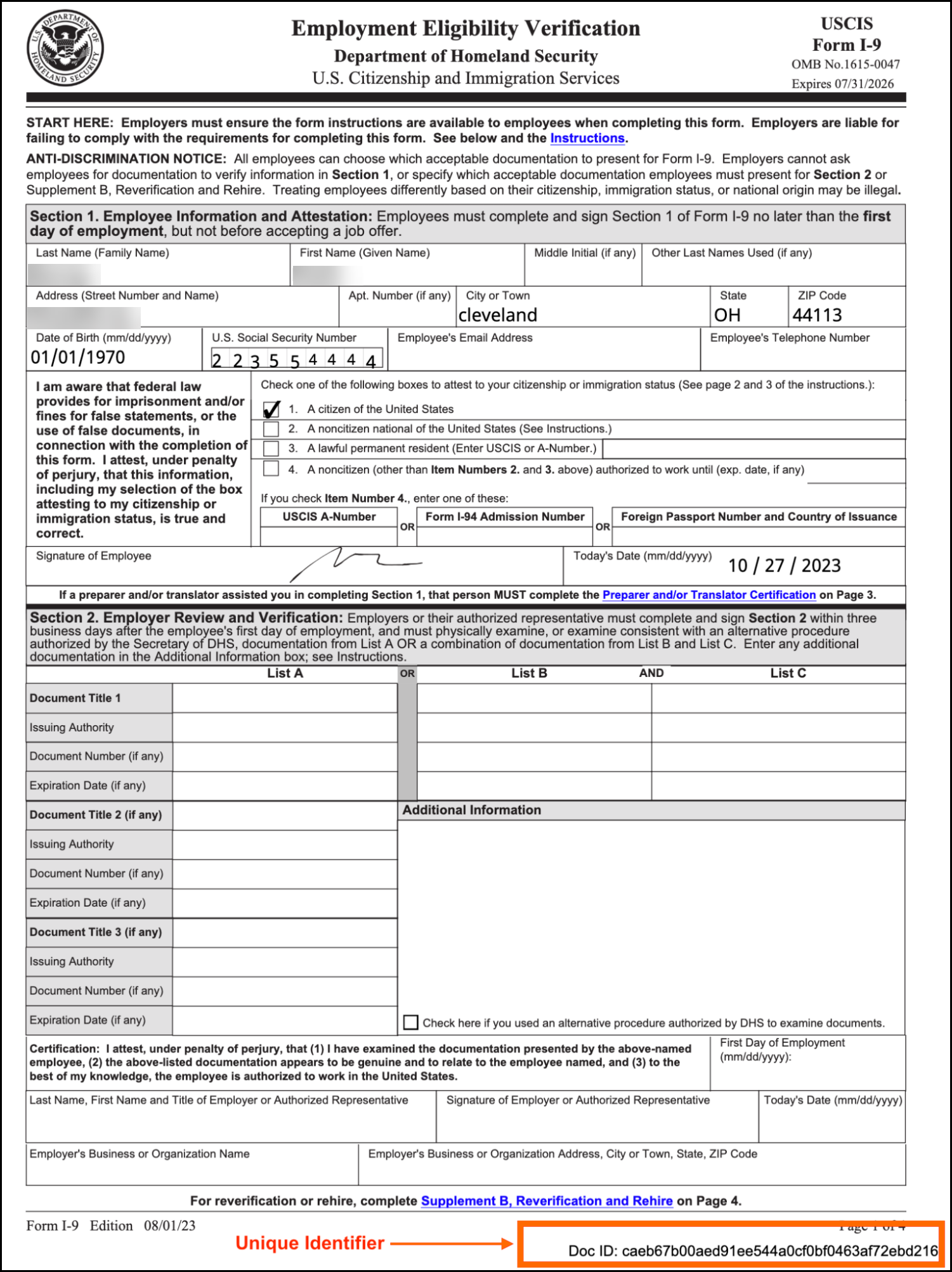
How to Review a Completed Section 1
After the applicant signs Section 1, the signed PDF is accessible directly from the Onboarding tab in the applicant's profile.
- Navigate to the applicant's Applicant Profile.
- Click Onboarding.
- In the Signed eDocs section, locate 2023 I-9 Section 1 and Supplement A.
- Click the view button (eye icon) to open the signed PDF in a new tab.
Section 2: Authorized Representative Completion
Section 2 is completed by the employer or authorized representative as verification that the applicant's identity and employment authorization documents were reviewed. Section 2 is not available until Section 1 is signed by the applicant.
How to Access Section 2
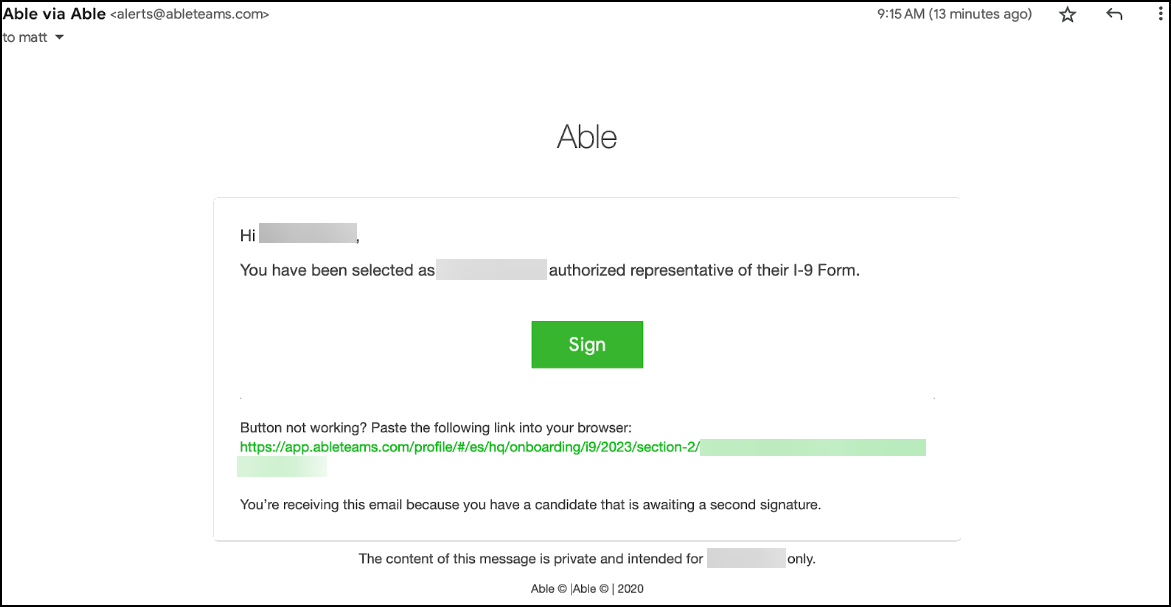
After the applicant signs Section 1, Bullhorn automatically sends a unique Section 2 link to the designated authorized representative by email or SMS. There are two ways to open Section 2:
- Follow the link in the email or SMS notification sent to the authorized representative.
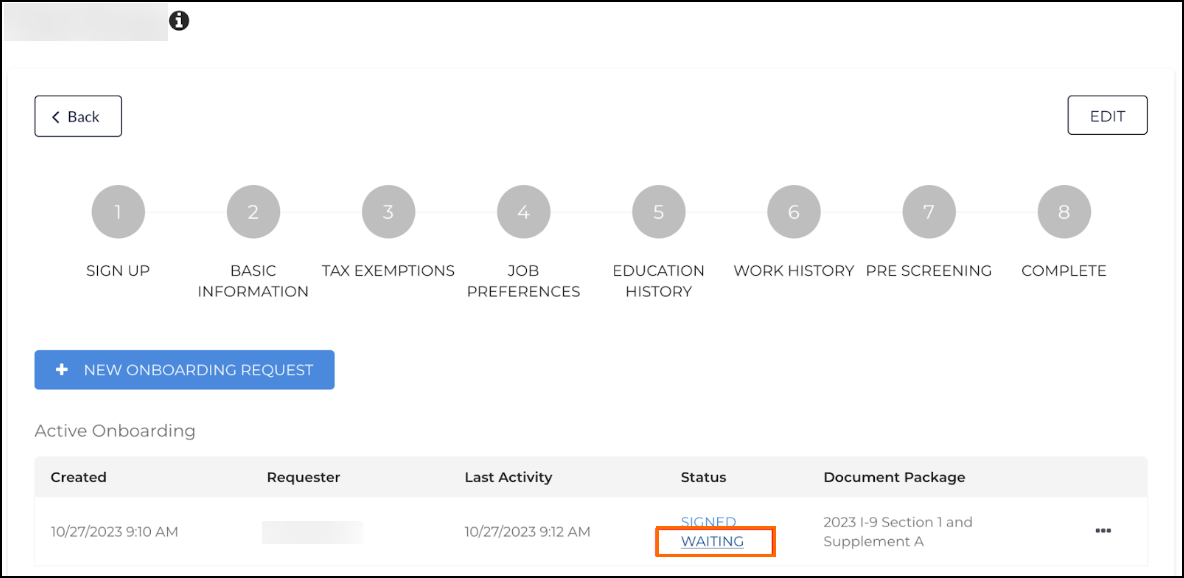
- In the applicant's Applicant Profile, click Active Onboards and then click the Waiting button.
How to Complete Section 2
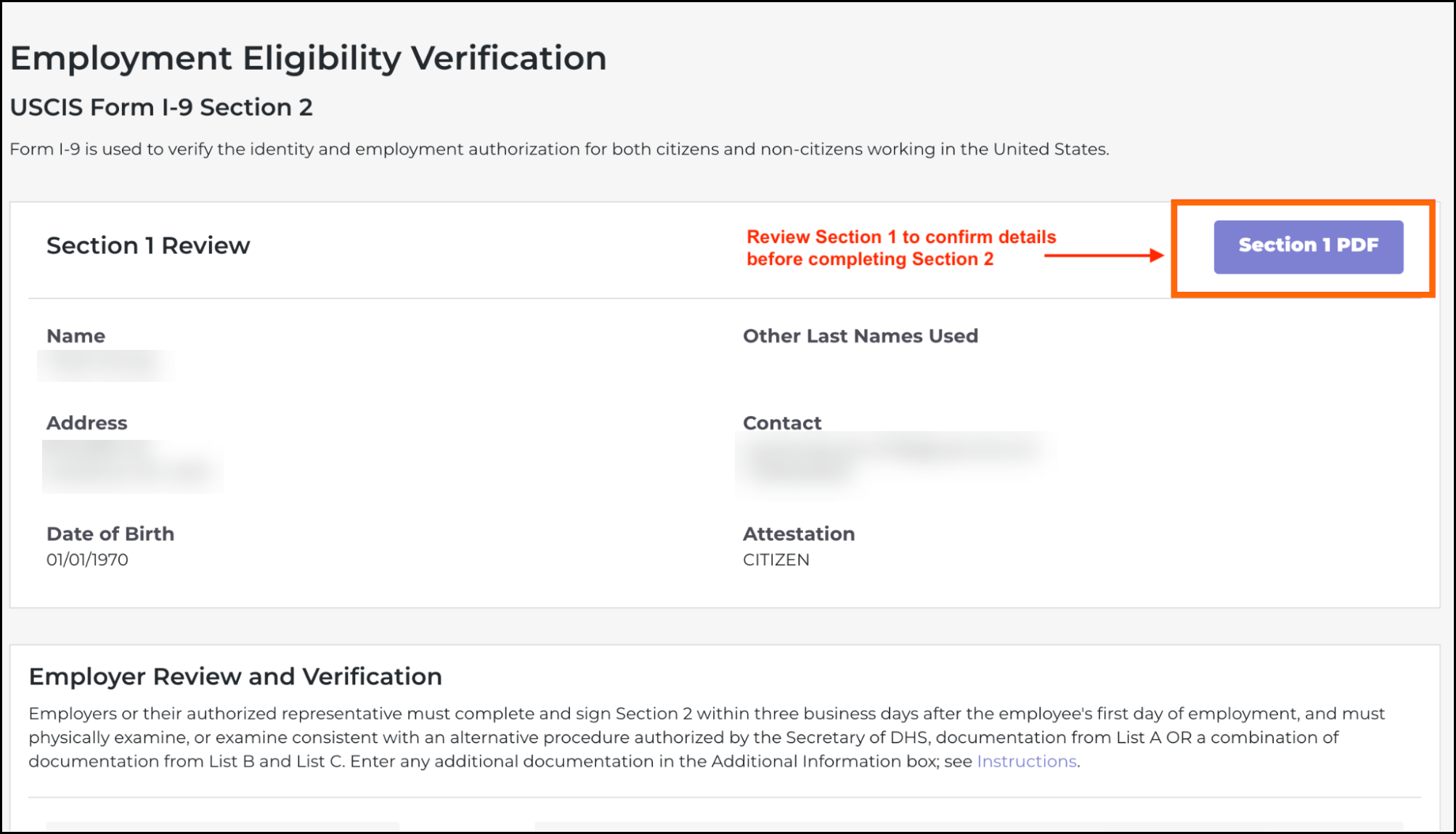
Before entering any information in Section 2, the authorized representative must review the completed Section 1 PDF. Then verify the documents the applicant presents before completing and signing the form.
- Click the Section 1 PDF button to review the applicant's Section 1 information.
- Review the identity and employment authorization documents the applicant presents.
- Select the document type from the appropriate list (see Acceptable Documents below).
- Enter the required document details.

- Sign Section 2. The applicant's Section 1 information is visible in a preview while signing.
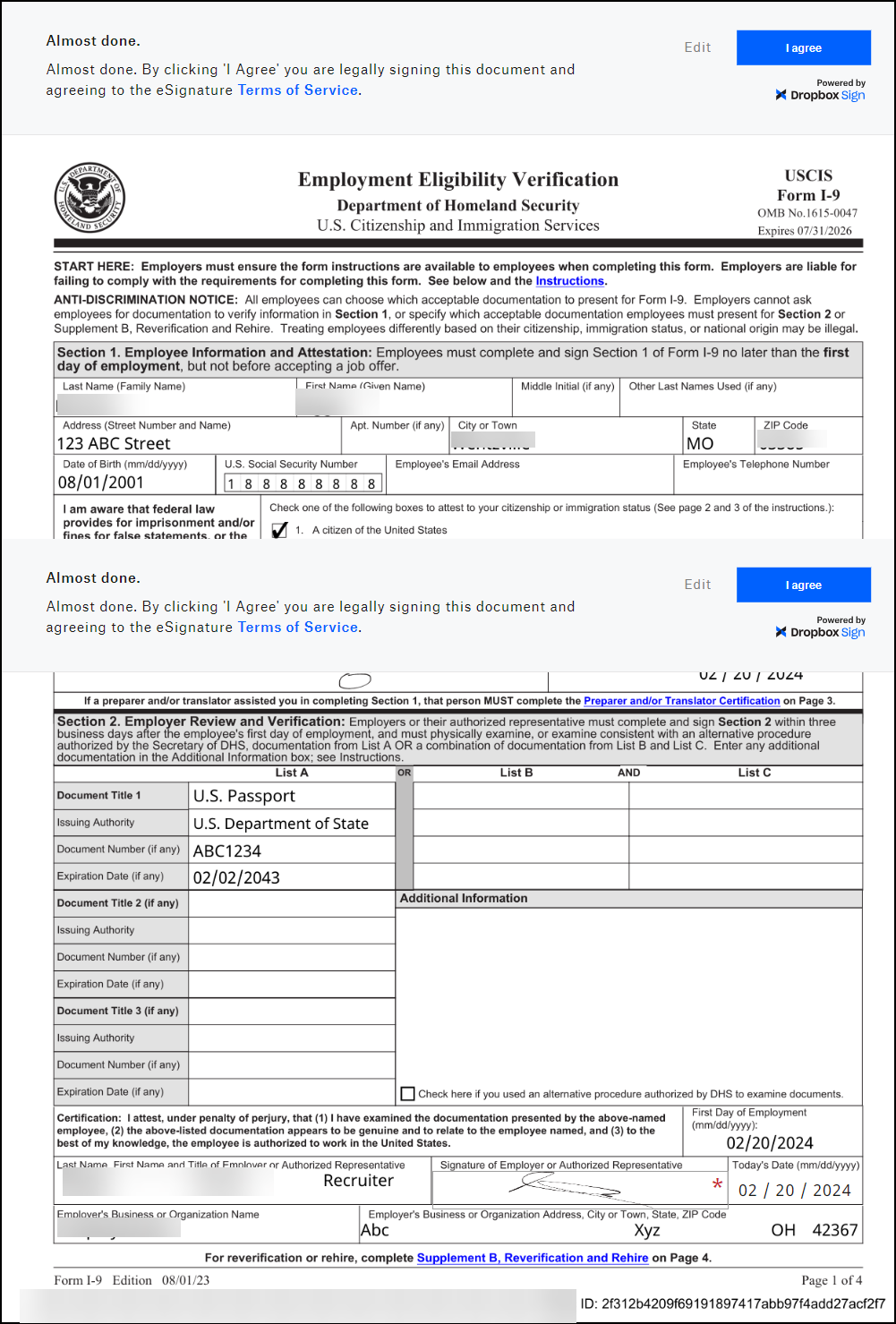
Employers must allow the applicant to choose which documents from the USCIS approved list to present. Requiring specific documents may violate federal anti-discrimination rules.
Acceptable Documents for Section 2
The applicant chooses which documents to present from the USCIS approved list. Documents fall into three lists. The applicant must provide either one List A document, or one List B document combined with one List C document.
- List A: Documents that establish both identity and employment authorization (such as a U.S. Passport, Permanent Resident Card, or Employment Authorization Card).
- List B: Documents that establish identity only (such as a Driver's License, Voter Registration Card, or Military ID).
- List C: Documents that establish employment authorization only (such as a Social Security Card, Birth Certificate, or Native American Tribal Document).
For the complete list of approved documents, see the USCIS Acceptable Documents Chart.
How to Review the Completed I-9
After Section 2 is signed, Bullhorn merges the signed Section 1 and Section 2 into a single combined PDF.
- Navigate to the applicant's Applicant Profile.
- Click Onboarding.
- In the Signed eDocs section, locate 2023 I-9 Section 1 and Supplement A.
- Click the view button (eye icon) to open the completed PDF.
Employers are responsible for deleting any copies of identity documents saved to their device during Section 2 review. Bullhorn does not automatically remove saved copies.
I-9 Form Actions
Three actions are available from the three-dot menu on an I-9 in the applicant's Onboarding tab. Choosing the right action depends on what needs to be fixed.
Resend
Resend resends the workflow notification without resetting the form or clearing any data. The notification goes to whoever holds the active step in the workflow at the time — the applicant when the document is in Sent, Opened, or Viewed status, or the authorized representative when the document is in Signed/Waiting status. Bullhorn uses the same notification method (email or SMS) as the original.
Use Resend when an authorized representative did not receive the Section 2 link, or when an applicant needs the Section 1 link resent.
Reorder
Reorder resets the I-9 workflow from the beginning and clears all fields on the I-9 form. There is no maximum number of reorders. Use Reorder when an applicant made an error in Section 1 that cannot be corrected through the I-9 Correction workflow — for example, if the wrong citizenship or immigration status was selected.
Do not use Reorder to fix a signed I-9 that contains a minor data entry error. Use the I-9 Corrections workflow instead. See I-9 Section 1 Correction - Recruiter Experience and I-9 Section 2 Correction - Recruiter Experience.
Delete
Delete removes the I-9 from the applicant's record entirely. Delete is available when the I-9 is in Sent, Viewed, or Opened status. Once the workflow moves to Signed/Waiting, the option changes to Cancel. A confirmation dialog appears before the deletion is completed. Use Delete when an I-9 was assigned to the wrong applicant or created in error.
Troubleshooting
Use these steps to resolve the most common issues with the Section 1 and Section 2 workflow.
If the authorized representative did not receive the Section 2 link
Use Resend from the three-dot menu on the I-9 in the Onboarding tab. Resend redelivers the notification without resetting the form. Confirm that the correct authorized representative was selected when Section 1 was assigned.
If the applicant made an error in Section 1
Use Reorder from the three-dot menu. Reorder resets the I-9 workflow from the beginning and clears all fields so the applicant can re-enter their information. If Section 2 is already complete, use the I-9 Corrections workflow instead of Reorder. See I-9 Section 1 Correction - Recruiter Experience.
If Section 2 is not available or shows as Waiting
Section 2 only becomes available after the applicant fully signs Section 1. Confirm that the applicant has completed and signed Section 1 before expecting the Section 2 link to generate.
If a signed I-9 contains a data entry error
Do not use Reorder or Delete to fix a completed I-9. Use the I-9 Corrections workflow. See I-9 Section 1 Correction - Recruiter Experience and I-9 Section 2 Correction - Recruiter Experience.
If Section 2 has not been completed and the deadline is approaching
Under federal law, Section 2 must be completed within three business days of the applicant's first day of work. Bullhorn sends automated reminders to the authorized representative based on the I-9 Authorized Rep Reminder Interval and I-9 Authorized Rep Reminder Days system settings. To monitor outstanding Section 2 completions, use the Section 2 Incomplete filter tile on the I-9 Dashboard 2.0.
Frequently Asked Questions
Can the employer require the applicant to present a specific document?
No. The applicant chooses which approved documents to present. Requiring specific documents may violate federal anti-discrimination rules. The employer can only verify that the documents are on the USCIS approved list and appear genuine.
Does the applicant have to sign Section 1 even if they used a translator?
Yes. The applicant must personally sign Section 1 regardless of whether they used a preparer or translator. The preparer or translator signs Supplement A. See I-9 Supplement A: Preparer and Translator Certification for details.
What is an authorized representative?
An authorized representative is the person designated to complete and sign Section 2 on behalf of the employer. An authorized representative is typically a recruiter, HR staff member, or another employer-designated individual. The authorized representative must physically review the documents the applicant presents, or virtually if the Alternative Procedure is enabled.
When is Section 2 due?
Under federal law, Section 2 must be completed within three business days of the applicant's first day of work. Bullhorn generates the Section 2 link as soon as Section 1 is signed. The I-9 Authorized Rep Reminder Interval and I-9 Authorized Rep Reminder Days system settings control when reminder emails are sent to the authorized representative.
Scenarios
The following scenarios describe common Section 1 and Section 2 situations. Each is written to stand alone for quick reference.
The applicant presents a U.S. Passport
A U.S. Passport is a List A document. A U.S. Passport establishes both identity and employment authorization. If the applicant presents a valid U.S. Passport, no additional documents are needed. Enter the document details in Section 2 and sign to complete verification.
The applicant presents a Driver's License
A Driver's License is a List B document. A Driver's License establishes identity only and does not satisfy the employment authorization requirement. The applicant must also present a List C document, such as a Social Security Card or Birth Certificate. Enter both documents in Section 2 to complete verification.
The authorized representative says they never received the Section 2 link
Navigate to the applicant's Applicant Profile, open the Onboarding tab, click the three-dot menu on the I-9, and select Resend. Resend redelivers the workflow notification to the authorized representative without resetting the form or clearing any data. If the problem persists, confirm the correct authorized representative was selected when Section 1 was assigned.
The applicant entered the wrong Social Security Number in Section 1
Use the Reorder action. Navigate to the applicant's Applicant Profile, open the Onboarding tab, click the three-dot menu on the I-9, and select Reorder. Reorder resets the I-9 workflow from the beginning and clears all fields so the applicant can re-enter their information.
The applicant cannot complete Section 1 due to a language barrier
The applicant may use a preparer or translator to help fill out Section 1. The preparer or translator must complete and sign Supplement A. The applicant must still personally sign Section 1. See I-9 Supplement A: Preparer and Translator Certification for details on the Supplement A workflow.