Offers & Placements (Web)
An Offer in Invenias is a formal offer of employment presented to a Candidate in relation to an Assignment. A Placement indicates that an Offer has been accepted.
This article covers:
- Creating an Offer
- Saving an Offer
- Rejecting an Offer
- Cancelling an Offer
- Accepting an Offer and creating a Placement
- Completing a Placement
- Cancelling a Placement
- Creating a Placement directly
- Viewing Offers and Placements
- Configuring Offers and Placements
Creating an Offer
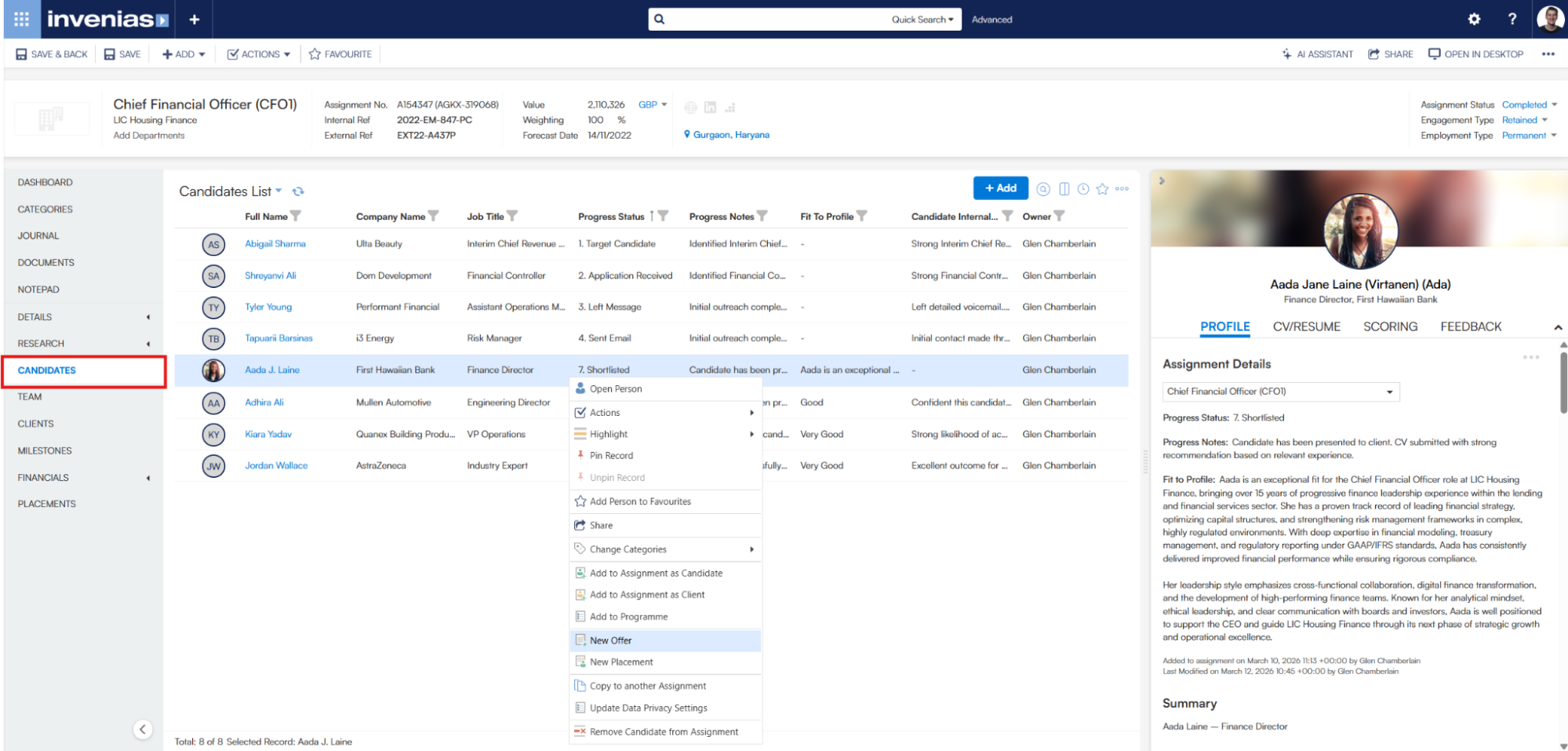
Open the Assignment record and navigate to the Candidates tab. Right-click on a candidate and select New Offer.
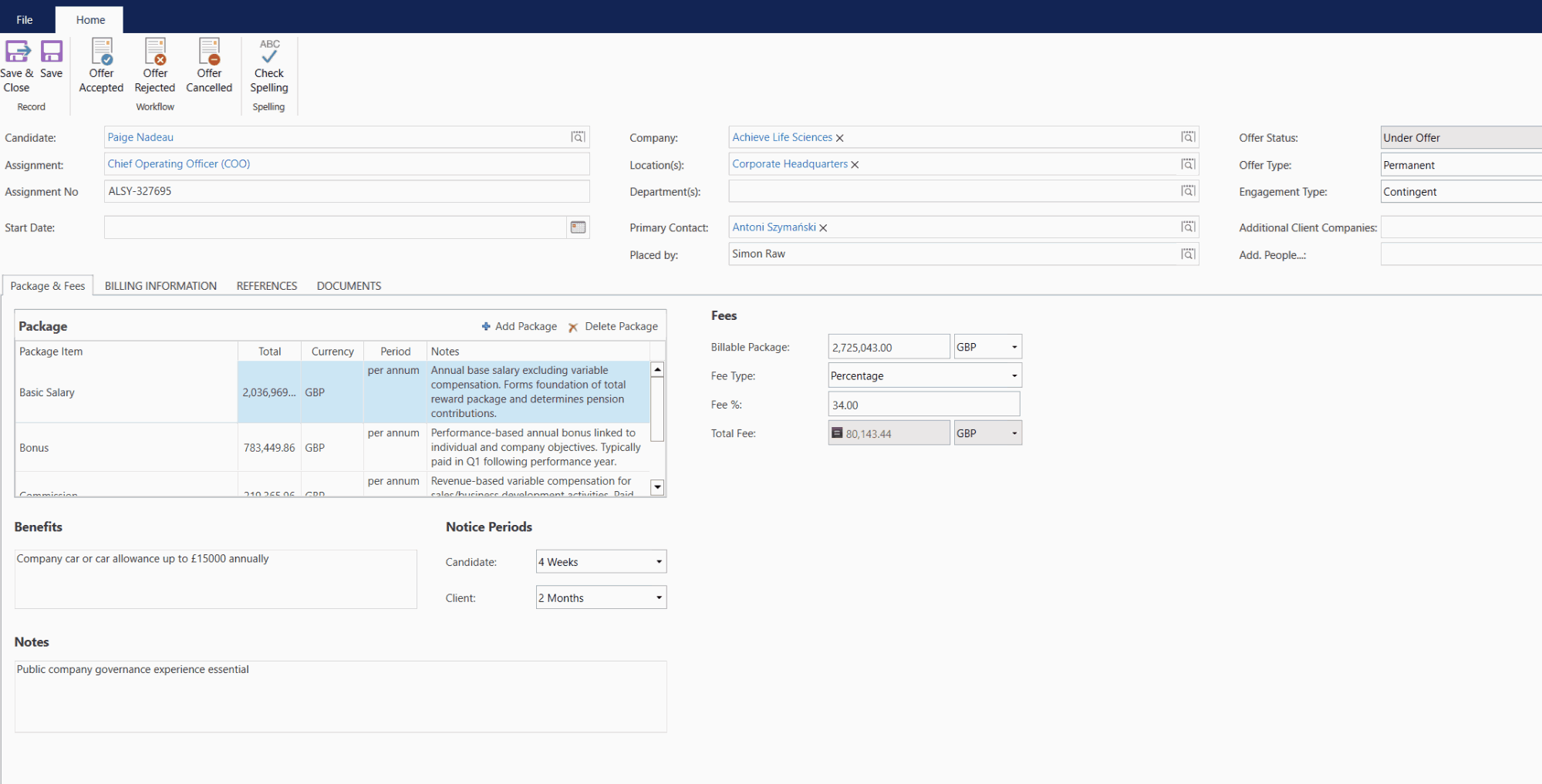
The Offer window will open with the following fields:
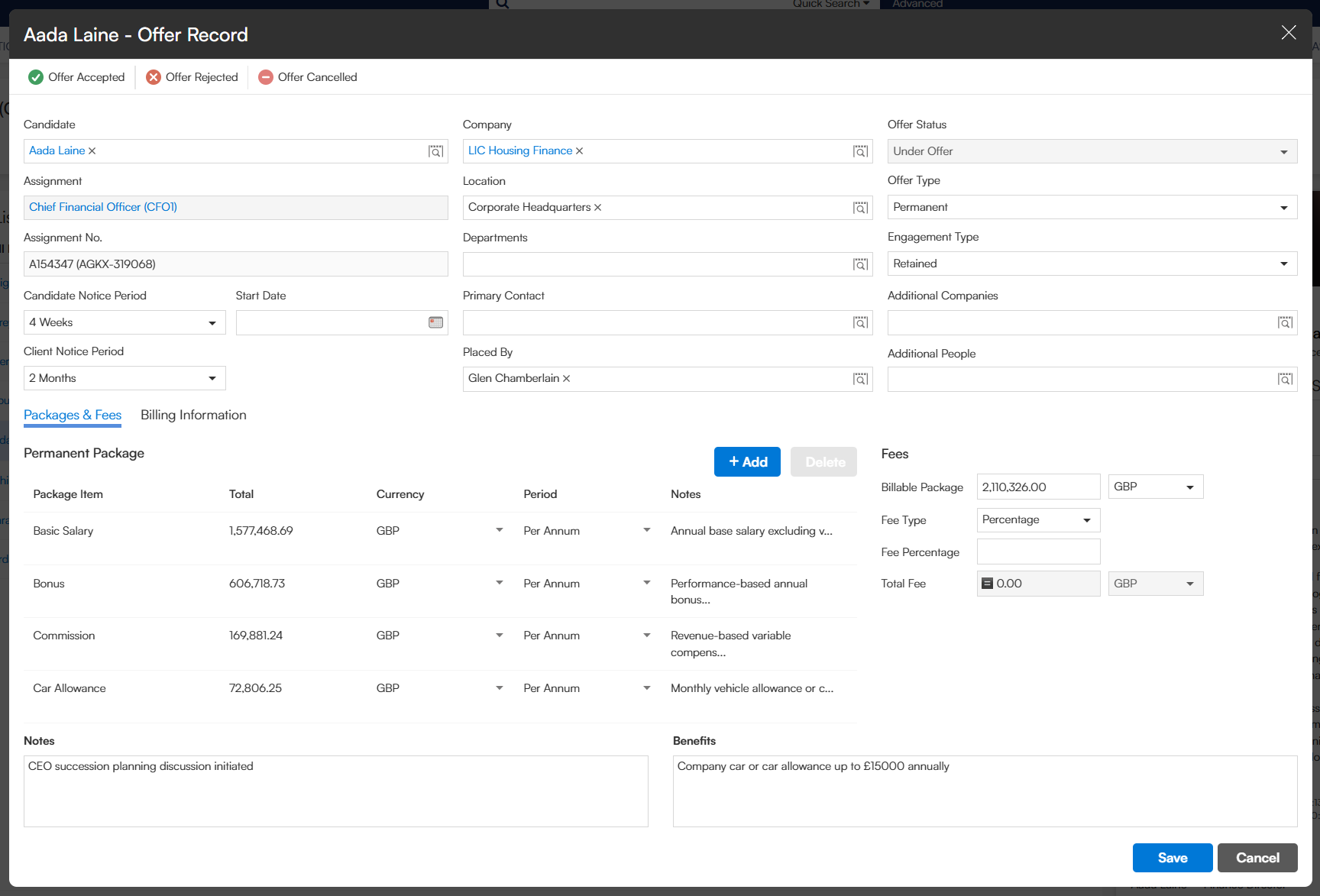
- Candidate: The Candidate this Offer is for.
- Assignment / Assignment No: The related Assignment.
- Start Date: The proposed start date if the Offer is accepted.
- End Date: Applicable for Non-Exec, Interim, or Session Based Offer Types.
- Company: The Company related to this Offer.
- Location: The location of the position.
- Department: The relevant Department(s).
- Primary Contact: The primary Client Contact for this Offer.
- Placed By: The Invenias user initiating this Offer.
- Offer Status: Select from a predefined list of statuses.
- Offer Type: Select from Permanent, Non-Exec, Interim, or Session Based. The window will update to show relevant fields based on your selection.
- Engagement Type: For example, Retained or Contingent.
- Additional Companies: Any other Companies related to this Offer.
- Additional People: Any other People related to this Offer.
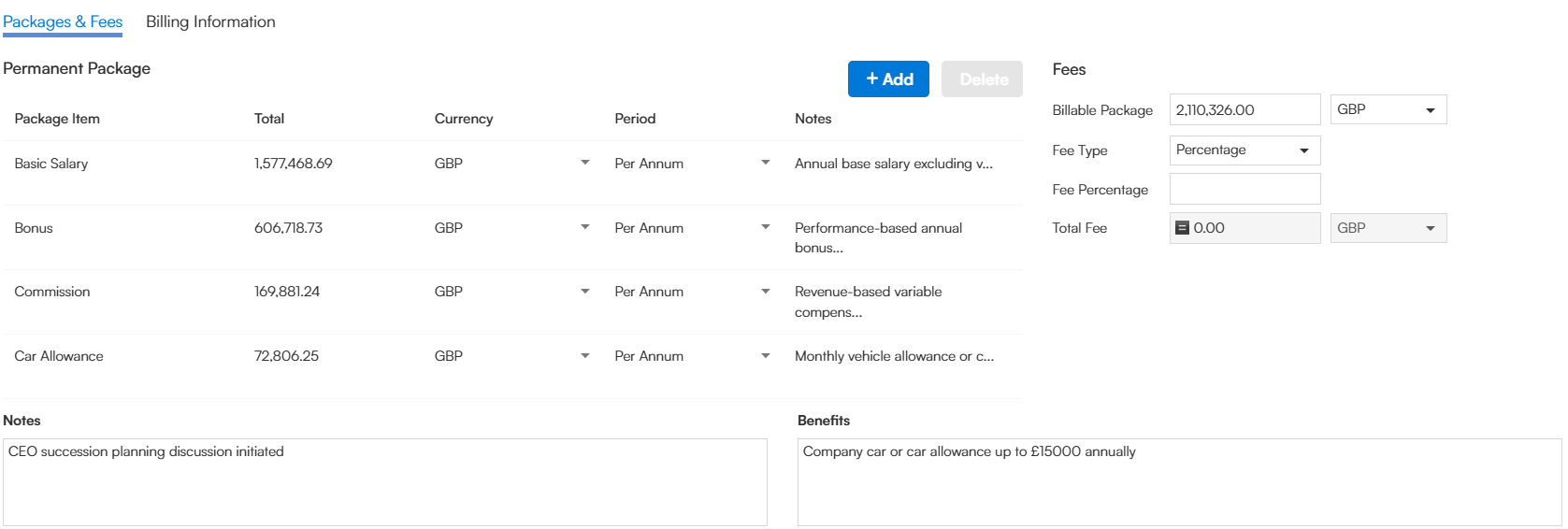
Package & Fees tab
For Permanent or Non-Exec Offer Types, the Package & Fees tab allows you to record the package and fee details for the Offer.
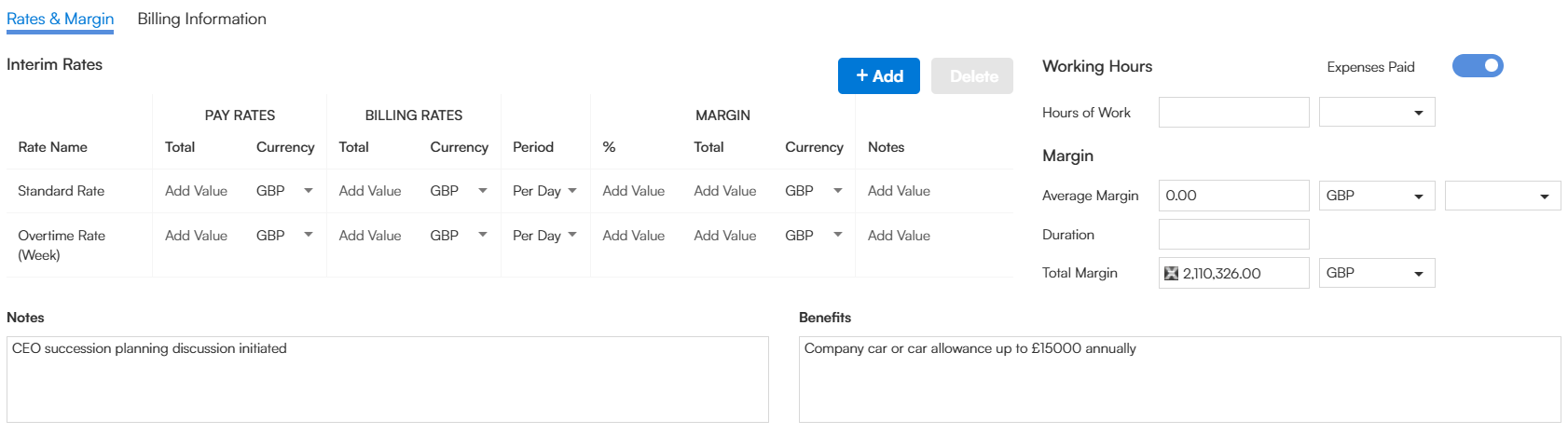
Rates & Margins tab
For Interim or Session Based Offer Types, the Rates & Margins tab replaces Package & Fees and allows you to record rates and margin information.
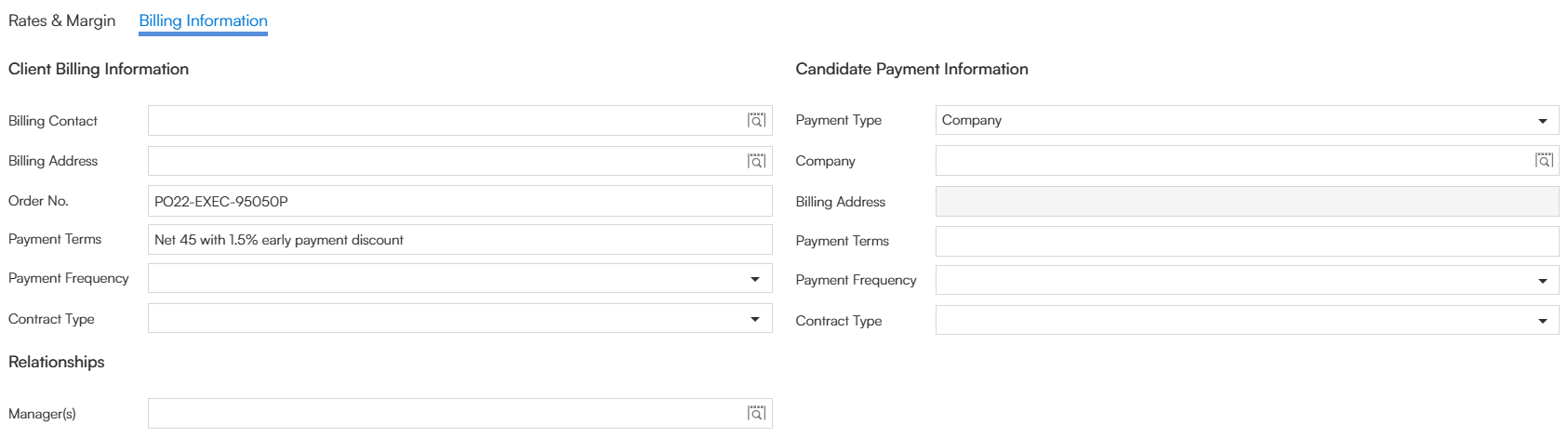
Billing Information tab
For Permanent and Non-Exec Offers, the Billing Information tab captures Client Billing information. For Interim and Session Based Offers, additional fields are available for Payment Terms, Frequency, and Candidate Payment information.
References tab
This feature will be available in a future release.
Documents tab
This feature will be available in a future release.
Saving an Offer
Save the Offer using the Save button. After saving, the following updates must be made manually:
- Candidate Progress Status
- Candidate Status (on the Person record)
- Assignment Status
- Candidate and Company Off-Limits (if applicable)
- Assignment Milestones
Rejecting an Offer
If a Candidate rejects an Offer, open the Offer record and click Offer Rejected in the toolbar. You will be prompted to select a rejection reason from a predefined list. The Offer Status will update to Offer Rejected.
Cancelling an Offer
If an Offer needs to be cancelled, open the Offer record and click Offer Cancelled in the toolbar. You will be prompted to select a cancellation reason. The Offer Status will update to Offer Cancelled.
Accepting an Offer
If a Candidate accepts an Offer, open the Offer record and click Offer Accepted in the toolbar. This converts the Offer into a Placement.
Placement progress stepper
The Placement window displays a four-stage visual workflow tracking progress through the placement lifecycle. Each stage is timestamped when reached.
- Stage 1 - Placement Created: Recorded automatically when the Offer is accepted and the Placement is created.
- Stage 2 - Candidate Started: Once the Candidate has started, click Candidate Started in the toolbar and enter the Start Date when prompted. The stepper will advance and record a timestamp for this stage.
- Stage 3 - New Position Created: Click Create New Position in the toolbar to create a Position on the Candidate's record linked to this Placement. The Position window will open pre-populated with details from the Placement, including package or rate information. The stepper will advance and record a timestamp for this stage.
- Stage 4 - Placement Completed: Once any probation period has ended, click Placement Completed in the toolbar to close out the Placement.
A New Position must be created and linked to the Placement before it can be marked as Completed.
Interim and Session Based Placements
For Interim and Session Based Placements, two additional toolbar options are available:
- Rate Change: Use this if the agreed rates change partway through the Placement. This will guide you through creating a new Placement and closing the original.
- Contract Extension: Use this if the contract extends beyond the originally agreed end date. This will guide you through creating a new Placement and closing the original.
Completing a Placement
A Placement is not considered complete until any probation period has ended. This is often linked to fee milestones with the Client Company. Once probation is complete and a New Position has been created and linked, click Placement Completed in the toolbar.
Cancelling a Placement
Click Placement Cancelled in the toolbar and select a reason from the predefined list to cancel an active Placement.
Creating a Placement Directly
You can skip creating an Offer and go straight to a Placement. From the Candidates tab of an Assignment, right-click on a Candidate and select New Placement. This opens the Placement window directly.
Viewing Offers and Placements
Offers and Placements can be viewed from the following locations:
- Assignment Record: Navigate to the Offers/Placements tab.
- Person Record: Navigate to the Offers/Placements tab on the Candidate's Person record.
- Company Record: Navigate to the Offers/Placements tab on the related Company record.
A Global Offers/Placements view will be available in a future release.
Configuring Offers and Placements
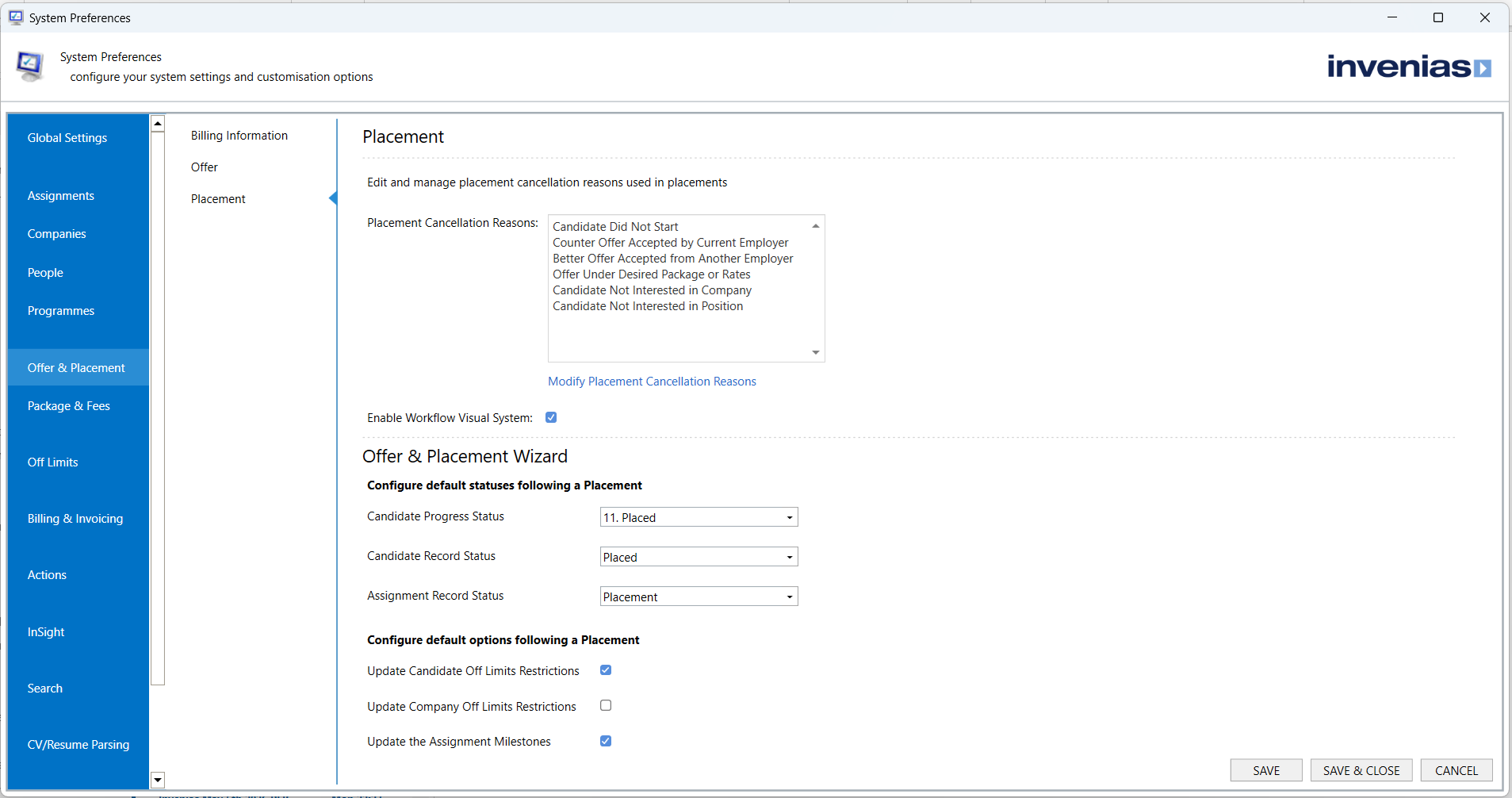
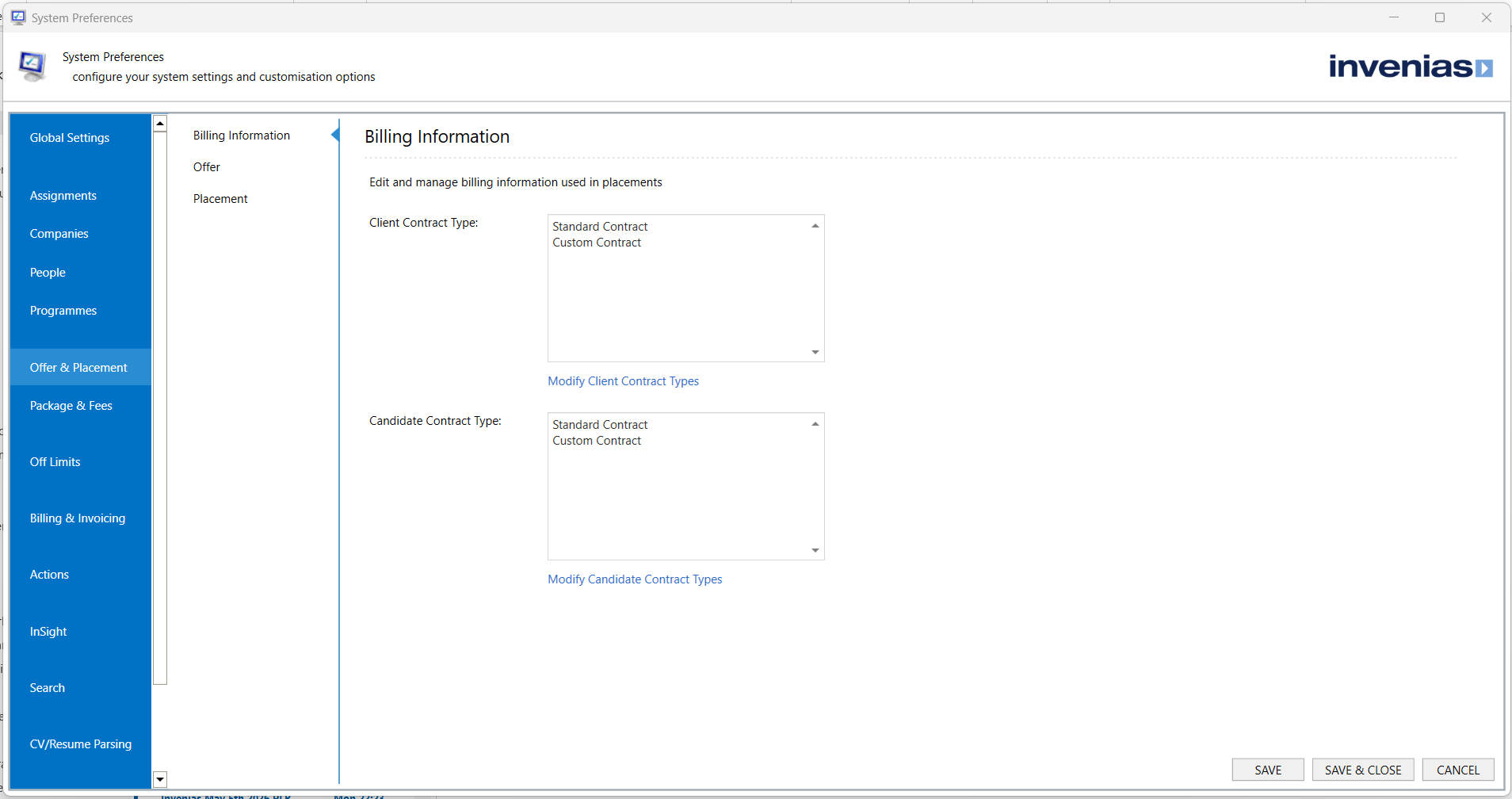
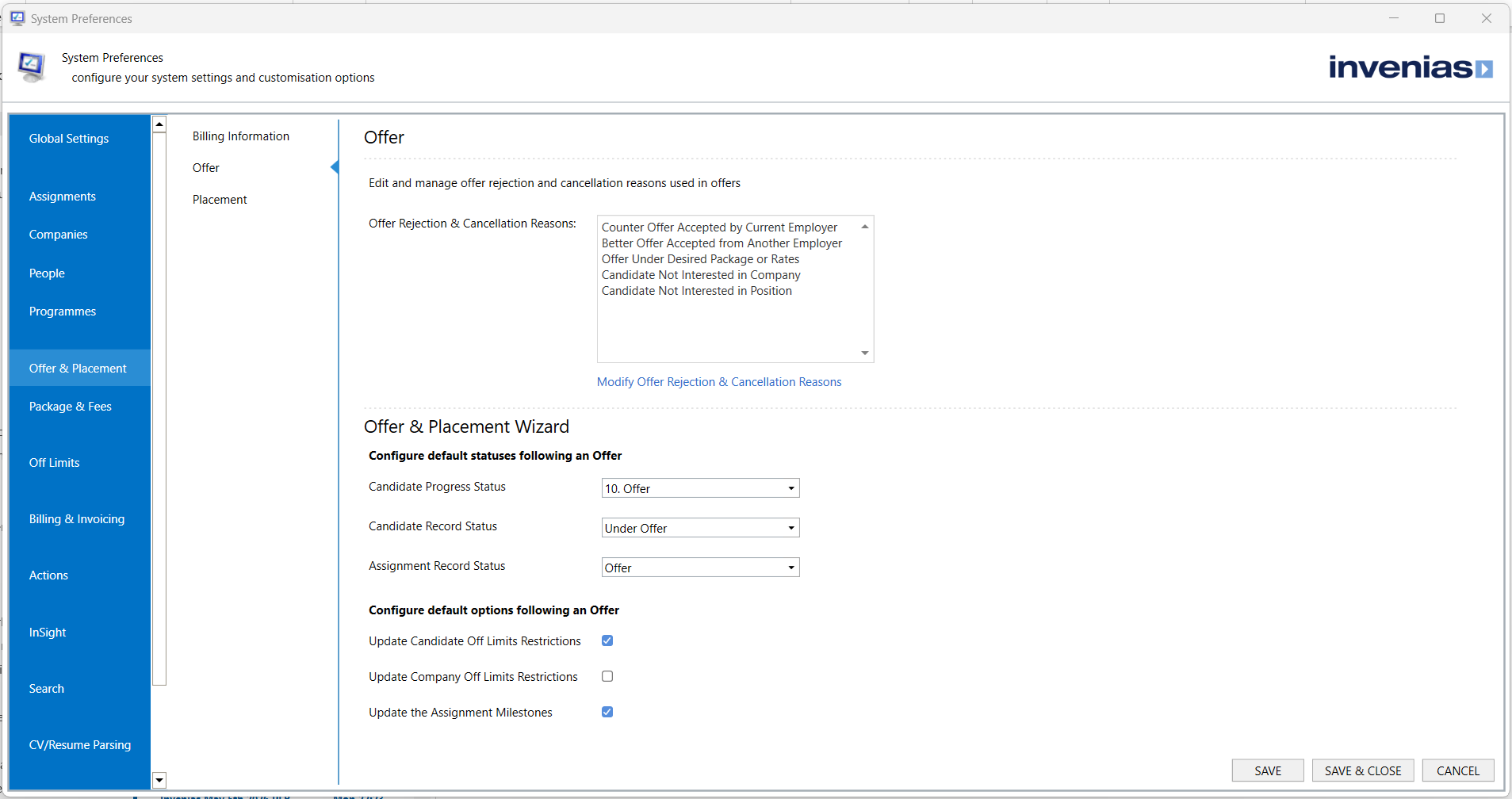
Offers and Placements configuration is managed via the Invenias Desktop application. Open the desktop app and navigate to . The Access System Preferences user permission is required.
Billing Information
- Client Contract Type: Define the list of Client Contract types available when creating a Placement.
- Candidate Contract Type: Define the list of Candidate Contract types available when creating a Placement.
Offers Configuration
- Offer Rejection & Cancellation Reasons: Define the list of reasons available when rejecting or cancelling an Offer.
- Configure Default Statuses Following an Offer: Set the default status values applied when an Offer is saved.
- Configure Default Options Following an Offer: Configure whether Off-Limits and Milestone update options are enabled by default following an Offer.
Placements Configuration
- Placement Cancellation Reasons: Define the list of reasons available when cancelling a Placement.
- Configure Default Statuses Following a Placement: Set the default status values applied when a Placement is saved.
- Configure Default Options Following a Placement: Configure whether Off-Limits and Milestone update options are enabled by default following a Placement.