| Edition: All Editions | Audience: Group Admin |
Bulk Updating Groups: Step 1 - Backup All Groups
This article explains how to download a backup of your groups before modifying them using the Bulk Update feature. This is the first step in the Bulk Updating Groups process. This step is strongly recommended, as it ensures you can easily undo any changes made using the Bulk Update feature.
Backup All Groups
- Go to Admin > Groups.
- Click the Bulk Update - Hierarchy tab.
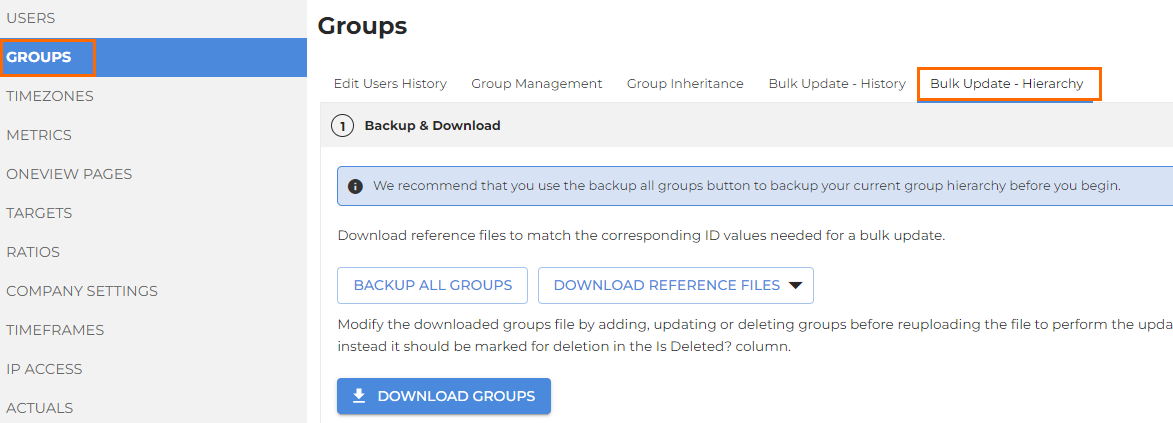
- Click Backup All Groups.
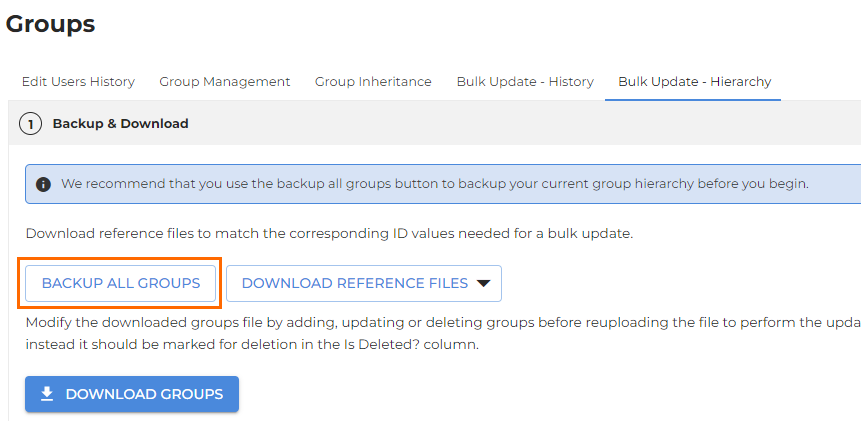
- A CSV file will generate with the naming convention of “backup-groups-YYYY-MM-DD.csv". The backup will include inactive and active groups.
- Once you've downloaded the backup file, proceed to the next step: Bulk Updating Groups: Step 2 - Download and Modify Groups File
Was this helpful?