| Edition: All Editions | Audience: Group Admin |
Bulk Updating Groups: Step 2 - Download and Modify Groups File
This article explains how to download and modify the CSV file to bulk update groups. This is step 2 of the Bulk Updating Groups process. To return to the previous step, see Bulk Updating Groups: Step 1 - Backup All Groups
Downloading the Groups File
- Go to Admin > Groups.
- Click the Bulk Update - Hierarchy tab.
- Download your current groups and group hierarchies file by clicking the Download Groups button.
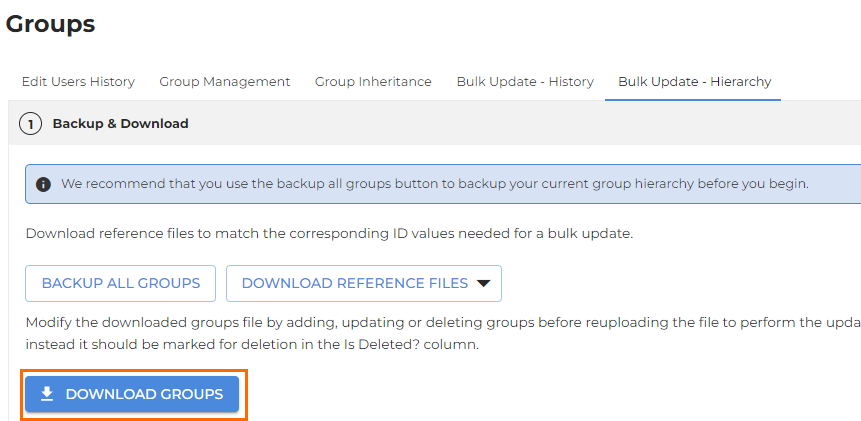
- A CSV file will generate with the naming convention of “groups-YYYY-MM-DD.csv". This file is used to add, delete, or modify records.
- Modify the CSV file with the changes you wish to make. See Modifying the Groups File for help with this.
- Once you've finished modifying the Groups file, proceed to the next step: Bulk Updating Groups: Step 3 - Upload Modified Groups File
Modifying the Groups File
To add a new group, the Group ID column needs to be set to “new-x” or a blank value.
- If the new group record is linking to an existing group and group ID, then a blank value is sufficient.
- If the new group record will be used in a hierarchy for another new group, then you must set “new-x” where the “x” is a number that increments by 1 for each new group being created.
For example, record one has a Group ID of “new-1” and record two has a Group ID of “new-2” and a Parent ID of “new-1”: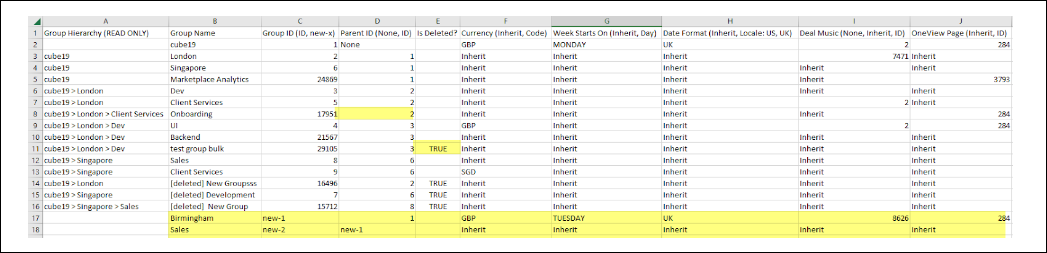
The remaining fields should be updated accordingly. You can set the Currency Code, Deal Music, and Oneview Page columns to "Inherit" to inherit these values from a parent group, or you can set explicit values based on the “ID” values.
If you need further details on linking Code and ID references to the file, go to Reference Files.
- To delete a record, populate the Is Deleted column with "Y".
- Leave the cell blank to indicate no change is needed.
Reference Files
Reference files are available for when you are unsure what specific value a Code/ID references. For example, in the OneView Pages reference file below, the ID "293" references the page "Everything View".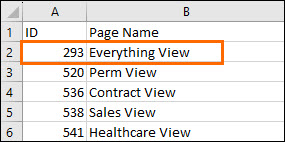
To download a reference file, click the Download Reference Files button within the Bulk Update - Hierarchy section of Groups Admin, and select the file you wish to download.
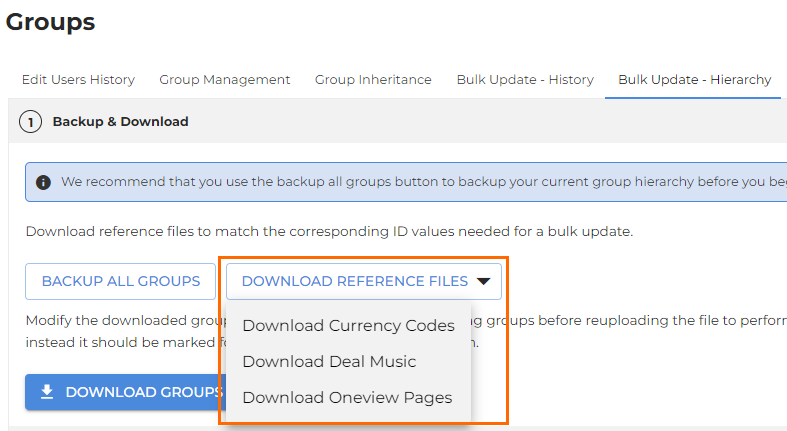
The column to load into your groups file is as follows:
| File to Download | Column to Load into Target File |
|---|---|
| Currency Codes | Code |
| Deal Music | (Deal Music) ID |
| OneView | (Oneview Page) ID |