Complete the E-Verify Assessment in Bullhorn Launch
Before you can use E-Verify An online system that confirms the eligibility of an Employee to work in the United States. The process compares information entered by an employer from an employee’s Form I-9, Employment Eligibility Verification, to records available to the U.S. Department of Homeland Security and the Social Security Administration to confirm employment eligibility. in Bullhorn Talent Platform, you must complete a compliance assessment in Bullhorn Launch. This is a federal requirement: all E-Verify users must complete training before creating or managing cases, as required by the E-Verify Memorandum of Understanding (MOU) An agreement signed by the client to authorize actions; in the case of Onboarding, it is likely an MOU authorizing Bullhorn as an employer agent of E-Verify on behalf of your company.. The course covers E-Verify regulations and case management in Bullhorn Talent Platform.
This article walks you through how to access Bullhorn Launch and enroll in the required course.
Step 1: Access Bullhorn Hub
Bullhorn Launch is accessed through the Bullhorn Hub. How you log in depends on which Bullhorn products you use.
If you use Bullhorn ATS
Bullhorn ATS users log into the Hub using Single Sign On (SSO). No separate username or password is required.
-
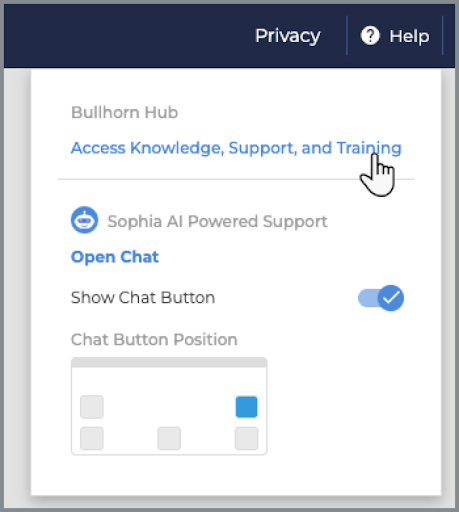
In your Bullhorn ATS account, click Help in the top navigation bar.
-
If applicable, click the Access Knowledge, Support, and Training link.
-
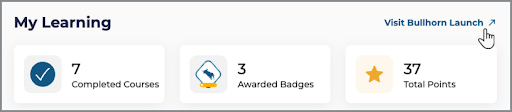
On the Bullhorn Hub home page, click Visit Bullhorn Launch in the My Learning tile.
If you receive an error after clicking Help, you may not have a Bullhorn Hub account yet. Contact Bullhorn Support for assistance.
If you use Recruitment Cloud
Recruitment Cloud users log into the Hub using Salesforce SSO.
-
Navigate to help.bullhorn.com/login.
-
Select Log In with Bullhorn Salesforce.
-
You are signed in using your Salesforce SSO credentials.
-
-
On the Bullhorn Hub home page, click Visit Bullhorn Launch in the My Learning tile.
If you do not use Bullhorn ATS or Recruitment Cloud
If you do not use Bullhorn ATS or Recruitment Cloud, register directly on the Bullhorn Hub website.
First-time registration
-
Navigate to help.bullhorn.com/SelfRegister.
-
Complete all fields on the registration form. For the Are you an existing customer or partner? question, select Yes.
-
Click Register.
After registering, one of the following happens:
-
Option A: You see a message that says A confirmation code was sent to the email. Check your inbox for a one-time login code, enter it in the Code field, and click Verify. You are now logged in.
-
Option B: You see a message that says Hub Registration Request Success. A member of the support team will follow up with further instructions. Once you hear from them, follow the steps in Returning Users below to log in.
Returning users
You receive a new one-time code each time you log in. You do not have a password.
-
Navigate to help.bullhorn.com.
-
Click Log In in the upper-right corner.
-
Enter the work email address you used to register your account.
-
Click Log In.
-
Check your inbox for a one-time login code.
-
Enter the code in the Code field and click Verify. You are now logged in.
Step 2: Access Bullhorn Launch and Enroll in the Course
Once you are logged into the Bullhorn Hub, the steps to access Launch and enroll in the E-Verify course are the same for all users.
-
On the Bullhorn Hub home page, click Visit Bullhorn Launch.
-
If this is your first time logging into Launch, select the check boxes and click I Agree to accept the privacy policy and terms and conditions.
-
On the Bullhorn Launch home page, search for the E-Verify Regulations & Case Management in Bullhorn Talent Platform course, or access it directly using this link.
-
Click Enroll.
To learn more about what you can do in Bullhorn Launch, see the Bullhorn Launch User Guide.