| Edition: All Editions | Audience: Target Admin |
Bulk Updating Targets: Step 3 - Export Targets into CSV File
This article explains how to copy the targets from your template file into a CSV to bulk update targets. This is step 3 of the Bulk Updating Targets process. To return to the previous step, see Bulk Updating Targets: Step 2 - Download and Modify Template File
Export Targets into a CSV File for Upload
The Export tab of your template file is now populated with the targets in the correct format for Analytics to ingest, but you'll need to copy them to a new file so they can be uploaded.
-
In the Export tab, copy rows A-K, including the headers.

-
Open a new spreadsheet.
-
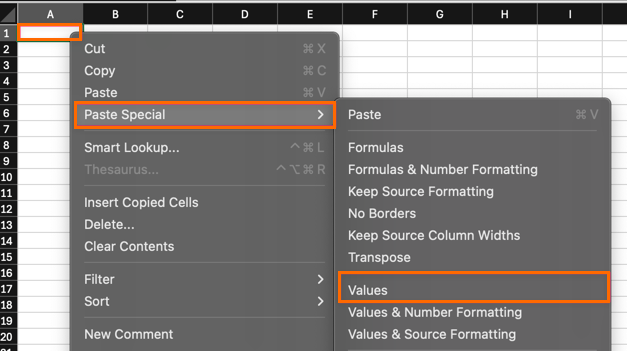
Click on cell A1.
-
Right-click, then select Paste Special > Values.
-
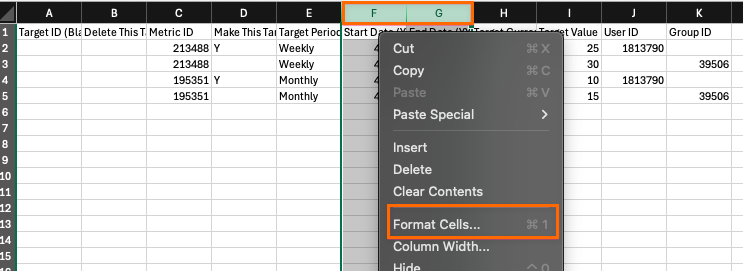
Select Columns F & G ( Start Date & End Date)
-
Right-click, then select Format Cells.
-
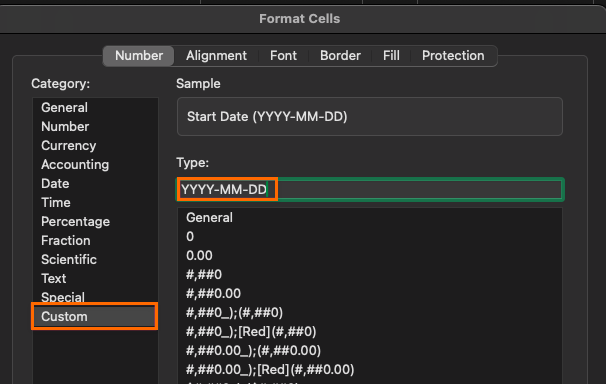
In the Category column, click on Custom.
-
In the Type field, enter the following format and click OK: "YYYY-MM-DD".
-
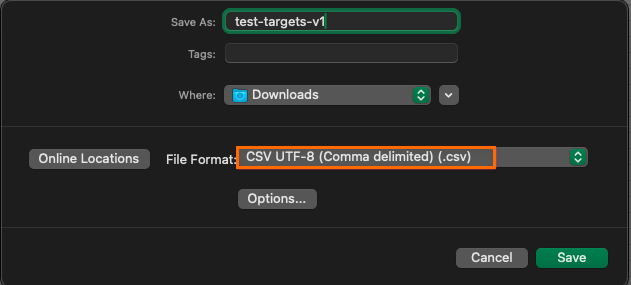
Click File in the menu bar at the top of the spreadsheet, and select Save As.
-
If desired, rename the file and set the download location.
-
Update the File Format to be: CSV UTF-8 (Comma delimited) (.csv)
-
Click Save.
Once you've saved your targets file, proceed to the next step: Bulk Updating Targets: Step 4 - Upload Targets File