| Edition: All Editions | Audience: Target Admin |
Bulk Updating Targets: Step 2 - Download and Modify Template File
This article explains how to download and modify the CSV file to bulk update targets. This is step 2 of the Bulk Updating Targets process. To return to the previous step, see Bulk Updating Targets: Step 1 - Backup All Targets
Populate the Template File
-
Download the template file by clicking this link: Bulk Target Template File
-
Make sure you store it as an Excel file, not a Google Sheet.
-
-
Go to Admin > Targets.
-
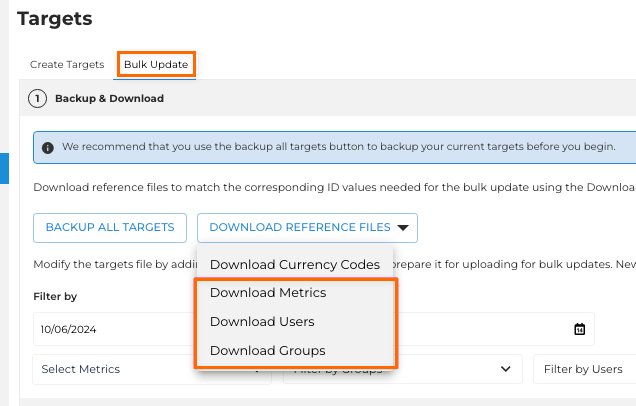
Click the Bulk Update tab.
-
Click Download Reference Files and download the following files:
-
Metrics
-
Users
-
Groups
-
-
Copy and paste the values from the downloaded "Metrics", "Users", and "Groups" files into the appropriate tabs in your copy of the Bulk Target Template File.

-
Save for future reference.
Add Targets to the Input Tab
-
Navigate to the Input tab on the template file
-
Columns A (Metric Name), H (User Name) and I (Group Name) will now have dropdown pickers. Complete the information as follows:
-
Column A: Select the metric name
-
Column B: Select Y if you want this to be a Priority Metric (dial) for the user/group in this row. Leave blank if not.
-
Column C: Select whether it is a Weekly or Monthly target.
-
Column D: Enter the target start date in the format YYYY-MM-DD.
-
Column E: Enter the target end date in the format YYYY-MM-DD (leave blank for rolling).
-
Column F: If it’s a monetary target, such as "$10K in Sales", enter the 3-digit ISO currency code (USD, GBP, CAD etc). Code List Here
-
Column G: Enter the target value.
-
Column H: Select the user name.
OR
-
Column I: Select the Group name (if you enter both user and group name, an error message will appear).
-
-
Repeat as needed. You can copy and paste/drag the cells to auto-populate.
When you've finished populating the Input tab, proceed to the next step: Bulk Updating Targets: Step 3 - Export Targets into CSV File