| Edition: All Editions | Audience: Target Admin |
Bulk Updating Targets: Step 4 - Upload Targets File
This article explains how to upload your CSV file to bulk update targets. This is step 4 of the Bulk Updating Targets process. To return to the previous step, see Bulk Updating Targets: Step 3 - Export Targets into CSV File.
It is highly recommended that you backup all targets before uploading a new file to update targets. Ensure you follow the steps in Bulk Updating Targets: Step 1 - Backup All Targets before proceeding.
Upload the Targets File
CSV file limits are 20MB. Any files larger could cause an error to occur.
After the targets file is prepared, the file is ready to be uploaded.
- In Analytics, go to Admin > Targets.
- Click the Bulk Update tab.
-
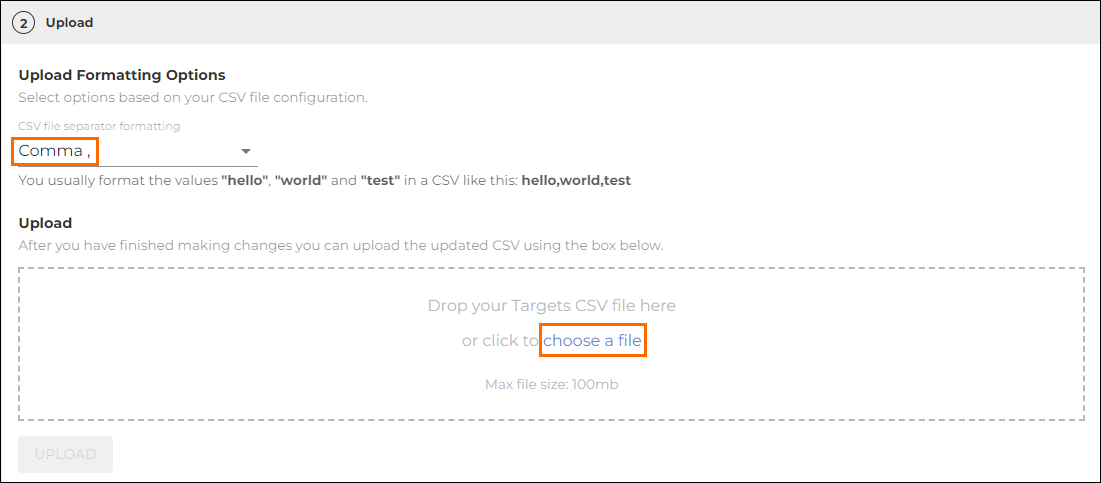
Under Upload > Upload Formatting Options, select the CSV file separator formatting from the drop-down menu.
-
Supported separators are comma, decimal, and semicolon.
-
-
Drag and drop your CSV file into the Upload box or select the choose a file hyperlink to browse for the file on your computer.
-
Wait for the Upload button to become selectable.
-
Click the Upload button.
-
If you choose the wrong file by accident, remove the incorrect file once it is available and then upload the correct file by completing the previous steps.
-
Check Target CSV Upload
Scroll down and check the row for your upload in “Status of uploaded files”.
Status history for the last 1,000 uploaded files will display. Please contact support if you need assistance with retrieving a historical file.
-
If the import was successful, it will say “Moved to COMPLETED”.
-
If there are errors that need to be fixed, it will say “FAILED (Click to view)”.

Failed Target Uploads
If the upload has failed:
-
In the File Name column, click the blue link with your file name to download the file.
-
Open the file and you'll see a new “Error” column. This will be filled in for all the rows which caused the upload to fail with the reason for the failure.

-
Fix all the issues in your Target Template Spreadsheet, then follow the same steps again to create a new CSV file to upload.
Troubleshooting Advice
Make sure all the reference tabs are updated before adding new targets.
If you open the target CSV file after you have created it, Excel will change the format of your date columns. This will likely cause the upload to fail. Due to this, you should always do one of the following:
-
Create a new CSV file each time you want to upload targets.
-
Ensure you follow the formatting steps again for the “Start Date” and “End Date” columns before saving or closing the file.