| Edition: Enterprise | Audience: Actuals Admin |
Job Actuals CSV Upload Template Columns
This article explains how to complete the columns in the Job Actuals CSV upload template, found within the Actuals Admin section of Bullhorn Analytics. For a guide to uploading the CSV file once completed, see Upload Actuals.
How to Complete Job Actuals CSV Columns
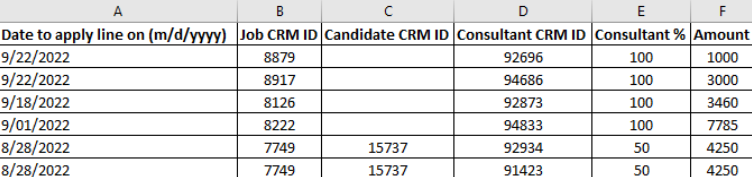
A - Date to apply line on
This is the date the amount will appear in Bullhorn Analytics. Please ensure you use the correct date format (UK or US). The selected format will be shown in the header. For retainers, our suggestion is to use one of the following:
- The date the retainer (or stage) was agreed with the client
- The date the invoice will go out
The key is to choose a convention and use it consistently.
B – Job CRM ID
Each job has its own specific ID in Bullhorn ATS which, when entered, allows for the amount to be linked back to it. The resulting Actuals metrics can
then include key data such as job title, organisation and other relevant fields.
For help locating Job CRM IDs, see How to Locate and Report Over Candidate CRM and Job CRM IDs.
C – Candidate CRM ID
Optional column for linking fees to a particular candidate, such as to reference the candidate whom the retainer stage was reached with. The
alternative is to add a Placement to your CRM for this final stage. If you don’t wish to use this field, simply leave blank.
For help locating Candidate CRM IDs, see How to Locate and Report Over Candidate CRM and Job CRM IDs.
D - Consultant CRM ID
Each ATS user has a unique ID which will link the amount to the appropriate consultant.
For help finding Bullhorn user IDs, see Find Bullhorn User IDs for Actuals
E - Consultant %
Apply deal splits if required. For non-splits, enter "100". If split, each consultant needs one line with the split percentage, entered as a number without
the ‘%’ sign, e.g. for 50%, enter "50".
F - Amount
The fee you want to attribute to this consultant for this line item. If the fee is split, you must enter the amount after splits (e.g. for 50% of a 1000 fee, enter "500"). Negative figures can be entered for credits.
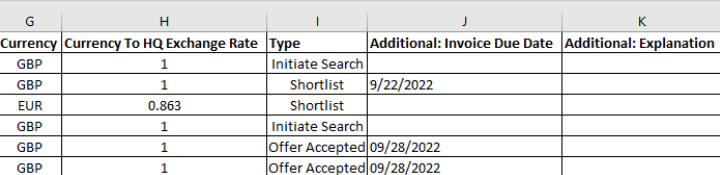
G – Currency
Enter the currency using the 3-letter ISO currency code (e.g. GBP). A list of currency codes can be found here: https://currencysystem.com/codes/
H – Currency to HQ exchange rate
Define the exchange rate used to convert the original currency to your primary ‘HQ’ currency (the currency set in your top-level group in Bullhorn Analytics). If they are the same, enter "1".
If your figures are already in HQ currency, Bullhorn Analytics will use our standard exchange rate to display figures in other currencies (mid-market from XE.com taken on the 1st of each month).
I - Type
Indicate different types or stages you wish to assign an amount against. Suggested options are "Initiate Search", "Shortlist" and "Offer Accepted", but you can choose whatever wording you like. The key is consistency, even with capitalisation, so choose a convention and stick to it.
By default, all fees uploaded will appear in the metric Job Actuals. You can request additional metrics that reflect specific Job Actuals types, e.g. 'Retainers - Stage 1' containing only the Actual type Initiate Search by submitting a ticket to Bullhorn Analytics Support with clear details of your requirements.
Bullhorn Analytics Support can also configure metrics which combine Actuals (all or just certain types) with other metrics, such as Perm Sales + Job Actuals, so you have an 'All Perm Fees' metric.
J & K – Additional: [custom text]
If there is a need for more data than fits into the pre-structured columns, you can add additional read-only pieces of data by formatting new column headers as: "Additional: <Column Name>", where <Column Name> is the relevant name that the data will represent. This should be used to store data that is not on the Job record in the CRM, but is relevant to the upload/line item in particular.
This is only supported for Job Actuals and not Placement Actuals.
Examples
Columns A-F
Columns G-K
In this example we are using both "Invoice Due Date" and "Explanation" as additional pieces of data in columns J and K, allowing us to see this data when using the clickthrough for any Job Actual metrics: