| Edition: Enterprise | Audience: Actuals Admin |
Sales + Actuals Columns
This article explains how Sales + Actuals metric columns work, and how to adjust the columns.
About Sales + Actuals Columns
Sales + Actuals metrics pull information from two different metrics, so essentially they have two different sets of columns. These are separated into Placement columns from the Sales metric, and Actuals columns from the Actuals metric.
The Placement columns will always appear first on the left side, followed by the Actuals columns.
The important columns for Actuals are Report Date, Actuals Type, and Margin. These are the date you input on the spreadsheet for the row, the type, and the profit value (the last one being what you need).
Steps to Adjust Sales + Actuals Columns
- Go to Admin > Metrics.
- Open the dropdown for the metric you would like to add the columns for.
- Find the column you want to add, then click the eye icon next to the column name to bring the column from the right side to the left.
- We recommend making it so the Margin column is next to Billing Value at the end of your column list so these appear next to each other in the clickthrough. You can adjust the order of columns by clicking on the arrow icons and dragging the columns up or down.
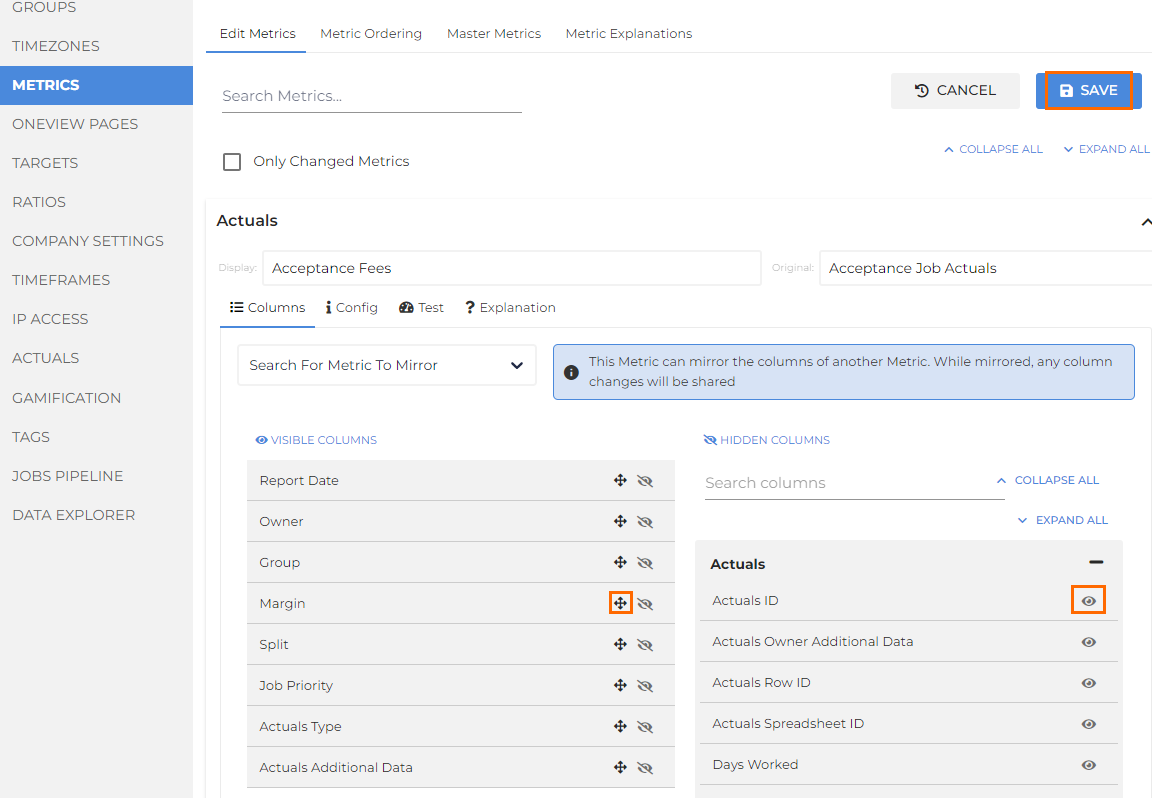
- We recommend making it so the Margin column is next to Billing Value at the end of your column list so these appear next to each other in the clickthrough. You can adjust the order of columns by clicking on the arrow icons and dragging the columns up or down.
- Click Save at the top.
Was this helpful?