| Edition: Enterprise | Audience: Actuals Admin |
Upload Actuals
This article provides information on how to upload Actuals.
Steps
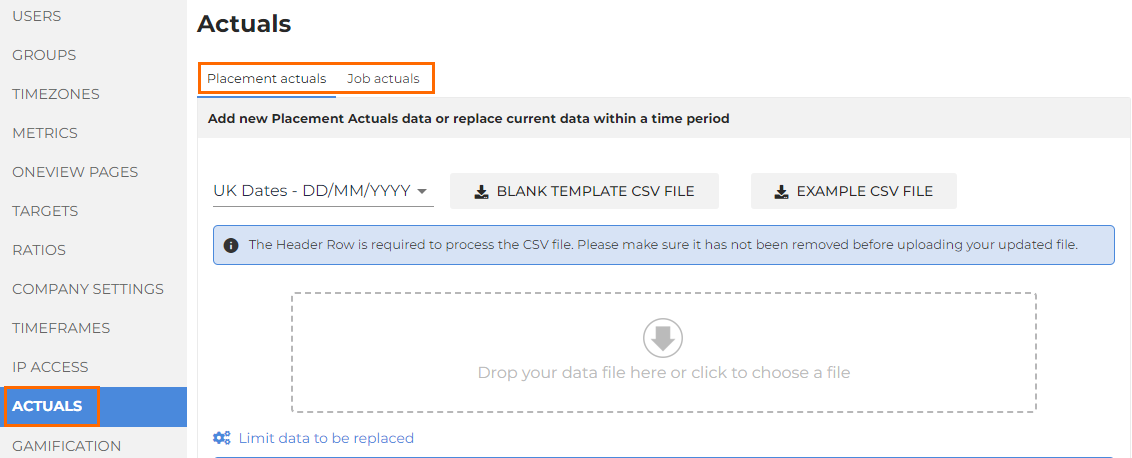
- Go to Admin > Actuals.
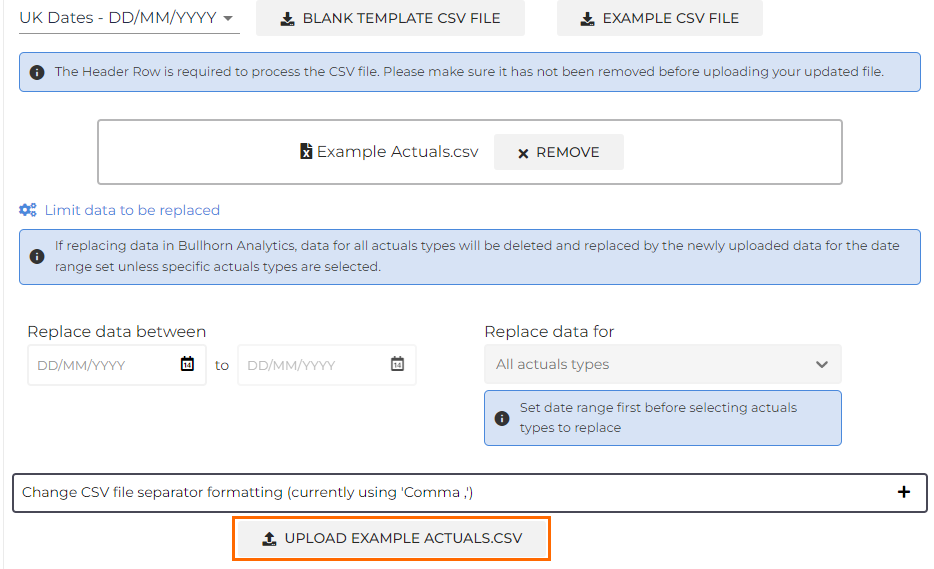
- Click on either the Placement Actuals or Job Actuals tab, depending on which you would like to upload.
- Click the Blank Template CSV button to download a blank Actuals file with the columns necessary to upload.
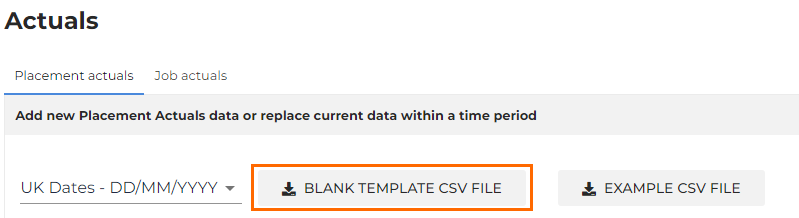
You can also select the Example CSV file to download a copy of an example Actuals file.
For help filling in the CSV templates, see the following articles:
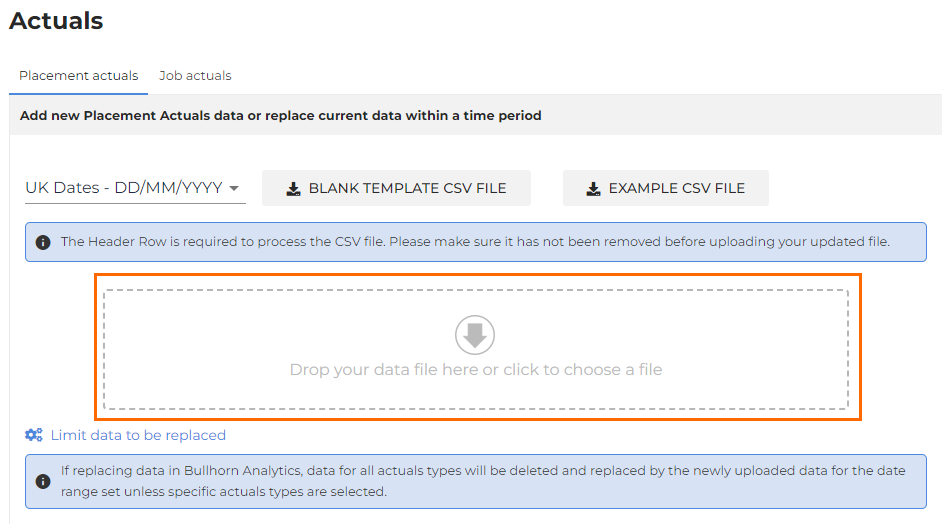
- Once you have filled out the rest of the spreadsheet, drag this into the Drop your data file here or click to choose a file section.
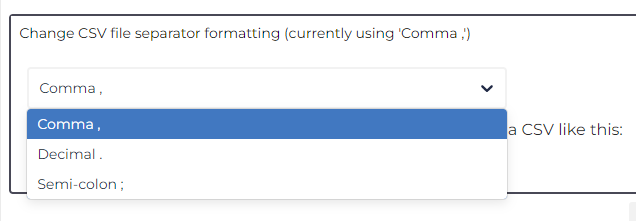
- Optional: In the Change CSV file separator formatting dropdown you can select the character to use as the CSV file separator. The default is a comma (,) but you can also set this to a semi-colon (;) or a decimal (.).
- Click the Upload button.
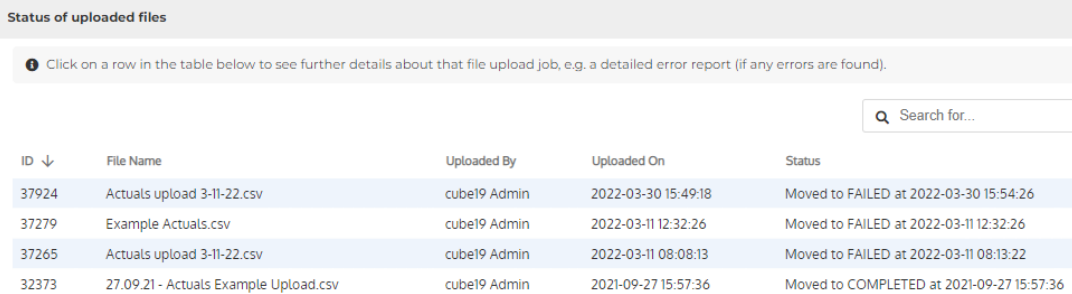
- After a short delay, the file will appear in the status box as "Processing". If no error is detected, this will move to "Completed" and the data will be available to view.
- If an error is found, the status will change to "Failed", and an extra box will appear at the bottom of the page. Click on this box to see a list of errors by cell, or download this as CSV, so you can refer to your original file and make corrections. Then try the process again!
Once you have uploaded a spreadsheet, it will be reportable on any relevant Actuals metric. By default you have metrics in Bullhorn Analytics called Placement Actuals and Job Actuals, which will report over all the values you upload where the report date is within the timeframe you selected.
For customers with Enterprise edition we can:
-
Create metrics that combine your Actuals values with other KPIs. The most common version of this is for companies to upload their Contract Actuals/Invoices, and then combine this with Bullhorn Analytics' Perm Placement values to get an accurate historic version of Total Sales
-
Manually upload Bullhorn Back Office (BBO) data a via a properly formatted .csv file. Contact Bullhorn Support for further information.