| Edition: Enterprise | Audience: Actuals Admin |
Replacing and Deleting Actuals Data
This article explains how to replace or delete Actuals data.
Replace Actuals
Replacing Actuals is a way to overwrite existing Actuals uploads that have been added to the system e.g., if a previous upload was inaccurate or incomplete. This process replaces data by the report date for Actuals uploaded at any point in time.
- Go to Admin > Actuals.
- Click on either the Placement Actuals or Job Actuals tab, depending on which you would like to replace.
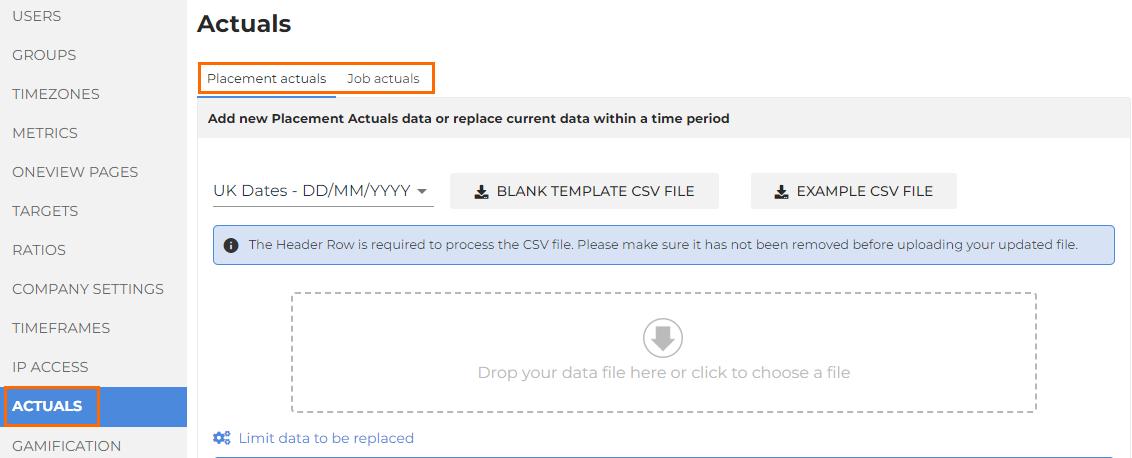
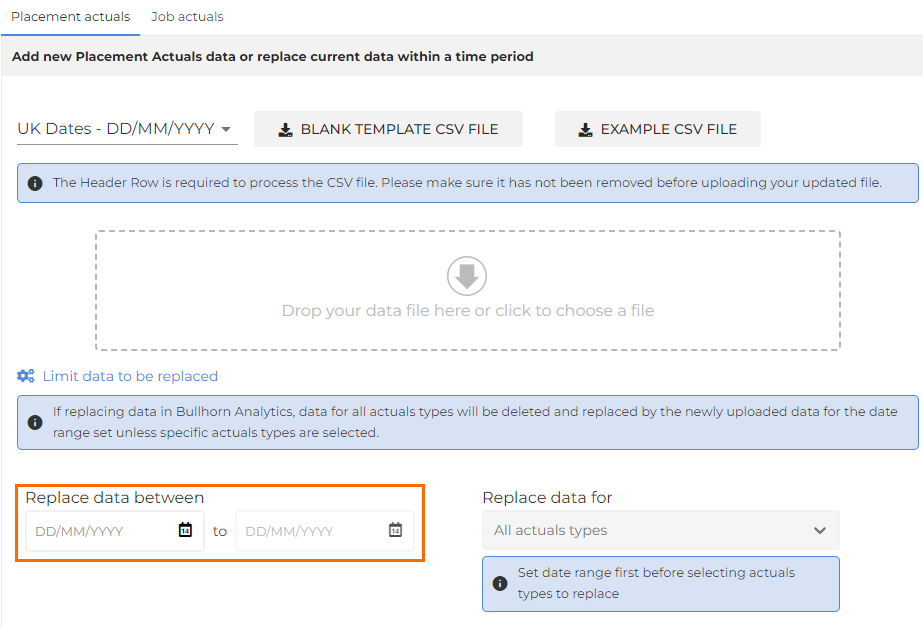
- Select the appropriate date range under Replace data between.
- Under the Replace data for dropdown, you can choose to replace All Actuals types (all Actuals data), or select a specific Actuals type e.g., Credits or Rebates for the selected timeframe.
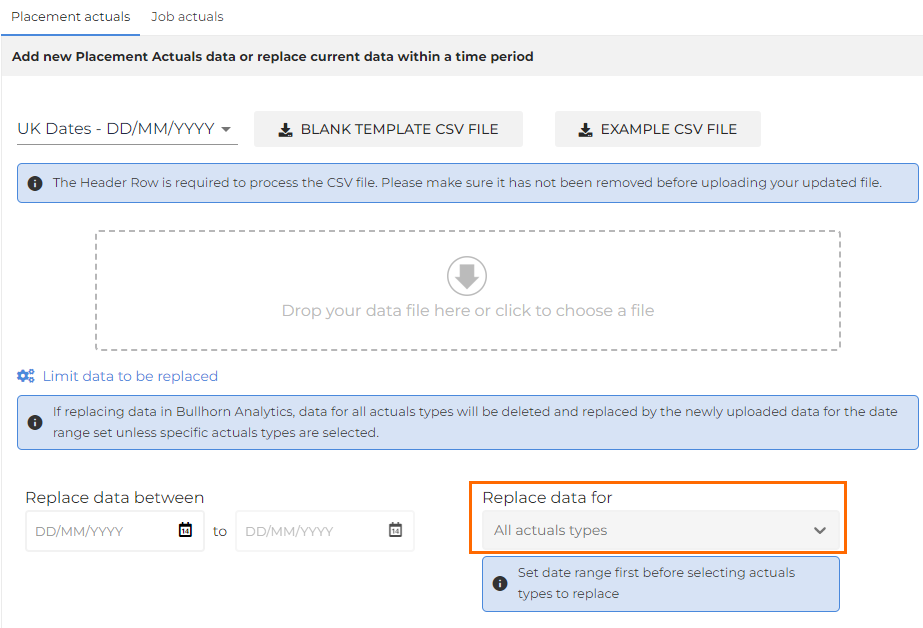
- This means you can either replace part of an upload in its entirety or target specific parts of the upload to update.
- Follow the CSV upload process covered in Upload Actuals.
Delete Actuals
If you need to remove an Actuals upload in full to re-upload, or need to remove single row IDs from an Actuals upload, please raise a ticket with Bullhorn Analytics Support. Make sure to include the uploaded file ID and file name, and any other relevant information (e.g. the row IDs required for deletion).
To find out the Row ID or Spreadsheet ID, we recommend adding the Actuals Row ID and Actuals Spreadsheet ID columns into your Placement Actuals metric and running a Slice & Dice report for this. You can then update your columns to have the Spreadsheet ID, Row ID, and other identifying data. This way, when you submit a request to support, you know that they'll only be removing the intended data on your behalf.