| Edition: Enterprise | Audience: Actuals Admin |
Placement Actuals CSV Upload Template Columns
This article explains how to complete the columns in the Placement Actuals CSV upload template, found within the Actuals Admin section of Bullhorn Analytics. For a guide to uploading the CSV file once completed, see Upload Actuals.
How to Complete Placement Actuals CSV Columns
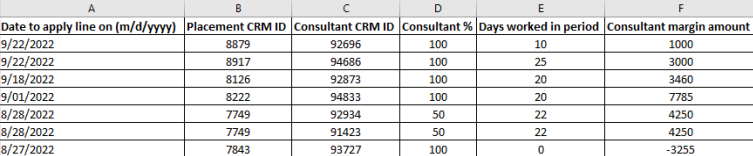
A - Date to apply line on
This is the date the amount will appear in Bullhorn Analytics. Please ensure you use the correct date format (UK or US). The selected format will be shown in the header.
Suitable options for Contract GP include:
-
The last date of the period the timesheet refers to
-
The date the client is invoiced
Suitable options for Perm Credits include:
-
The date the placement was created
-
The placement start date
-
The date the rebate is credited
The key in both cases is to choose a convention and use it consistently.
B - Placement CRM ID
Each placement has its own specific ID in Bullhorn ATS which, when entered, allows the amount to be linked back to it. The resulting
Actuals metrics can then include key data such as candidate name, job title, organisation and many other relevant fields.
For help locating Placement CRM IDs, see How to Locate and Report Over Placement CRM and Consultant IDs.
C - Consultant CRM ID
Each ATS user has a unique ID which will link the amount to the appropriate consultant.
For help locating Consultant CRM IDs, see How to Locate and Report Over Placement CRM and Consultant IDs.
D - Consultant %
Apply deal splits if required. For non-splits, enter "100". If split, each consultant needs one line with the split percentage, entered as a number
without the '%' sign, e.g. for 50%, enter "50".
E - Days worked in period
Enter the number of units (can be days, hours, or weeks) this contractor worked during the time period. If the field isn’t relevant, e.g. for Credits, then enter "0". The header on the template cannot be altered, but the column title in an Actuals Metric Clickthrough can be updated by Contacting Bullhorn Analytics Support.
F - Consultant margin amount
The GP you want to attribute to this consultant for this placement for this period. Negative figures can be entered for credits.
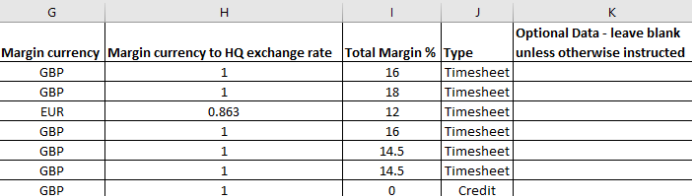
G - Margin currency
Enter the currency using the 3-letter ISO currency code (e.g. GBP). A list of currency codes can be found here: https://currencysystem.com/codes/
H – Margin currency to HQ exchange rate
Define the exchange rate used to convert the Consultant Margin Amount currency to your primary ‘HQ’ currency (the currency set in your top-level group in Bullhorn Analytics). If they are the same, enter "1".
If your figures are already in HQ currency, Bullhorn Analytics will use our standard exchange rate to display figures in other currencies (mid-market from XE.com taken on the 1st of each month).
I - Total Margin %
Enter the margin percentage for this placement for this time period. Enter numbers without the ‘%’ sign.
J - Type
Indicate different types of revenue. Suggested options are "Timesheet" (for Contract GP), "Credit" or "Adjustment", but you can choose whatever wording you like. The key is consistency, even with capitalisation, so choose a convention and stick to it.
By default, all revenue uploaded will appear in the metric Placement Actuals. You can request additional metrics that reflect specific Placement Actuals types, e.g. Contract Actuals (only timesheet GP) or Credits, by submitting a ticket to Bullhorn Analytics Support with clear details of your requirements.
Bullhorn Analytics Support can also configure metrics which combine Actuals (all or just certain types) with other metrics, such as Perm Starter Sales (i.e. perm sales based on start date) + Placement Actuals, so you have a ‘Total Billings’ metric.
K – Optional Data
This can be left blank unless you don’t want to link an amount to one single Placement.
An example of where this would be useful would be adding historic billing where you are interested in the total amount, but not the in-depth details supporting the total. E.g. If you are new to Bullhorn Analytics and want to upload the last five years of Actual data, you can upload the monthly revenue and the consultant it's against, as opposed to having to connect the values to each and every Placement they were a part of.
To add data this way, leave column B - Placement CRM ID blank, and enter "noPlacement=true" into column K - Optional Data. Differentiate this revenue by entering a suitable type in column J - Type, such as "Billing".
Revenue uploaded in this way cannot be analysed in detail (for example, by client in Slice & Dice reports). If you require more guidance with this, please raise a ticket with Bullhorn Analytics Support.
Examples
Columns A-F
Columns G-K