Set Up a Send Notification Step
The Send Notification step sends an internal email alert to your team when a record reaches a specific point in an automation. Use this step to keep recruiters informed about placements, email opens, key sales actions, or any other event that requires follow-up.
Common Reasons You Might Need This Article
-
You want to alert a recruiter whenever a candidate reaches a specific stage in an automation.
-
You need to reduce inbox volume by batching notification emails into a daily or weekly digest.
-
You want notifications to arrive only during your team's working hours.
-
You need to reuse an existing notification template rather than build one from scratch.
-
You are not sure whether to send Individual or Summarized notifications for your use case.
The Respect Automation Settings timing option uses the Days to send and Times to send values set in your Automation Settings. See Configuring Automation Settings for details.
Availability
You can add a Send Notification step to automations built on the following record types:
CandidatesContactsJob SubmissionsLeadsPlacementsCompanies
Steps
- Identify the activity or behavior you want to notify your team about, such as a candidate being placed, an email being opened, or a contact reaching a particular stage. For ideas, see Notification Use Cases.
-
Build a dynamic list for that activity. This list will be the entry point for your automation.
An easy way to build a dynamic list is to go to and build your search with the activity in mind. When the results look right, click Save as List, enter a name, and click Save.
-
Build an automation and attach the dynamic list as its entry criteria.
If you want records to enter the automation more than once so the notification fires each time the activity occurs, either add Wait steps between re-entries or set a re-entry delay in the Automation Settings. This prevents your team's inbox from filling up with repeated alerts for the same record.
-
Place the Send Notification step at the point in the workflow where you want the alert to fire.
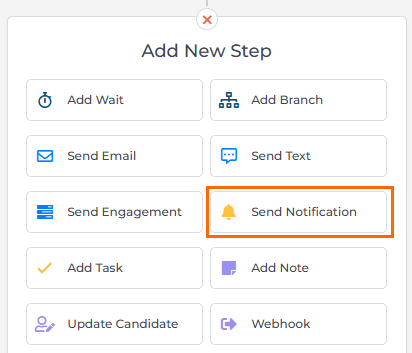
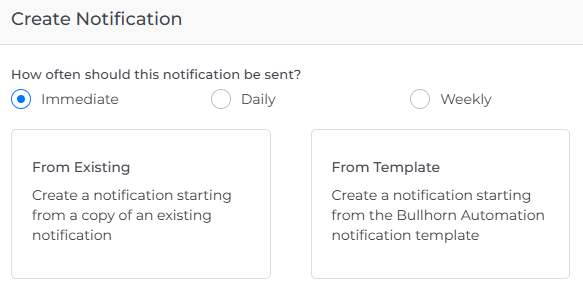
The Create Notification drawer opens.
-
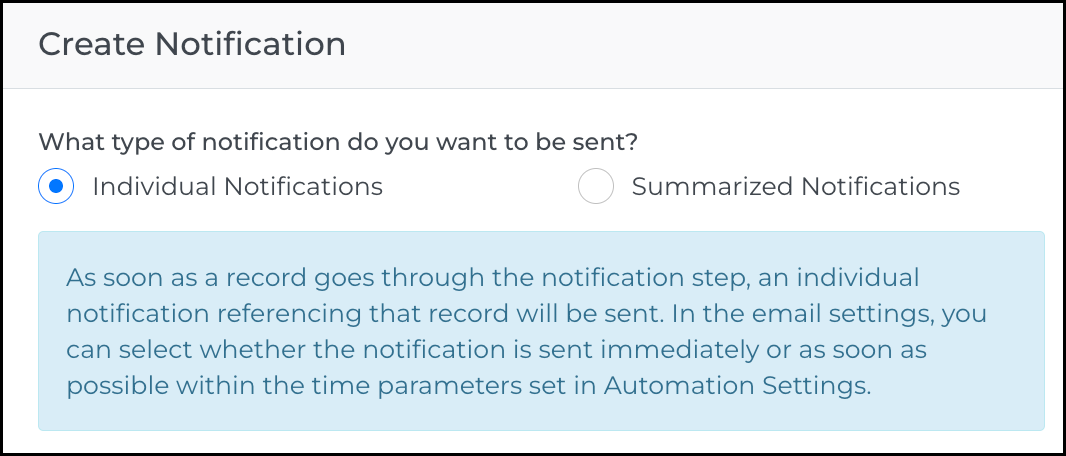
Select whether to send Individual or Summarized notifications.
-
Individual Notifications: Sends one notification per record. Use this type when your team needs to act on a specific record right away, or when you need to include record-level details such as candidate name, placement dates, or custom fields. Individual notifications support merge tags.
Select when to send:
- Immediate: Sends the notification as soon as the record completes the step.
- Respect Automation Settings: Holds the notification and delivers it as soon as possible within the Days to send and Times to send range set in your Automation Settings. Each record still gets its own individual notification.
-
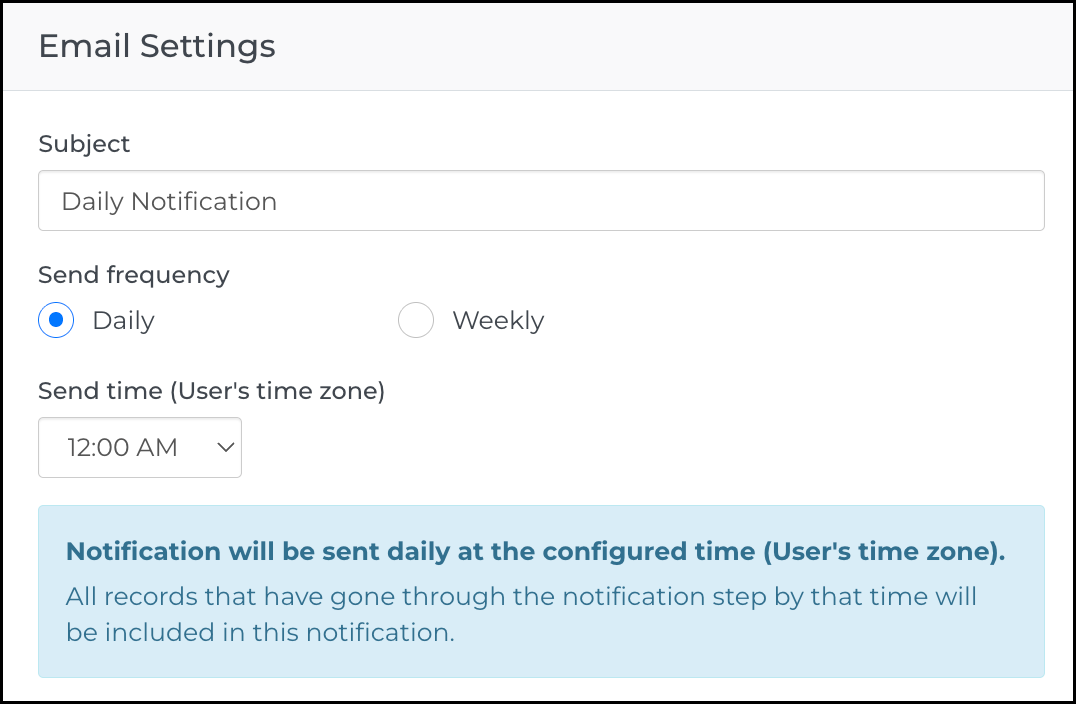
Summarized Notifications: Collects records over a set period and delivers them in a single digest email. Use this type when you want to reduce inbox volume.
In the Email Settings, configure the send frequency:
-
Daily: Select the time you want the summary to deliver. The send time displays in your user time zone. All records that completed the Send Notification step by that time will be included.
-
Weekly: Select the days you want the summary to deliver and the time. Both the day selector and send time display in your user time zone. All records that completed the Send Notification step by that time will be included.
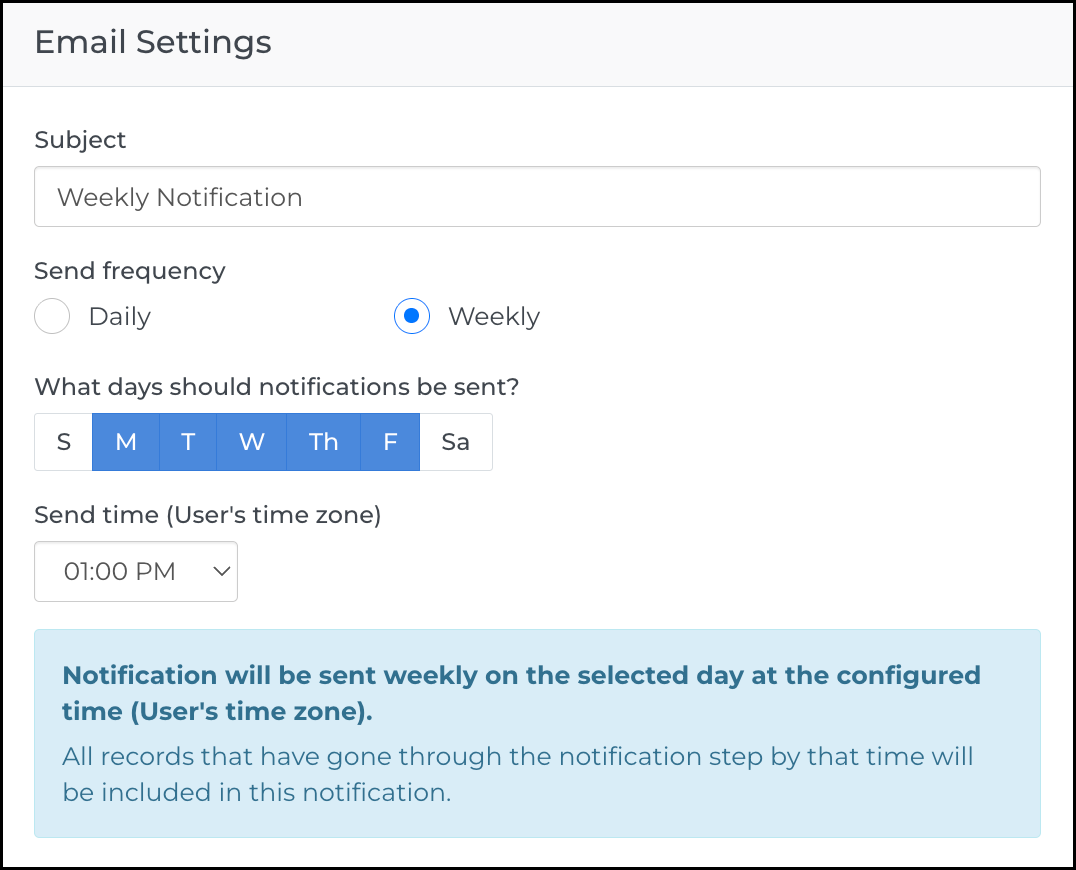
The information displayed in Summarized notification emails is determined by the automation type. The columns included vary depending on the automation type and cannot be customized or changed to display additional fields.
If you need to include specific record details in a notification, use an Individual notification instead. Individual notifications support merge tags, which allow you to include any available field data in the notification email.
If you remove the predefined merge tag box from a Summarized notification template, recipients will receive a blank or incomplete email. Open the notification in the Email Builder and verify the merge tag box is in place if this happens.
-
For a full comparison of notification types and send timing options, see Choose a Notification Type in Bullhorn Automation.
-
-
Create the notification email.
-
From Existing: Attach a notification you have already built. A list of existing notifications appears alongside previews. Use this option to reuse a notification without rebuilding it.
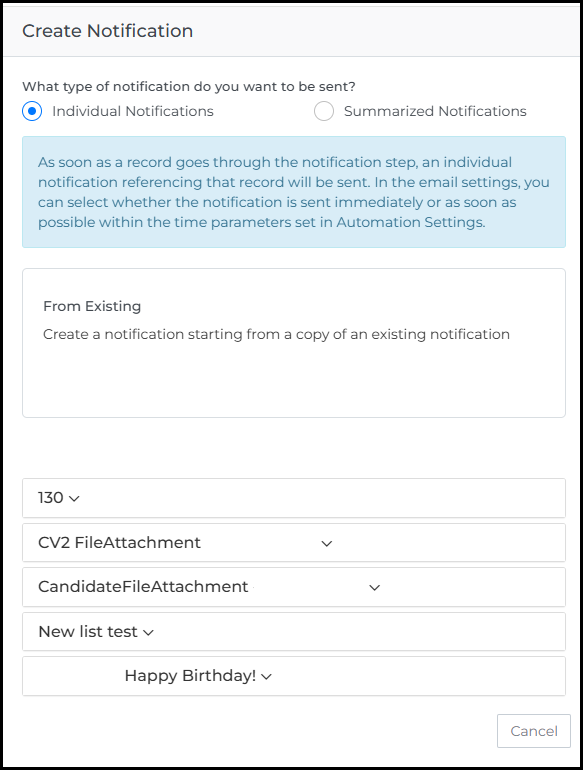
- From Template: Opens the Email Builder, where you can build a notification by editing the provided template.
-
- Add an End Step to complete the automation workflow.
If an automation is paused, Daily and Weekly summary notifications still send for any records that entered the Send Notification step before the automation was paused.
Configure Automation Settings for Respect Automation Settings Option
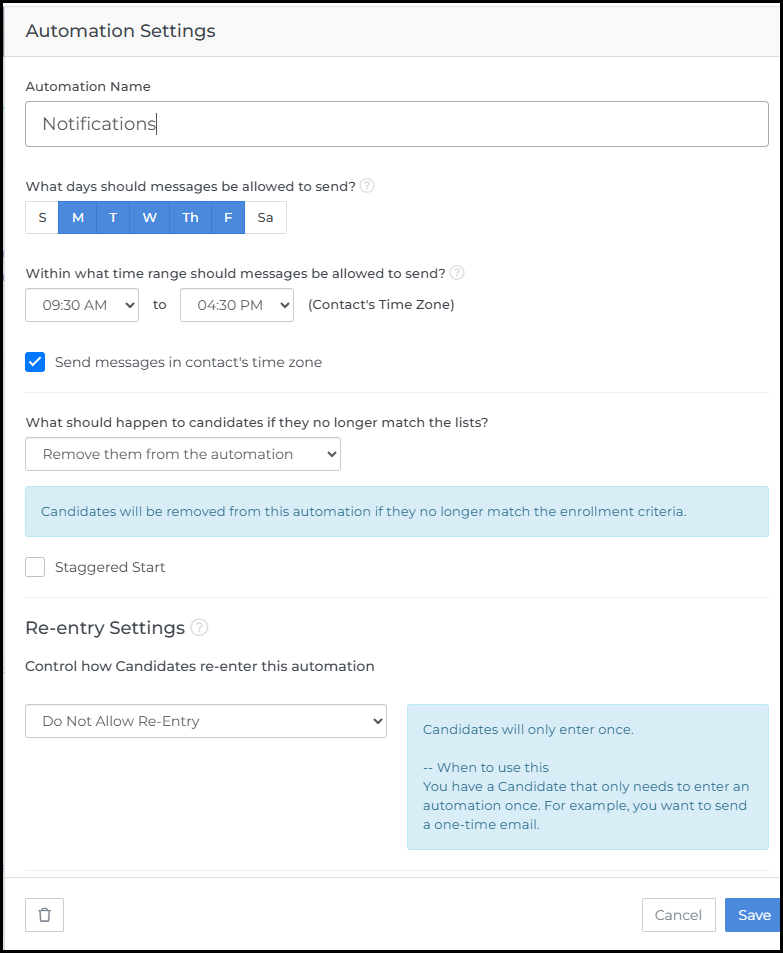
If you selected Respect Automation Settings as the send timing for an Individual notification, configure the following in your Automation Settings. To access these settings, open the automation and select Automation Settings in the top right corner.
- Days to send: Select the days of the week the notification should deliver.
- Times to send: Set the time window during which the notification should deliver.
The notification will deliver as soon as possible within the days and times you configure here. For more information on these settings, see Configuring Automation Settings.
Troubleshooting
If your Daily or Weekly summary email is blank or missing records
Confirm that the predefined merge tag box is still in your notification template. Removing this box prevents the notification from populating. Open the notification in the Email Builder and verify the merge tag box is in place.
If you need to show custom fields in a notification but they are not available
Summarized notifications do not support custom columns or merge tags. Switch to an Individual notification and select Immediate or Respect Automation Settings as the send timing. Individual notifications support merge tags, which allow you to include any available field data.
If a record appears in a summary notification after being removed from the list
Summarized notifications include all records that completed the Send Notification step during the collection period, regardless of whether those records still meet the list criteria when the notification sends. This is expected behavior. Use an Individual notification if you need real-time visibility into status changes.