Adjusting the Record Layout
Learn how to adjust your record layout by adding, removing, and rearranging the tabs and cards that appear.
When you add or drag cards to your desired arrangement on a record overview, they will remain where you've arranged them for all records of that same type. Your personal layout does not affect the layout of other users.
Managing Your Layout
-
Click the Layout button to the right of the record tabs.

-
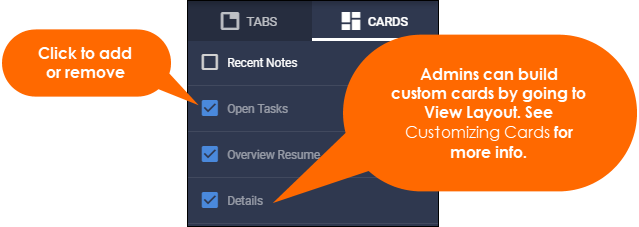
Switch between the Tabs and Cards sections, and check or uncheck the boxes to show or hide tabs and cards.
-
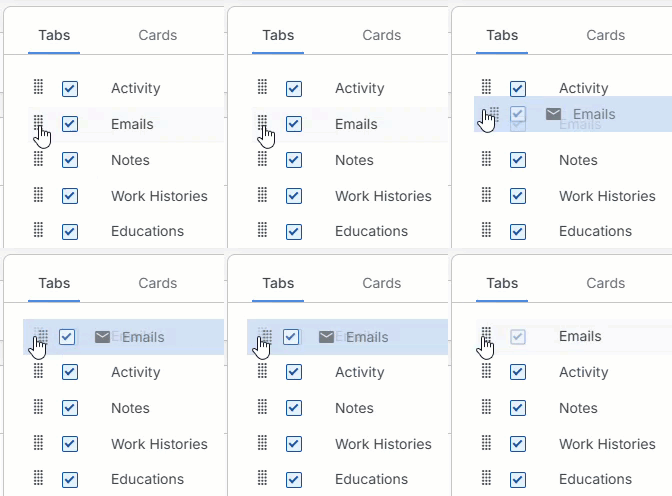
In the Tabs section, click and drag a tab to reorder it on the record.
-
On the record overview, click and drag the move icon in the top left corner of a card to rearrange it.
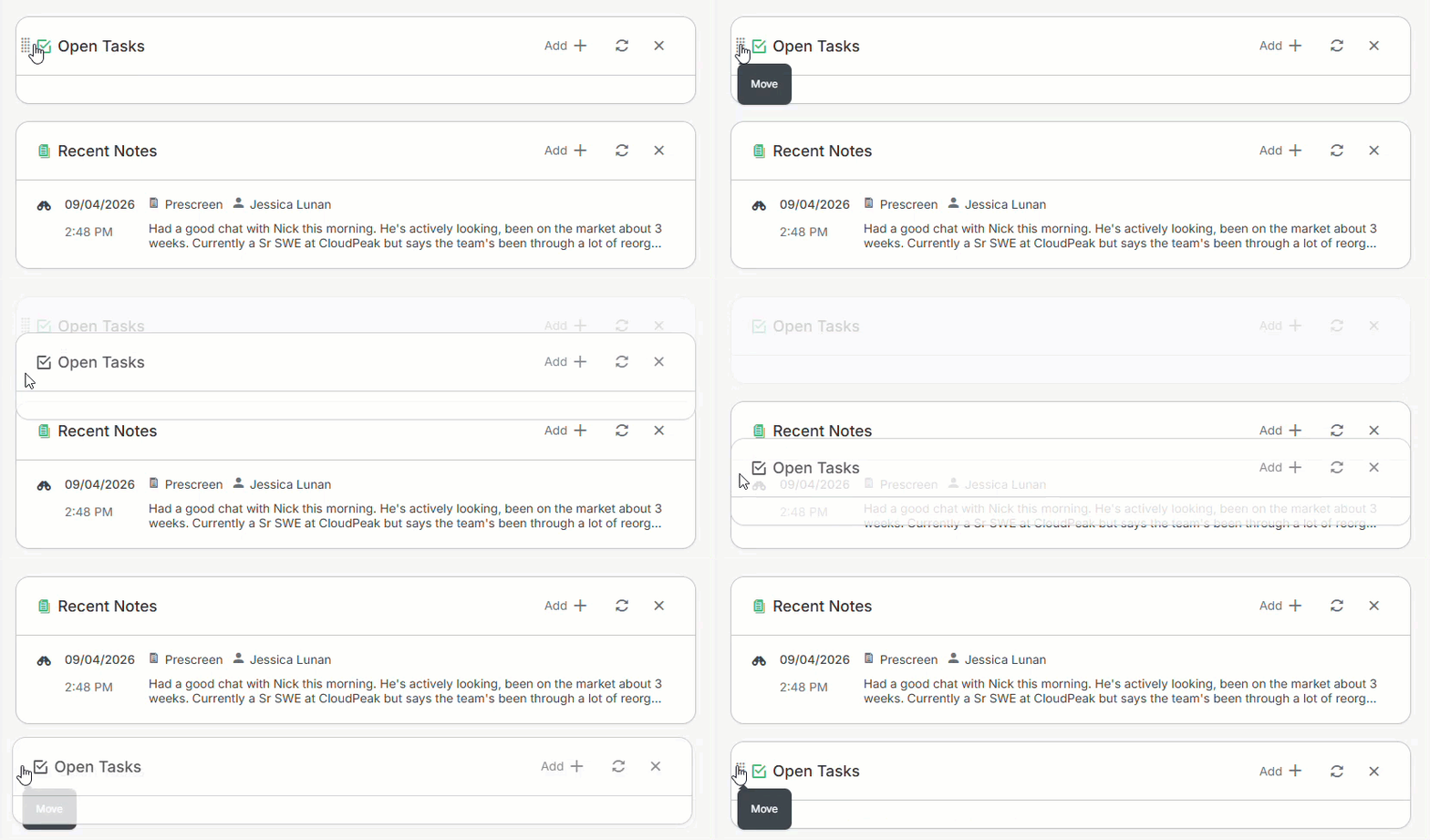
These changes apply across every record of that entity type, but only for your own user. If a card or tab you're looking for isn't available here, your user type may not have access — contact your Bullhorn Admin, who can grant it if needed.
Customizing Cards and Fields (Admins)
Admins can create custom cards to display specific fields, and choose which fields appear on a record's Overview and Profile Header. These changes apply to every user on the same private label, and can't be overridden individually. For steps, see Changing Fields That Appear on Records.