February 2026 Release: Features & Enhancements
February 2026 (2026.02 GA Release - Package Version 9.41)
Advanced Search For Bullhorn Generic Lookup
-
Feature:
-
Level of Configuration: Low-Medium
You can now access an Advanced Search feature when using the Bullhorn Generic Lookup Component, making it easier to find and select the correct records.
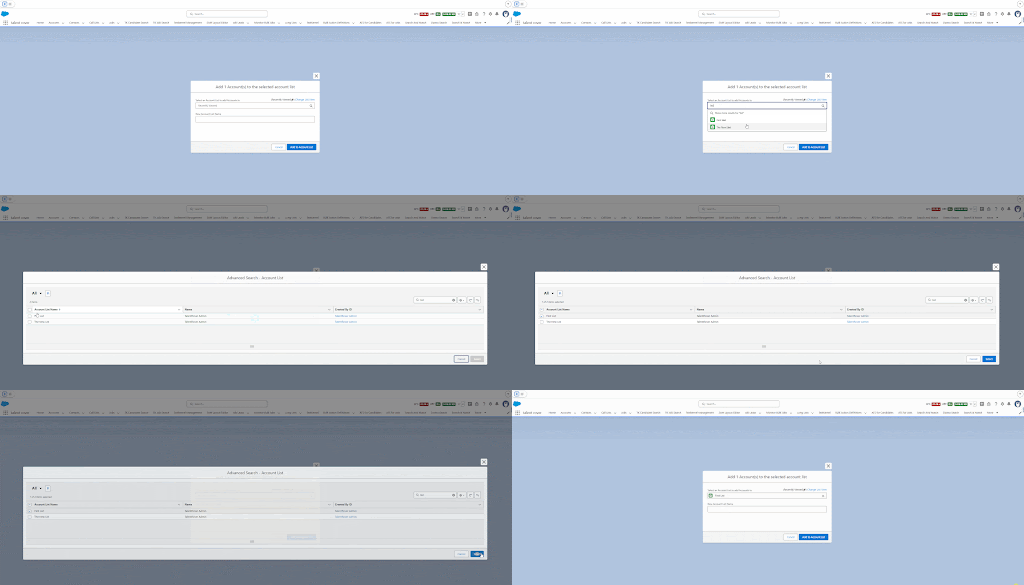
While the Generic Lookup continues to provide immediate results via type-ahead functionality, this update introduces a more comprehensive way to interact with your data. By expanding the record metadata beyond the standard dropdown view, the component now supports a full table view with a configurable fieldset.
Now, when you perform a search using the Generic Lookup, a Show more results button appears. Clicking this opens a modal displaying search results in an Omnitable format. See the Admin: Omnitable User Guide on how to review and compare records with additional metadata fields before making your selection.
Configuration
Prerequisite:
You must have an Omnitable configured for the object you want to enable Advanced Search on. See the Omnitable Configuration Guide for setup instructions.
For each Generic Lookup where you want Advanced Search available:
-
Navigate to .
-
Select Manage Generic Lookup Fieldset.
-
Find the record matching your lookup.
-
Populate the Advanced Search Omnitable Name field with the name of your Omnitable Named Setting (without the "Omnitable_" prefix).
-
Select Save.
