| Edition: All Editions | Audience: User Admin |
Password Management
This article provides instructions on to send a reset password link to a user and how to set a user's password
Reset a User's Password
-
Go to Admin > Users > Manage Activated Users and click on a name to access the user’s profile.
-
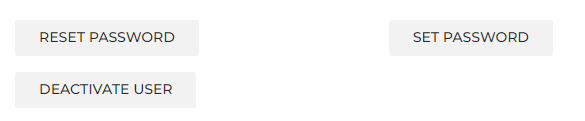
Scroll down on the right and click the Reset Password button to send a reset password link to the email address stored against that account.
Set a User's Password
- Go to Admin > Users > Manage Activated Users and click on a name to access the user’s profile.
- Scroll down on the right and click Set Password.
- Create a new password and select the required options to reset the password on next login and email you and/or the user.
- Click the Update Password button to create the password. If Email User was checked, an email will be sent with the password details to the email address stored against that account.
Use the Generate Password button to auto-generate a unique password.
For help with resetting your own password, see Reset your Password.
Was this helpful?