| Edition: All Editions | Audience: User Admin |
Enabling User Switching
This article provides instructions on how to assign other users so you can switch user views in users.
User Switching
User Switching enables a user to switch to other users assigned to them. This is useful if you restrict end users' access to their own or their group's data. User Switching enables a user to access data for another user, even if they belong to a different group. This expands the range of data that a user can see without requiring complete access to all company data.
Dan manages two global sales teams, one in London and one in New York. In his Bullhorn Analytics account, he currently has the permission User Sees set to Their Group. Being located in the London group, Dan cannot currently see the New York team from this account but he has a separate Observer account set up for the New York team with the same Their Group permission. Rather than having to log into two separate accounts to manage his teams, Dan can now manage both via User Switching.
Steps
- Go to Admin > Users > Manage Activated Users and select the user you wish to add the permission for.
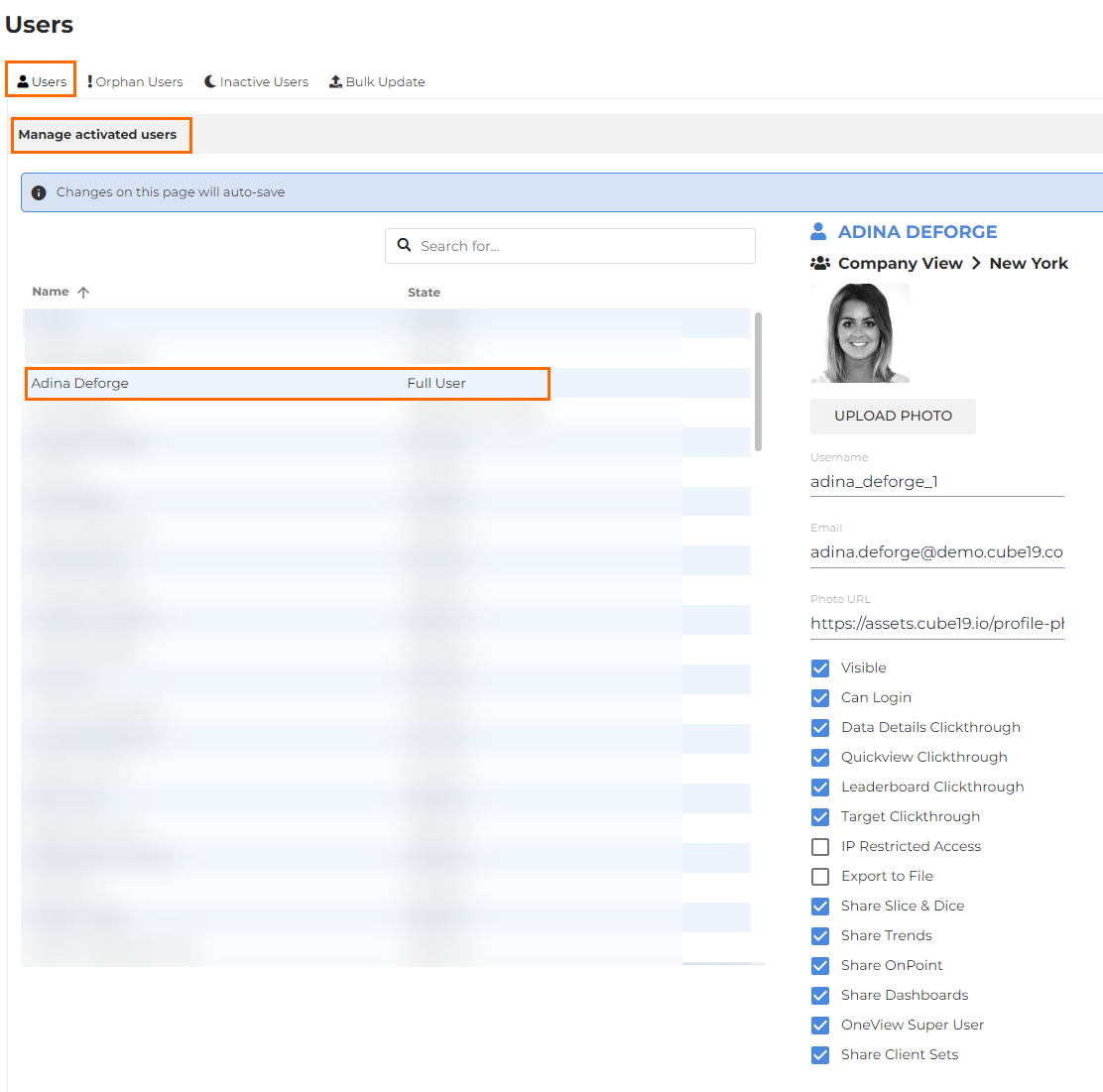
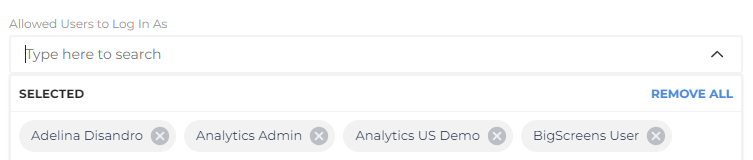
- Under Allowed Users to Log In As, search for user(s) you wish to add and select, or multi-select from the drop-down list.
-
To use User Switching, go to the
 menu option and select from your Available Users.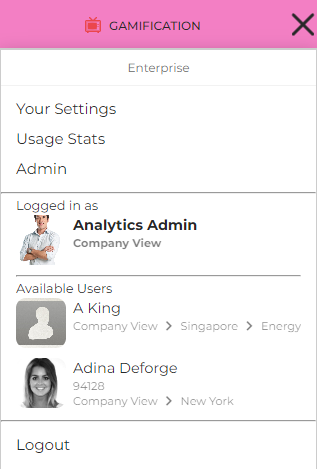
Users chosen for switching may have permissions not available to the primary user. A pop-up will appear detailing the permission outside of their current scope.
