| Edition: All Editions | Audience: User Admin |
Bulk Updating User Permissions: Step 2 - Download and Modify User File
This article explains how to download and modify the CSV file to bulk update user permissions. This is step 2 of the Bulk Updating User Permissions process. To return to the previous step, see Bulk Updating User Permissions: Step 1 - Backup All Users
Downloading the Users File
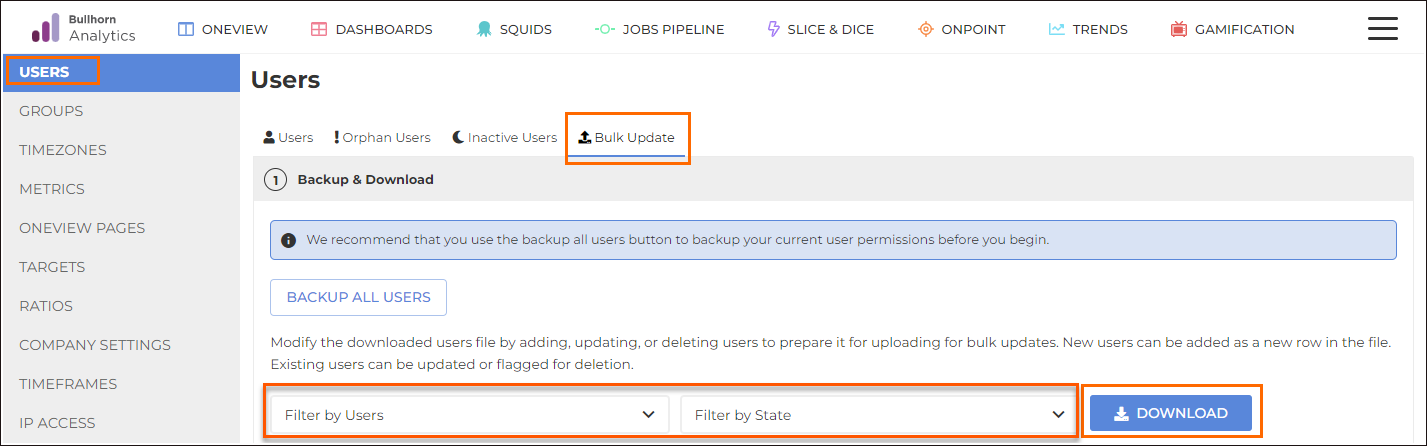
- Go to Admin > Users.
- Click the Bulk Update tab.
- Apply any of the following filters, as needed:
- Users
- State
- Download your current users file by clicking the Download button.
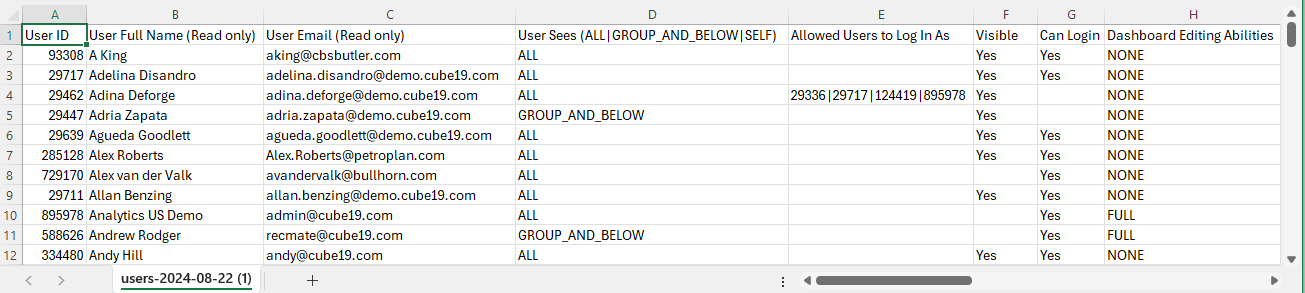
- A CSV file will generate with the naming convention of “users-YYYY-MM-DD.csv". This file is used to add, delete, or modify records.
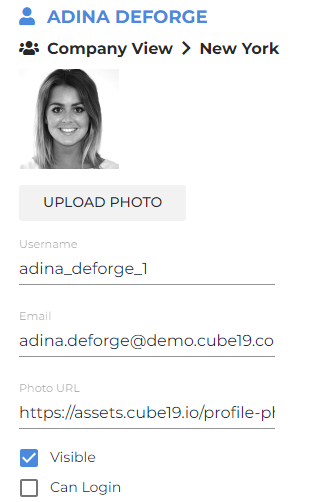
- To add a user permission, populate the field in the appropriate column with Yes. This will place a check in the checkbox on the user profile. Populate the field in the appropriate column with No to uncheck the checkbox. Note: Leaving a cell blank will make no changes. The CSV also supports updating:
- Dashboard Editing Abilities: Use this column to set the user's Dashboard editing permission:
- NONE: No editing abilities
- BASIC: Make layout changes to existing dashboards
- FULL: Create dashboards from scratch
User Type: Use this column to manage user activation status in bulk.
Landing Page: Use this column to manage each user's landing page (limited by app permissions).
- Dashboard Editing Abilities: Use this column to set the user's Dashboard editing permission:
- Once you've finished bulk modifying the users file, proceed to the next step: Bulk Updating User Permissions: Step 3 - Upload Modified Users File
Was this helpful?