| Edition: All Editions | Audience: User Admin |
Bulk Updating User Permissions: Step 3 - Upload Modified Users File
This article explains how to upload your modified CSV file to bulk update user permissions. This is step 3 of the Bulk Updating User Permissions process. To return to the previous step, see Bulk Updating User Permissions: Step 2 - Download and Modify User File.
It is highly recommended that you backup all users before uploading a file to update user permissions. Ensure you follow the steps in Bulk Updating User Permissions: Step 1 - Backup All Users before proceeding.
Uploading the Users File
CSV file limits are currently 20 MB; larger files may cause an error.
- Go to Admin > Users.
- Click the Bulk Update tab.
-
Under the Upload section, select your CSV file separator formatting from the Upload Formatting Options dropdown.
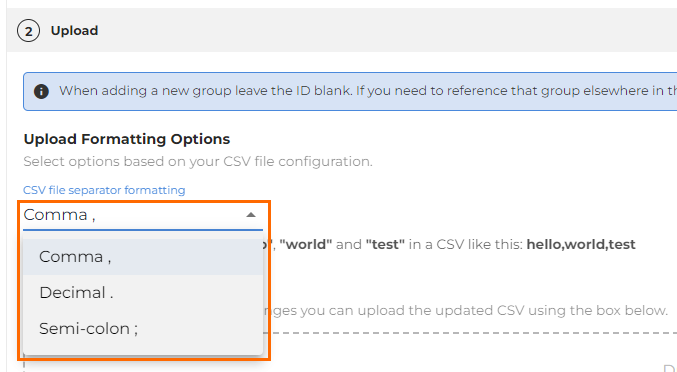
- Supported separators are comma, decimal, and semi-colon.
- Supported separators are comma, decimal, and semi-colon.
- Either drag and drop your users file into the Upload box or click the choose a file hyperlink to browse for the file on your computer.
- Full and partial files are accepted.
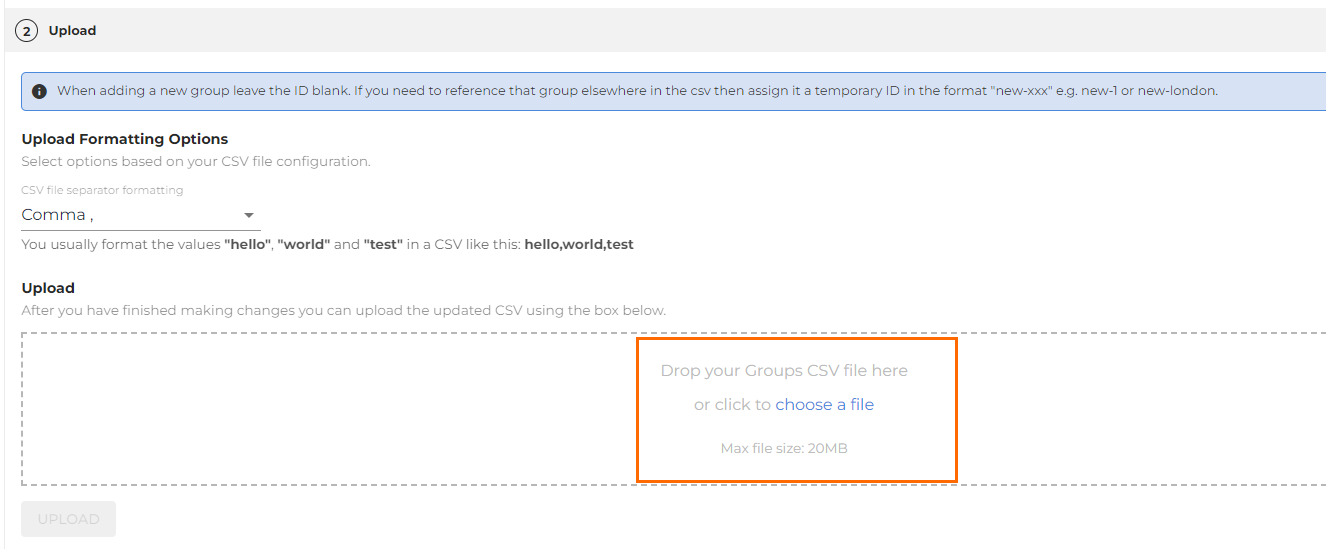
- Click the Upload button once it becomes selectable.
- If you choose the wrong file by accident, remove the incorrect file once it is available and then upload the correct file by completing the previous steps.
Status of Uploaded Files
The status of uploaded files will show once the file has completed processing.
- If no errors are present, your file has been uploaded successfully.
- If an error is present, continue onto the next section.
Status history will display for the last 1,000 uploaded files. If you need assistance with retrieving a historical file, please contact Support.
Errors
Errors will display as either a file level error, or a record level error within the file.
- A file level error indicates an issue with the file itself. This typically happens if column headers are missing.
- A record level error indicates an issue with a specific record(s) in the file itself. An example of a record level error is an invalid value in the column of the uploaded file.
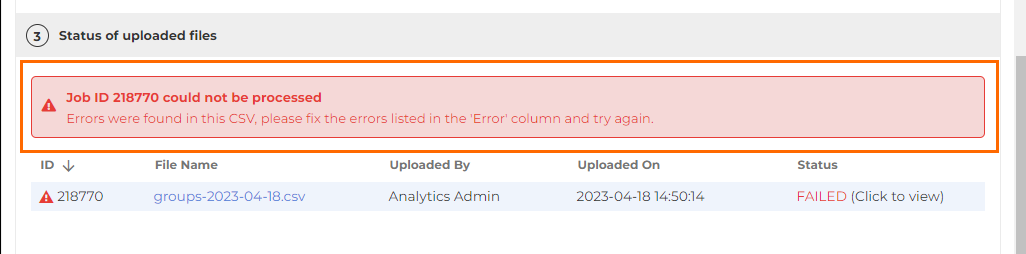
If you click Download to view, there will be a new Error column. The exact error will display in the row(s) where the issue was found.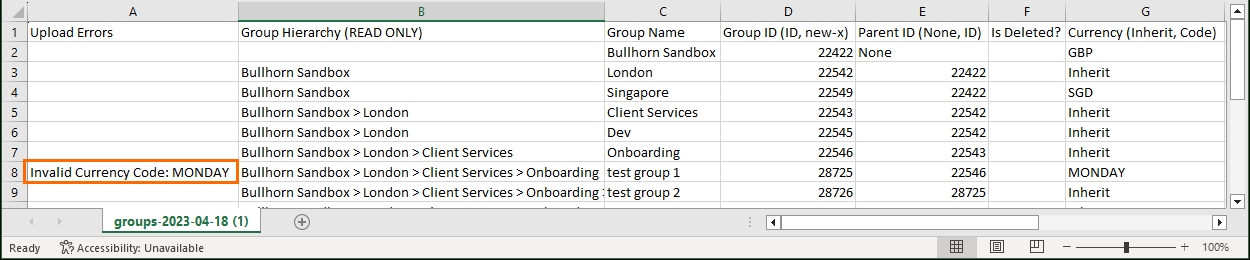
You are able to download and then re-upload the same file for bulk updating. If a file with an Error column is provided, the Error column will be ignored to allow for reprocessing.